




AI Assistant Connections | CloudMedico Documentation
This guide explains how to connect a supported AI assistant to CloudMedico, decide what it may access, and stop access when needed. It is for clinic administrators, practitioners, and practice staff.
Overview
An AI assistant connection lets a supported assistant ask CloudMedico for permitted recorded information and perform only permitted actions. MCP is the connection standard behind this; you do not need technical knowledge to use the setup page.
Supported use includes reviewing a day, preparing for a patient, checking recorded history and follow-up work, and—when the clinic has enabled it—creating or updating permitted records. CloudMedico remains the source of record.
Enable AI connections
A clinic administrator opens Claude & ChatGPT in the clinic menu, reviews the external-provider notice, turns on Allow AI assistant connections, selects the allowed tools, and saves. This setting applies to the whole clinic.
Each person then chooses their own data permissions under Set permissions. Read access returns recorded information. Write access is limited to the enabled tools, the user's permissions, and any required confirmation. A user who is not a clinic administrator can review the clinic policy but cannot change it.
Connect Claude
CloudMedico supports Claude through OAuth. In Claude, open Settings → Connectors → Add custom connector, choose Use your own OAuth client, and enter the server URL and Client ID shown on the CloudMedico setup page. Leave the Client Secret blank, then select Connect to approve access.
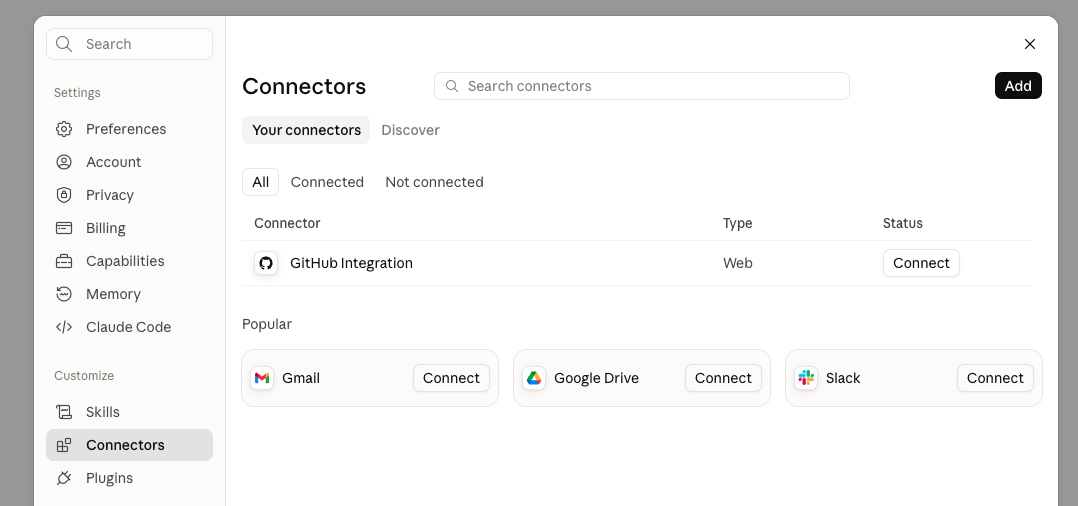
After connecting, return to CloudMedico and check Connections. You can stop access there at any time. A stopped OAuth connection is not restored; connect again in Claude if you want to use it later.
Connect the ChatGPT desktop app and Codex
The supported desktop path uses the shared ChatGPT/Codex MCP configuration. In the CloudMedico setup page, generate a named token. Copy it immediately: CloudMedico shows the full value only once. In the desktop app, add a custom Streamable HTTP MCP connection using the server URL and an Authorization header containing the copied Bearer value.
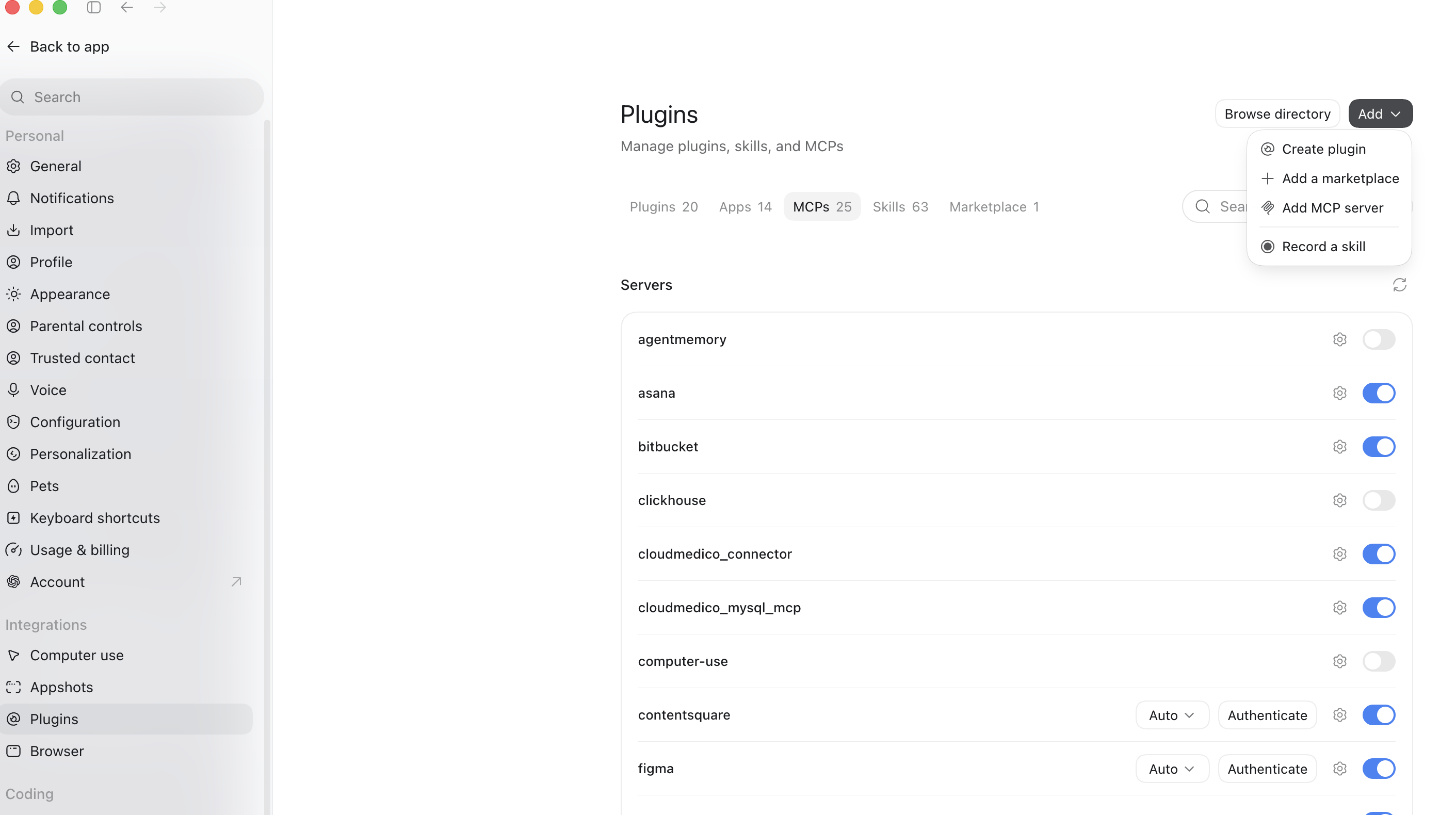
Do not put a token in a screenshot, message, or shared document. If it is lost or shared by mistake, stop it from Connections and generate a new one. The old token cannot be recovered.
Classic ChatGPT web
Classic ChatGPT in a web browser is not supported. This guide applies to the tested 2026 desktop app path and its configured MCP connection, not to every ChatGPT product or plan. Do not use unverified web setup instructions.
Patient AI references
Use the patient's CloudMedico AI reference, shown as CM-XXXXXXXXXXXXXXXX, when asking about a patient. It is a pseudonymous reference, not anonymous data and not the patient's internal database or application ID.
You can view or copy the reference from the patient's page or the Reference column in the patient list. Patient-name lookup is not available through the connection. If a reference is shared by mistake, change it on the patient's page; the old one stops working immediately.
Read permissions
The clinic and the connected user choose which read tools are available. Depending on those choices and record visibility, an assistant may retrieve appointments, visits, prescriptions, exams, allergies, conditions, surgeries, discharges, document metadata, follow-up work, and practice statistics. Clinical notes are a separate permission because they may contain sensitive free text.
A tool returning no information does not mean a record does not exist. Access is also limited by clinic enablement, enabled tools, connection scopes, the user's live permissions, record visibility, and whether the connection remains active.
Write permissions
When write access has been explicitly enabled, the supported actions are creating or updating appointments, cancelling appointments, creating or updating visits, creating or updating prescriptions, and creating or updating exams. CloudMedico does not use this connection for invoices, attachments, patient messaging, external calendar synchronisation, or deletion.
Creating or updating an appointment can proceed from a clear instruction when the selected time is available. Appointment cancellation, conflict overrides, and all visit, prescription, and exam changes require explicit confirmation.
Confirmation and safety
Before a sensitive change, the assistant should show the details it intends to save and wait for a clear confirmation such as Yes, save that. For a prescription, review the patient reference, prescriber, medicine, dosage, frequency, duration, quantity, start date, and instructions before confirming.
CloudMedico checks current access and the current record when it receives the request. If the information is stale, the appointment conflicts, a required permission is missing, or a rate limit is reached, review the current record in CloudMedico before trying again. Always check patient information in CloudMedico before acting on an assistant response.
Security and privacy
CloudMedico-hosted AI Scribe and AI Patient Summary use Zero Data Retention endpoints: their clinical content is not retained by the AI provider after processing and is not used to train AI models. Connected assistants are separate: ChatGPT, Claude, and other MCP clients use the privacy settings and terms of the provider or account you connect, so this hosted-AI policy does not extend to them.
CloudMedico sends only the data and allows only the actions that the clinic and user have approved. Patient-name lookup and raw internal database or application identifiers are not available through the connection. The AI-facing patient view excludes the direct identity fields confirmed by the product, including the patient's name, exact date of birth, and contact details.
CloudMedico records connection and access events for auditability, without storing patient names, patient references, or record content in usage history. Stop a connection or revoke a token from Connections; an administrator can stop all connections in Clinic settings. Once information is sent outside CloudMedico, the external provider's terms and privacy settings apply. Your clinic remains responsible for assessing the provider, its data-processing terms, and the clinic's patient-information and consent arrangements.
Example prompts
Try prompts that request recorded facts and use a CloudMedico reference: What's my schedule today? · Prepare me for this patient using their CloudMedico reference. · What follow-ups are due today? · Show this patient's recorded allergies and conditions.
For enabled write workflows, keep the request specific: Book a follow-up appointment. · Show me the visit details before I confirm saving them. Do not ask an assistant to make clinical decisions or act without your review.
Prompt Cookbook
For 25 practical, grouped prompts with clear write-tool and confirmation labels, use the public Prompt Cookbook. It expands these examples instead of repeating the setup guidance.
Open the Prompt CookbookTroubleshooting
If the connection is revoked or the tool is disabled, enable it again only if appropriate and reconnect or create a new token. If access is denied, check the clinic's enabled tools, connection scopes, your CloudMedico permissions, and record visibility. If a patient reference is invalid or rotated, copy the current reference from CloudMedico.
For a stale record, appointment conflict, confirmation request, or rate limit, review the record in CloudMedico and try again only after resolving the issue. If an assistant does something unexpected, stop its access first. Then use the request code from Usage history when contacting CloudMedico support.