




Exporting Visits from CloudMedico
CloudMedico provides a flexible way to export your visit data to an Excel file (.xlsx). This allows you to easily transfer visit information for various administrative, reporting, or analytical purposes.
How Export Works
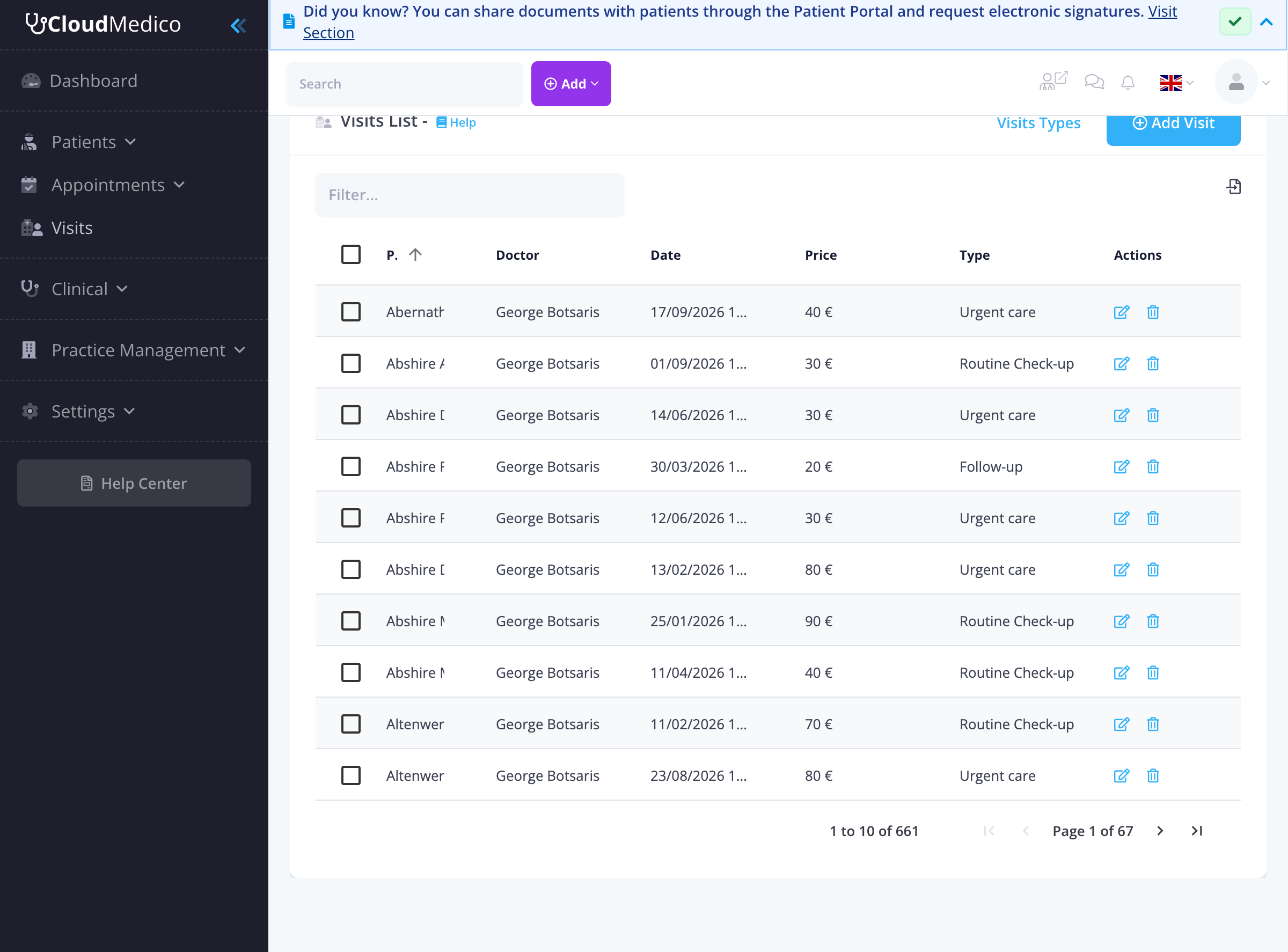
To export visits, you must first select the records you wish to export from the Visits List View. The 'Export Selected' button will only become visible and active once one or more visits have been selected.
Step-by-Step Export Process
Follow these steps to export visit records:
1. Navigate to Visits List: From the main menu, go to 'Visits' -> 'View Visits'.
2. Select Records: Use the checkboxes next to each visit to select the visits you want to export. You can select one or multiple visits.
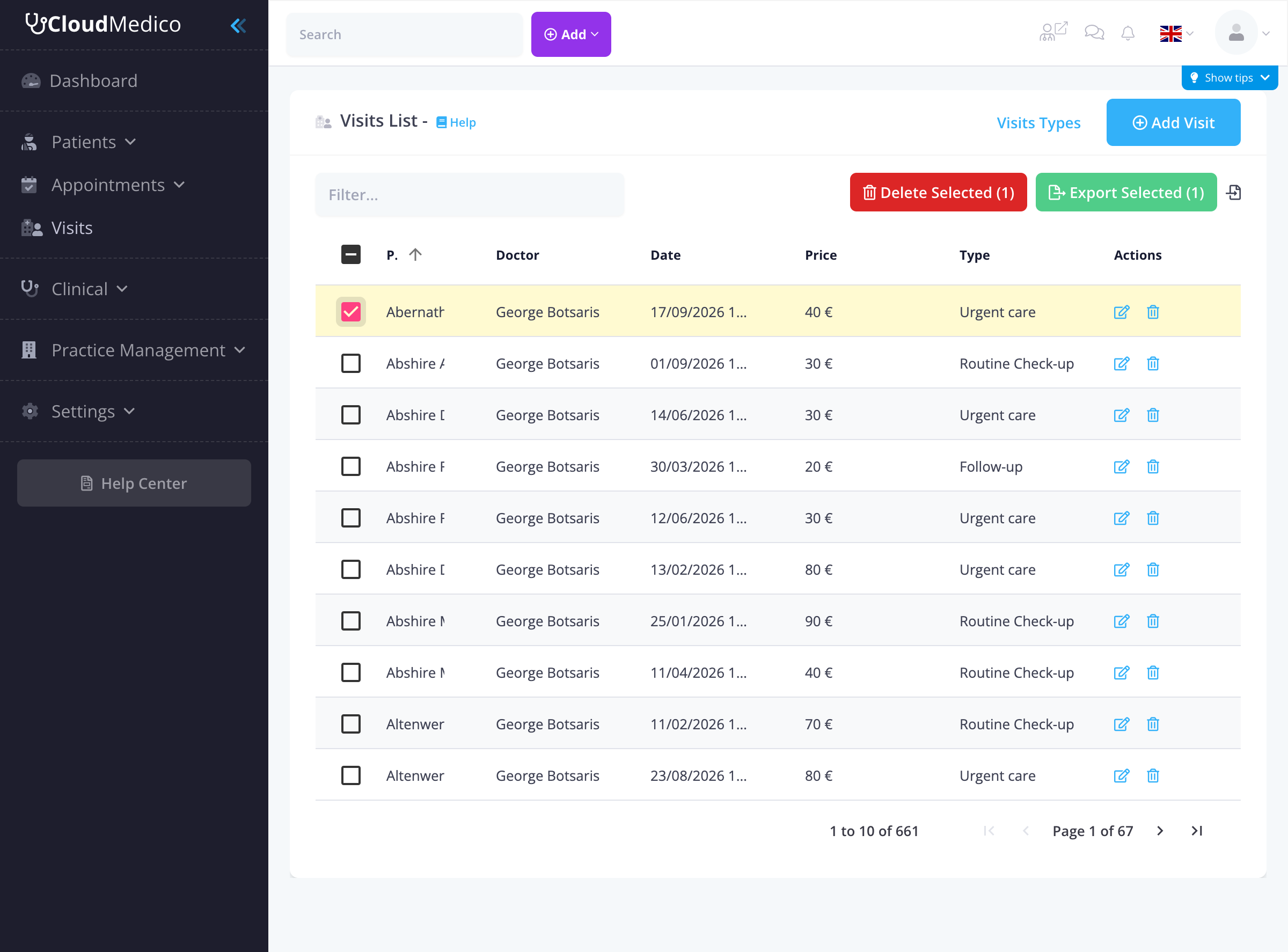
3. Click 'Export Selected': Once you have selected your desired visits, a button labeled 'Export Selected (X)' (where X is the number of selected visits) will appear at the top of the list. Click this button.
4. Download File: Your browser will automatically download an Excel file named `visits.xlsx` containing the data of the selected visits.
Exported Data Fields
The exported Excel file includes comprehensive visit information, such as:
- Visit ID
- Patient Information (Name, Contact details)
- Practitioner Information (Name, Specialty)
- Visit Details (Date, Time, Type)
- Visit Type (Follow-up, Routine Check-up, Urgent care)
- Price (Visit cost)
- Leave Dates (Start and end dates if applicable)
- Notes (Visit observations and details)
Selection Features
The visits list provides several selection options:
- Individual Selection: Click checkboxes next to specific visits
- Multiple Selection: Select multiple visits by clicking multiple checkboxes
- Visual Feedback: Selected visits are highlighted and the export button shows the count
- Clear Selection: Uncheck boxes to deselect visits
Filtering Before Export
To export specific subsets of visits, use the filtering options:
- Date Range: Filter visits by specific date ranges
- Practitioner: Filter by specific practitioners
- Visit Type: Filter by visit type
- Patient: Filter by specific patients
Tips for Exporting
- Filter First: Use the filtering options to narrow down the visits before selecting for export
- Review Data: Always review the exported Excel file to ensure all necessary data has been included
- Data Privacy: Be mindful of data privacy regulations when handling exported visit information
- File Management: Organize exported files with descriptive names and dates
- Regular Exports: Consider regular exports for backup and reporting purposes