




Appointments Calendar in CloudMedico
The Appointments Calendar in CloudMedico provides a comprehensive visual overview of your scheduled appointments. This powerful tool allows you to view appointments in monthly, weekly, or daily formats, making it easy to manage your practice schedule and identify availability.
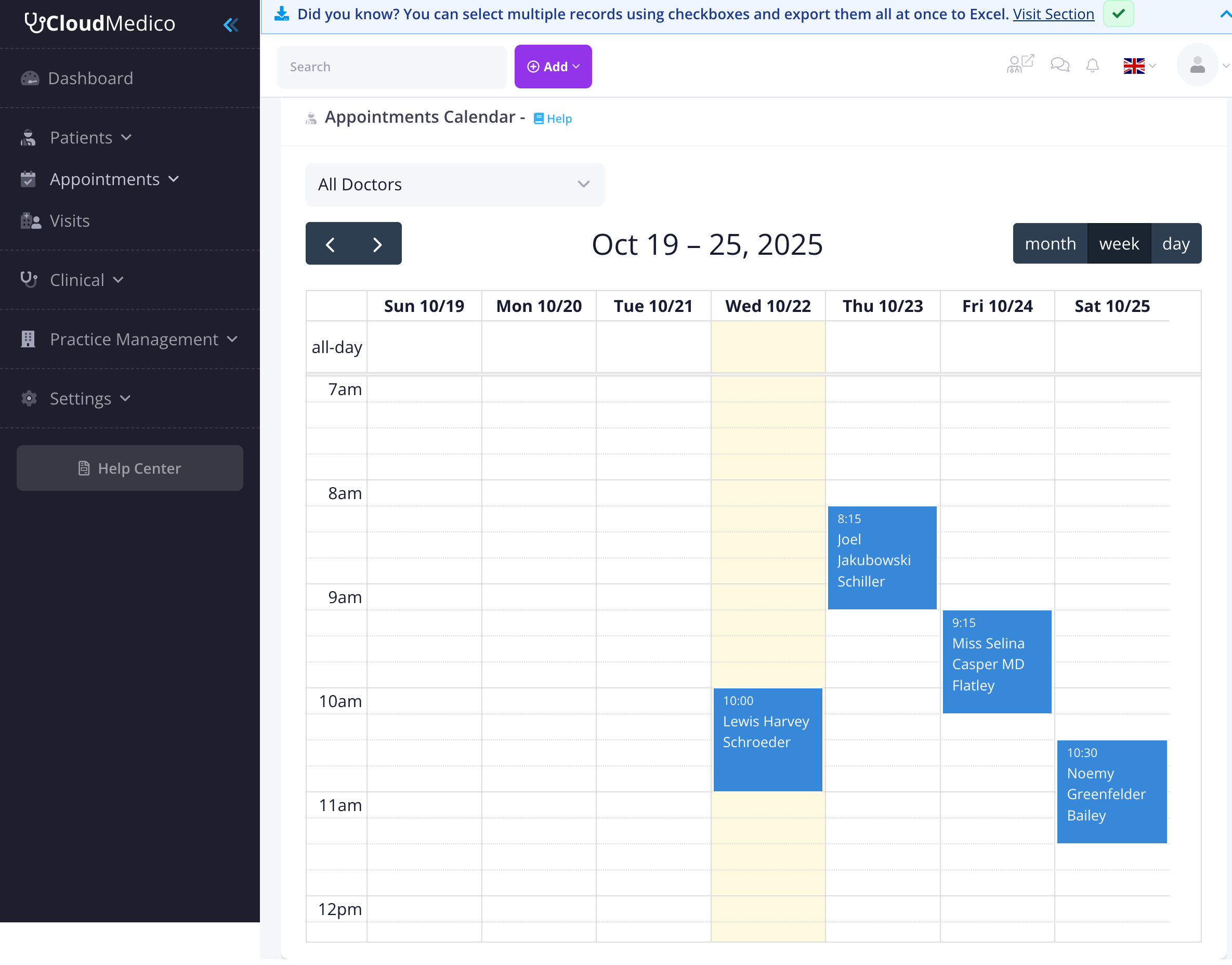
Calendar Overview
The calendar interface displays appointments in a clear, organized grid format. Each appointment shows the time, patient name, and practitioner assigned. The calendar automatically highlights the current week and provides intuitive navigation controls.
View Options
CloudMedico offers three different calendar views to suit your workflow preferences:
- Week View: Shows a detailed weekly schedule with hourly time slots
- Month View: Provides a monthly overview for long-term planning
- Day View: Focuses on a single day with detailed hourly breakdown. On a phone the calendar opens on this view
Practitioner Filtering
If your practice manages multiple practitioners, you can filter appointments by practitioner using the dropdown selector. This allows you to:
- View appointments for a specific practitioner
- Analyze individual practitioner schedules
- Identify scheduling conflicts or availability
Hiding Weekends
If your practice doesn't open on Saturday and Sunday, untick Show weekends above the calendar. The month, week and day views then show Monday to Friday only, and the arrows in the day view skip from Friday to Monday.
The choice is yours alone and is kept in this browser: other users, and you on another computer or phone, still see weekends until it's switched off there too.
If an appointment in the view you're looking at falls on a Saturday or Sunday, a notice above the calendar says how many there are. Press Show weekends in the notice to see them.
Navigation Controls
The calendar includes intuitive navigation controls:
- Previous/Next Week: Navigate between weeks using arrow buttons
- View Toggle: Switch between week, month, and day views
- Current Date Display: Shows the current week range
Appointment Management
From the calendar view, you can:
- Click on any appointment to edit its details
- View appointment information in a compact format
- Quickly identify scheduling patterns and availability
Tips for Effective Calendar Use
To make the most of your appointments calendar:
- Use the week view for daily practice management
- Switch to month view for long-term planning
- Filter by practitioner to manage individual schedules
- Check the calendar regularly to stay on top of your schedule