

Appointments List View
The Appointments List View in CloudMedico provides a comprehensive table-based interface for managing all your appointments. This powerful tool displays essential appointment information in an organized, sortable format that makes it easy to find, review, and manage your practice schedule.
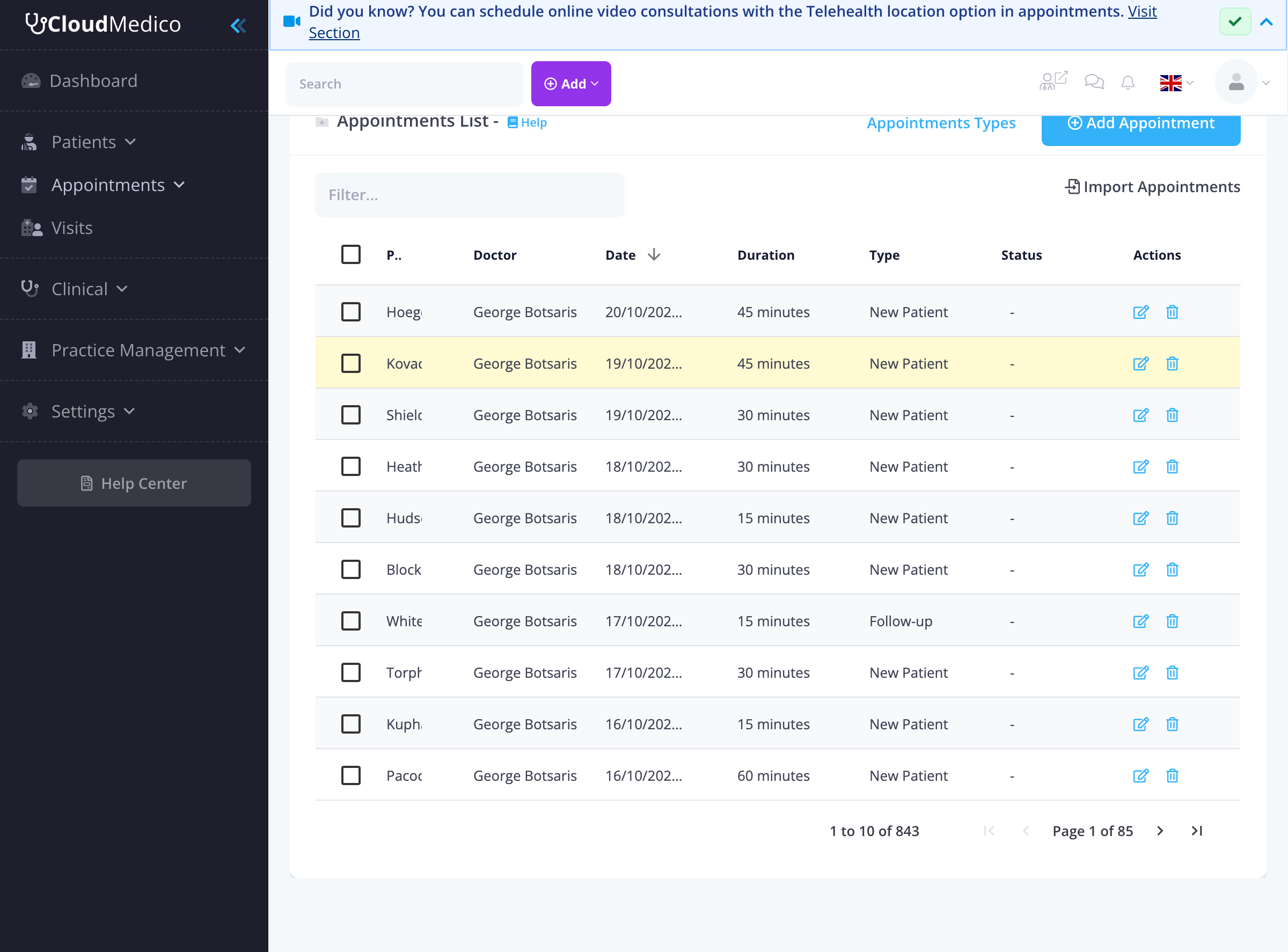
List Overview
The appointments list displays key information for each appointment including:
- Patient: Patient name with checkbox for selection
- Doctor: Assigned doctor for the appointment
- Date: Appointment date and time
- Duration: Length of the appointment
- Type: Appointment type (New Patient, Follow-up, etc.)
- Status: Current appointment status
- Actions: Edit and delete options
Search and Filtering
The appointments list includes powerful search and filtering capabilities:
- Search Filter: Use the search box to quickly find specific appointments by patient name, doctor, or other criteria
- Column Sorting: Click on any column header to sort appointments by that field
- Pagination: Navigate through large appointment lists using the pagination controls
Bulk Operations
The list view supports bulk operations for efficient appointment management:
- Selection: Use checkboxes to select individual appointments or the header checkbox to select all
- Bulk Delete: Delete multiple appointments at once
- Bulk Export: Export selected appointments to Excel
Individual Actions
Each appointment row provides quick access to common actions:
- Edit: Click the edit icon to modify appointment details
- Delete: Click the delete icon to remove an appointment (with confirmation)
Table Customization
The appointments table offers several customization options:
- Column Resizing: Drag column borders to adjust column widths
- Sorting: Click column headers to sort by that field (ascending/descending)
- Responsive Design: Table adapts to different screen sizes
Quick Actions
The appointments list includes several quick action buttons:
- Add Appointment: Create new appointments directly from the list
- Import Appointments: Bulk import appointments from Excel files
- Appointment Types: Manage appointment type definitions
Tips for Effective List Management
To make the most of your appointments list:
- Use the search filter to quickly find specific appointments
- Sort by date to see upcoming appointments first
- Use bulk selection for efficient appointment management
- Check the list regularly to stay on top of your schedule