

Managing Custom Fields in CloudMedico
CloudMedico provides comprehensive custom field functionality to help you extend the system with your own data fields. This powerful feature allows you to create custom field groups and individual fields that can be added to patients, visits, appointments, and other entities in your practice.
Custom Fields Overview
The Custom Fields section is located under the Practice Management dropdown menu. It provides tools to create custom field groups and individual fields that can be used throughout your practice to capture additional information specific to your needs.
Custom Field Groups
Custom field groups are containers that organize related custom fields together. They help you categorize and manage your custom fields effectively.
Viewing Custom Field Groups
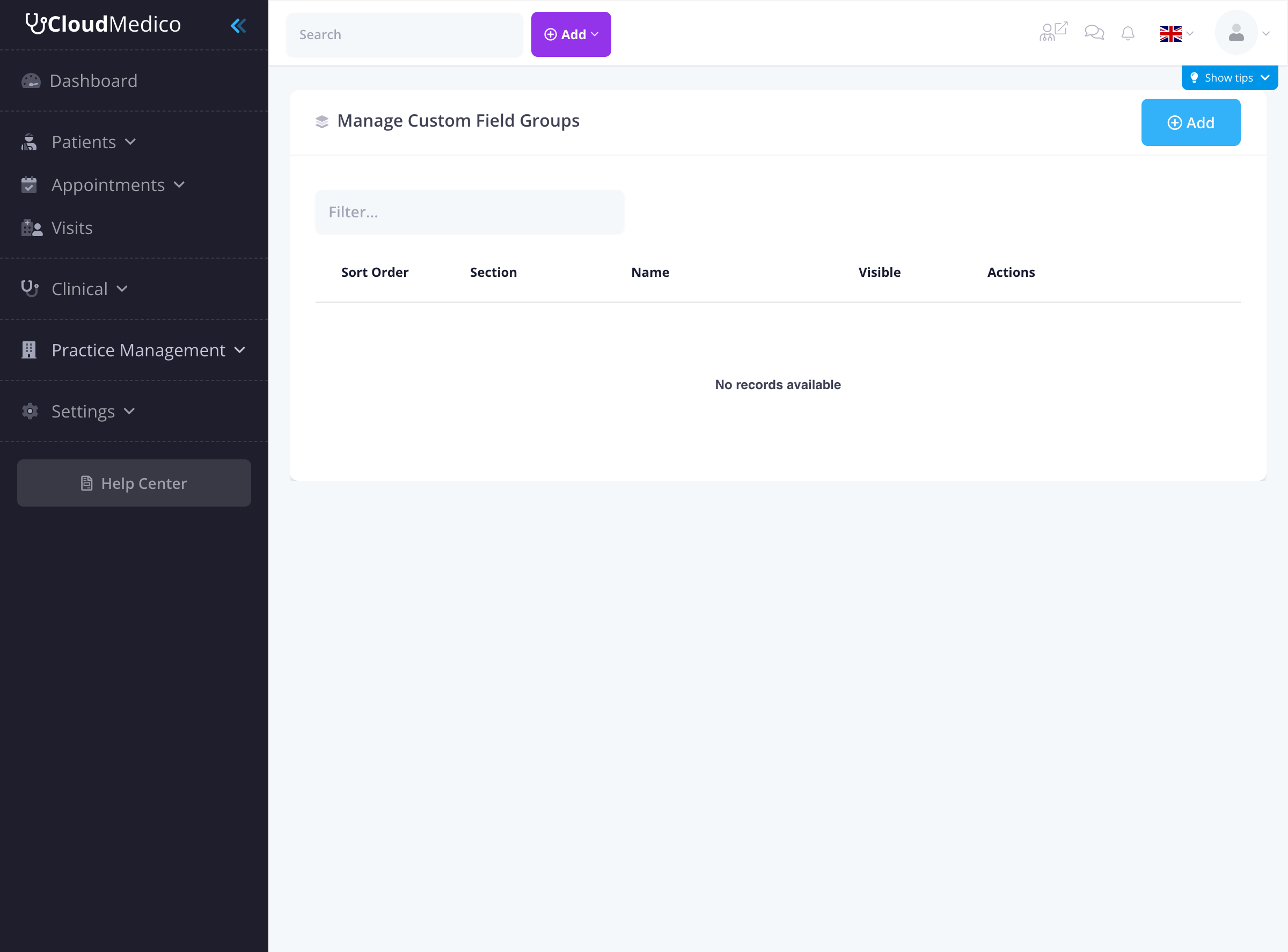
The Custom Field Groups page displays all groups in your practice. From here, you can see an overview of available groups, manage existing ones, and create new groups.
Adding New Custom Field Groups
To add a new custom field group, click on the 'Add' button. You will be presented with a form to enter the group details:
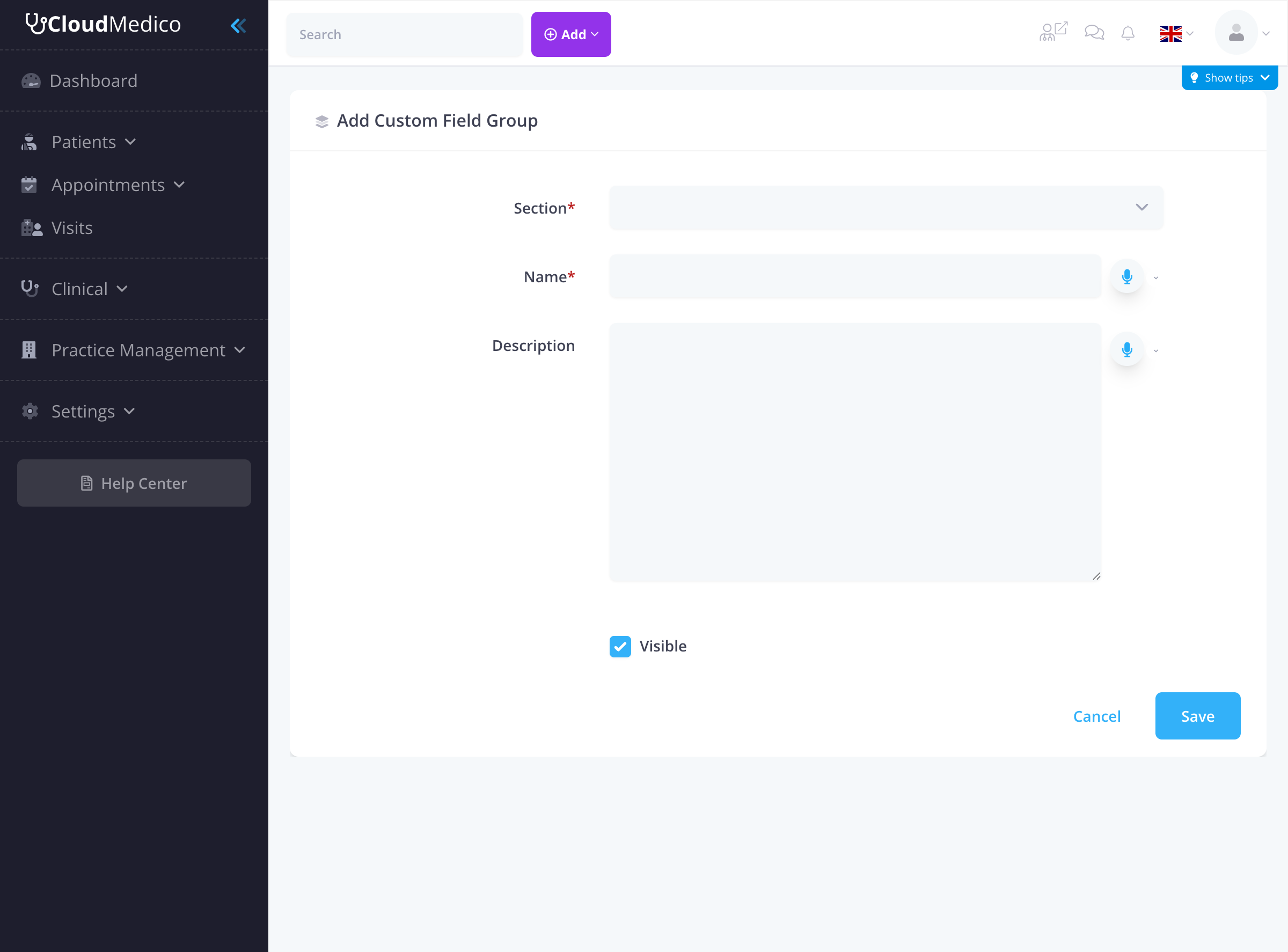
Key fields include:
- Section: Choose which section this group applies to (Patients, Visits, Appointments). Choose Patient Forms to use the group as a section of a patient form instead; see Patient Documents, Forms & E-Signatures.
- Name: The name of the custom field group (required field)
- Description: A description of what this group contains
- Visible: Whether the group is visible in forms
Custom Field Definitions
Once you have created a custom field group, you can add individual custom fields to it. These fields define the specific data you want to collect.
Viewing Custom Field Definitions
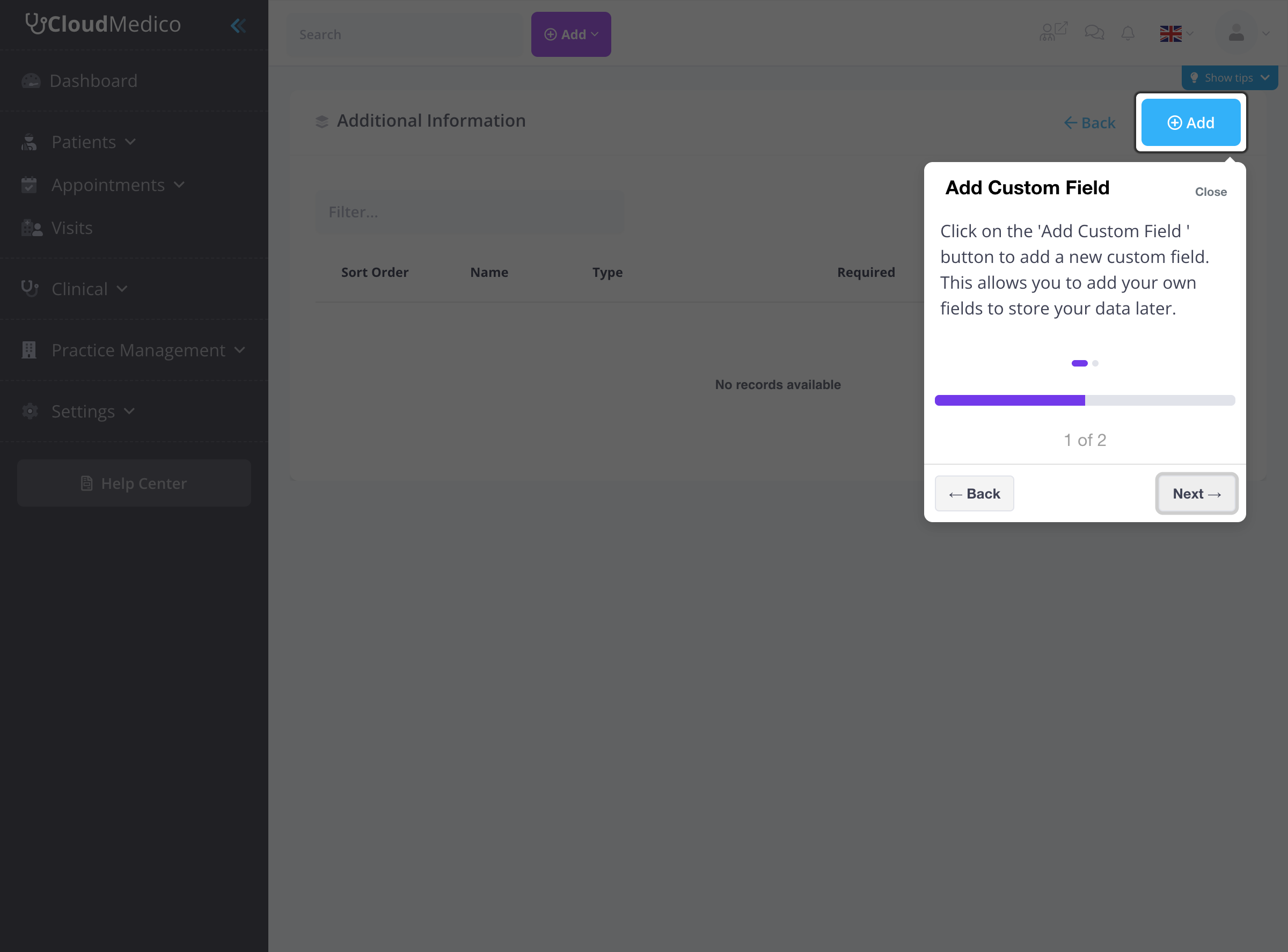
The Custom Field Definitions page shows all fields within a specific group. From here, you can manage individual fields and their properties.
Adding New Custom Fields
To add a new custom field, click on the 'Add' button. You will be presented with a comprehensive form to define the field:
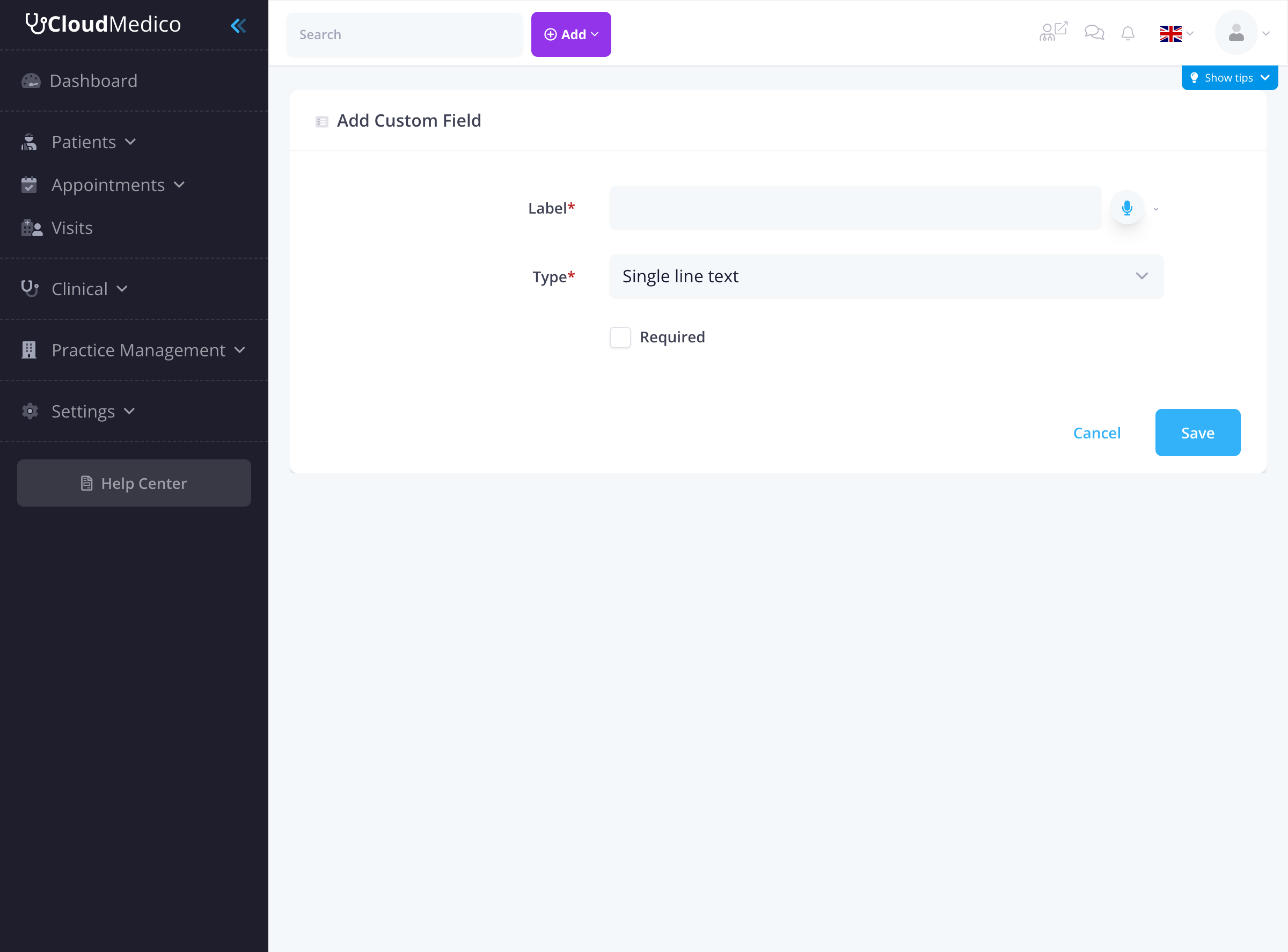
Key fields include:
- Label: The display name for the field (required field)
- Type: The type of field to create (required field)
- Required: Whether the field is required when filling out forms
Field Types Available
CloudMedico supports various field types to meet different data collection needs:
- Single line text: For short text inputs like names, codes, or brief descriptions
- Multi-line text: For longer text content like notes, comments, or detailed descriptions
- Numeric value: For numbers, measurements, or quantities
- Date picker: For date selection with a calendar interface
- Dropdown selection: For choosing from a predefined list of options
- Yes/No checkbox: For simple true/false or yes/no responses
- Radio button options: For selecting one option from multiple choices
Multilingual Support
All custom field labels and descriptions support multiple languages, allowing you to maintain field information in different languages for international practices or multilingual environments.
Integration with Forms
Once created, custom fields automatically appear in the relevant forms throughout CloudMedico:
- Patient Forms: Custom fields for patients appear in patient add/edit forms
- Visit Forms: Custom fields for visits appear in visit add/edit forms
- Appointment Forms: Custom fields for appointments appear in appointment add/edit forms
Managing Custom Fields
The custom fields system provides several management features:
- Sort Order: Control the order in which fields appear in forms
- Visibility: Show or hide fields as needed
- Edit Fields: Modify field properties after creation
- Delete Fields: Remove fields that are no longer needed
Use Cases for Custom Fields
Custom fields can be used for various purposes:
- Patient Information: Additional patient demographics, preferences, or special requirements
- Visit Details: Specific visit information, treatment notes, or follow-up requirements
- Appointment Notes: Special instructions, preparation requirements, or appointment-specific information
- Practice-Specific Data: Information unique to your practice's workflow or requirements
Tips for Effective Custom Field Management
To make the most of custom fields:
- Plan Your Fields: Think about what additional information you need before creating fields
- Use Descriptive Labels: Choose clear, descriptive names for your fields
- Group Related Fields: Organize related fields into logical groups
- Consider Field Types: Choose the most appropriate field type for the data you're collecting
- Test Fields: Test custom fields with sample data to ensure they work as expected
- Regular Review: Periodically review and update custom fields as your practice needs evolve
- Staff Training: Ensure all staff members understand how to use custom fields effectively