




Managing Invoices in CloudMedico
CloudMedico's Invoices Management feature provides a comprehensive solution for handling all your practice's billing needs. With an intuitive interface, you can create, track, and manage invoices efficiently, ensuring smooth financial operations for your practice.
Invoices Overview
The Invoices section is located under the Practice Management dropdown menu. It provides tools to view, add, and manage patient invoices with detailed billing information, payment tracking, and financial reporting capabilities.
Invoices List View
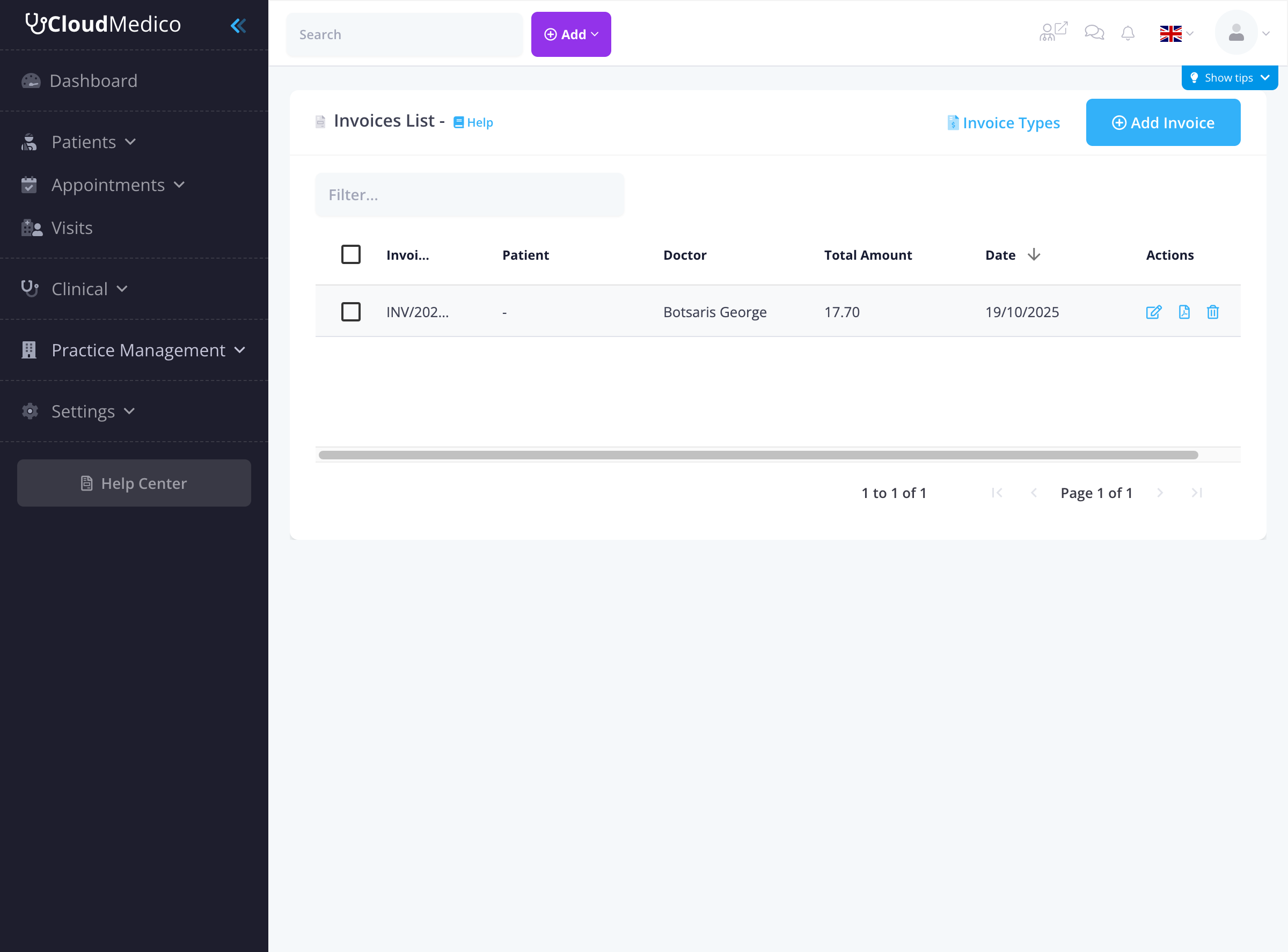
The Invoices List page displays all invoices in your practice. From here, you can quickly see an overview of billing records, search for specific invoices, and access options to add new invoices or manage existing ones.
Adding New Invoices
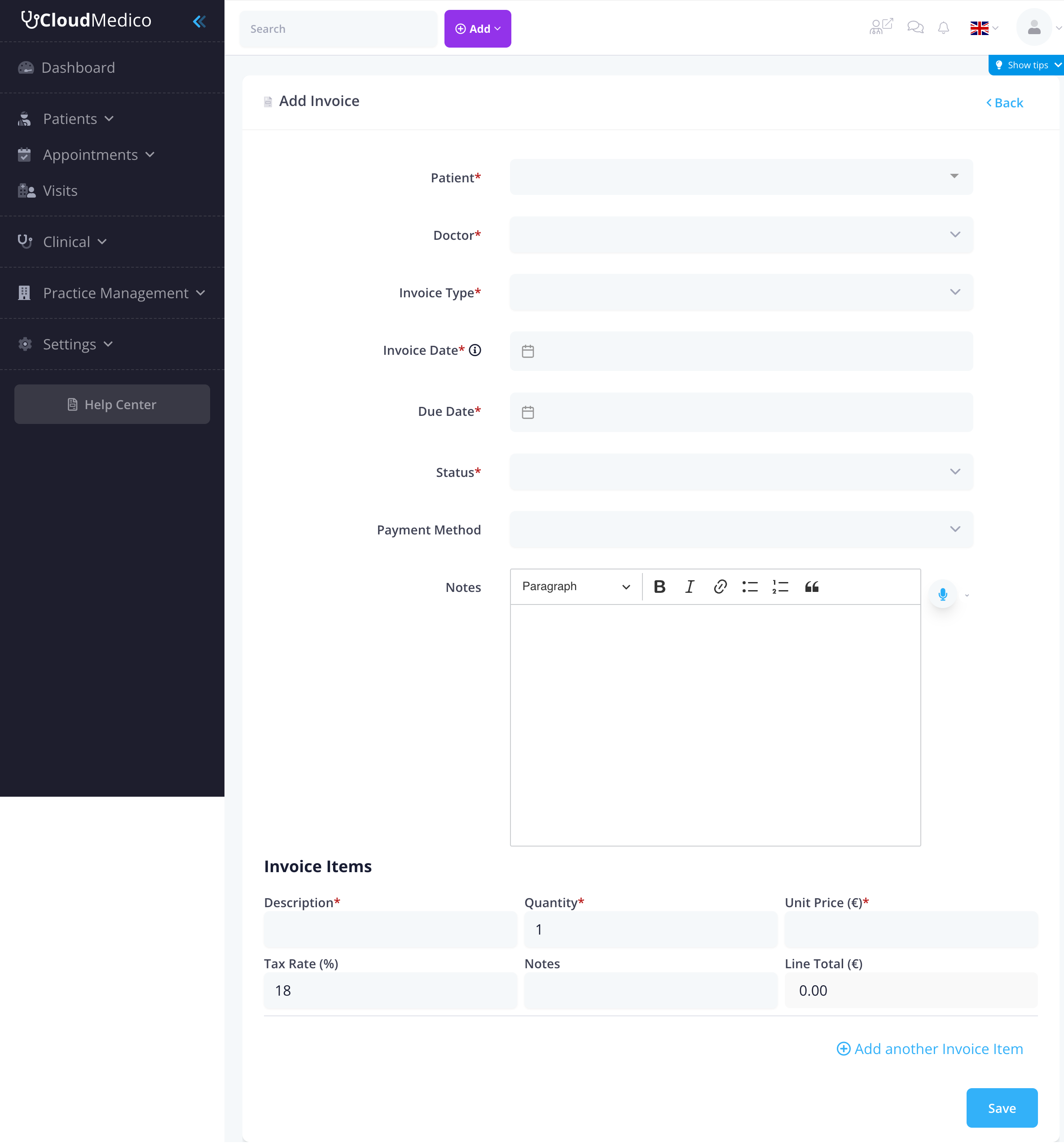
To add a new invoice, click on the 'Add Invoice' button. You will be presented with a comprehensive form to enter the invoice details:
Key fields include:
- Patient: Select the patient from your patient database (required)
- Doctor: Choose the attending physician (required)
- Invoice Type: Select from predefined invoice types (required)
- Invoice Date: The date when the invoice was created (required)
- Due Date: The payment due date (required)
- Status: Current status of the invoice (Draft, Sent, Paid, Overdue, Cancelled, Processing Payment)
- Payment Method: How the patient will pay (Cash, Card, Bank Transfer)
- Notes: Additional information using a rich text editor
Invoice Items
Each invoice can contain multiple line items with detailed information:
- Description: What service or product is being billed
- Quantity: Number of units
- Unit Price: Price per unit in euros
- Discount Type: Choose between No Discount, Percentage (%), or Fixed Amount
- Discount Value: The discount amount or percentage to apply
- Tax Rate: Tax percentage (default 18%)
- Notes: Additional details for the line item
- Line Total: Automatically calculated total for the line (including discounts and tax)
Discounts System
CloudMedico offers a comprehensive discount system at two levels: individual line items and the entire invoice. This flexibility allows you to provide discounts exactly where needed.
Item-Level Discounts
For each invoice item, you can apply a discount before tax is calculated. Choose from three discount types:
- No Discount: Default option, no discount applied
- Percentage (%): Apply a percentage discount (e.g., 10% off)
- Fixed Amount: Apply a fixed amount discount (e.g., €50 off)
When you apply a discount to an item, the system shows you a detailed breakdown: Subtotal → Discount → After Discount → Tax → Total. The discount is applied before the tax rate, ensuring accurate calculations.
Invoice-Level Discounts
After all items are added, you can apply an additional discount to the entire invoice. This is useful for bulk discounts, promotional offers, or special patient circumstances. The invoice-level discount is applied to the total of all items and is clearly displayed in the invoice summary showing: Items Subtotal → Discount → Final Total.
Discount Display
Discounts are clearly displayed everywhere: in the invoice edit form, in the PDF printouts, and in the patient portal. Percentage discounts show as '10%' while fixed amount discounts show with the currency symbol (e.g., '€50.00').
Rich Text Editor
The Notes field uses a rich text editor with:
- Formatting: Bold, italic, headings, lists
- Links: Add hyperlinks to external resources
- Lists: Bulleted and numbered lists
- Quotes: Block quotes for important information
Multilingual Support
All invoice fields support multiple languages, allowing you to maintain invoice information in different languages for international patients or multilingual practices.
Invoice Types Management
CloudMedico includes predefined invoice types such as 'Procedure Invoice' and 'Standard Invoice'. You can manage these types through the 'Invoice Types' link on the invoices list page.
Invoice Item Templates Library
The Invoice Item Templates feature allows you to create a library of commonly used invoice items, making invoice creation faster and more consistent. Access this feature through the 'Invoice Item Templates' button on the invoices list page.
Creating Item Templates
To create a new template, click 'Invoice Item Templates' then 'Add'. Each template can include:
- Name: The item name (e.g., 'General Consultation', 'Blood Test')
- Description: Detailed description of the service or product
- Unit Price: Default price for this item
- Tax Rate: Default tax percentage
- Code: Optional item or procedure code
- Active Status: Toggle to enable or disable the template
Using Templates in Invoices
When adding items to an invoice, you'll see a 'Quick Select from Library' dropdown at the top of each item row. Select a template to automatically fill in the description, unit price, tax rate, and notes. You can still modify any values after loading a template, or choose to enter items manually without using templates.
Managing Templates
The templates list shows all your saved items with their prices, codes, and status. You can edit existing templates, deactivate items you no longer use, or delete templates entirely. Inactive templates won't appear in the quick select dropdown but remain in your database for historical reference.
GebüH items and line codes (German practices)
German practices see a Code field on each invoice line, for a fee schedule number such as "GebüH 1", and the code prints before the description on the invoice PDF. On the item templates page, Add GebüH items adds the Heilpraktiker services of Annex 2 of the Federal Beihilfe Regulation (BBhV) as templates, each with its GebüH number and description. Their price is 0: set your own, since GebüH amounts aren't binding. Each template's description shows the most Beihilfe pays for it. CloudMedico doesn't check the amounts you charge. Clicking the button again adds only services you don't have.
Payment Tracking
The system supports comprehensive payment tracking with statuses:
- Draft: Invoice is being prepared
- Sent: Invoice has been sent to the patient
- Paid: Payment has been received
- Overdue: Payment is past due
- Cancelled: Invoice has been cancelled
- Processing Payment: Payment is being processed
Search and Filtering
The invoices list provides several search and filtering options:
- Search Filter: Use the search box to quickly find specific invoices
- Column Sorting: Click on any column header to sort invoices
- Status Filtering: Filter by invoice status
- Date Range: Filter by invoice date or due date
- Patient: Filter by specific patients
- Doctor: Filter by specific doctors
Printing and Export
CloudMedico allows you to generate professional PDF invoices that can be printed or emailed to patients. You can also export financial reports for accounting purposes and maintain a complete history of all transactions.
Superbills (US practices)
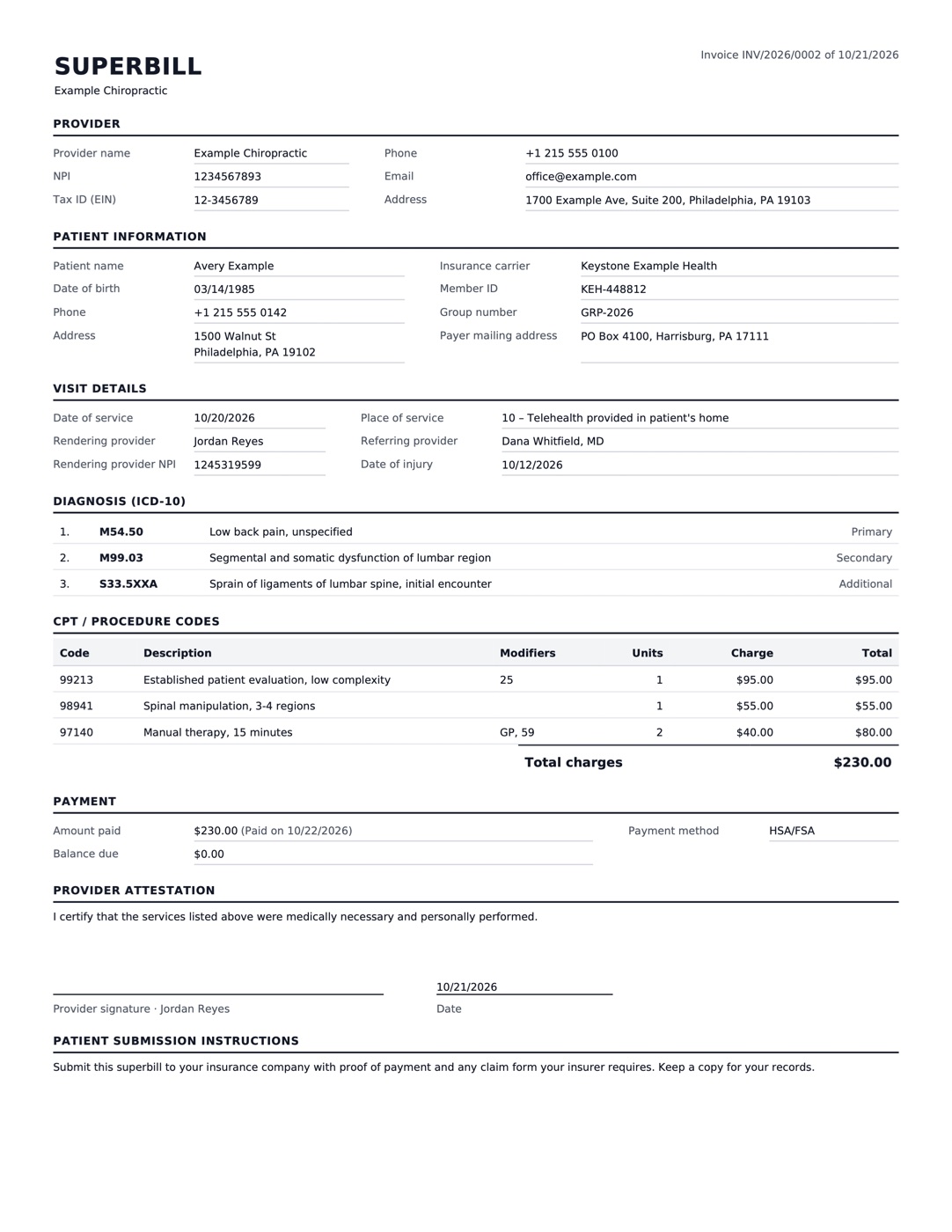
A superbill is a one-page summary of a visit that a patient sends to their insurance company to claim back what they paid, for example when you are out of their network. CloudMedico makes it from the invoice. It doesn't send claims to insurers itself.
Superbills are for practices in the United States: they appear when Country in Practice settings is United States.
Set up once
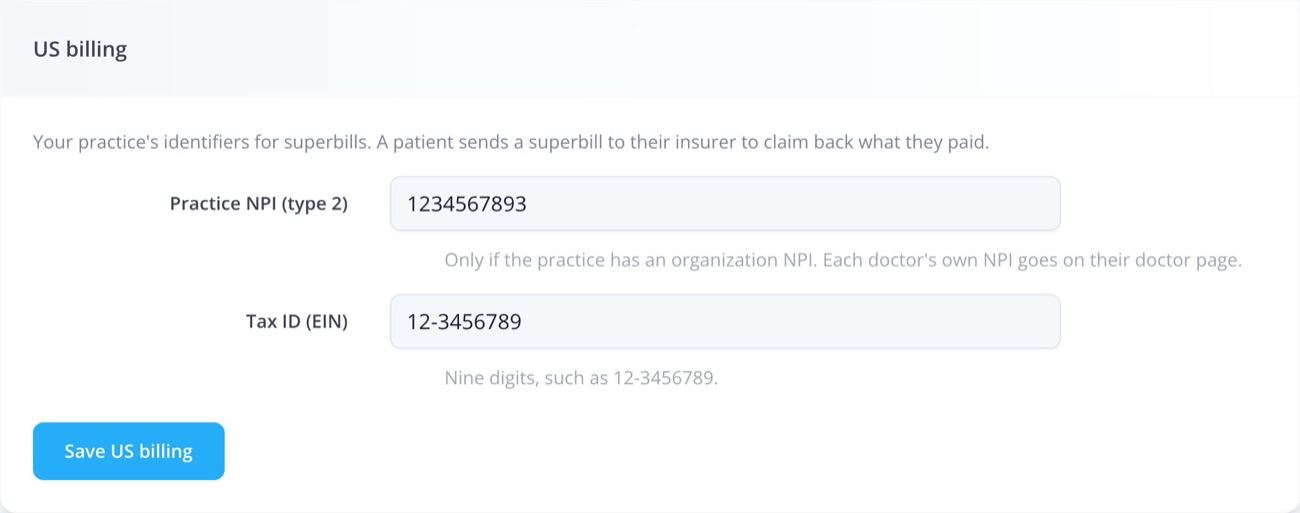
- Practice NPI and tax ID: in Practice settings, under US billing. The practice NPI (type 2) is optional; the tax ID is your EIN, such as 12-3456789.
- Each doctor's NPI: on the doctor's page. It prints on the superbill as the rendering provider, with the doctor's signature if one is uploaded.
- Your procedure codes: add each service as an invoice item template, with its CPT or HCPCS code in Code, your own description and your fee. Picking the template on an invoice line fills in the code. CloudMedico doesn't come with a CPT code list, because CPT codes are licensed by the American Medical Association.
On each invoice
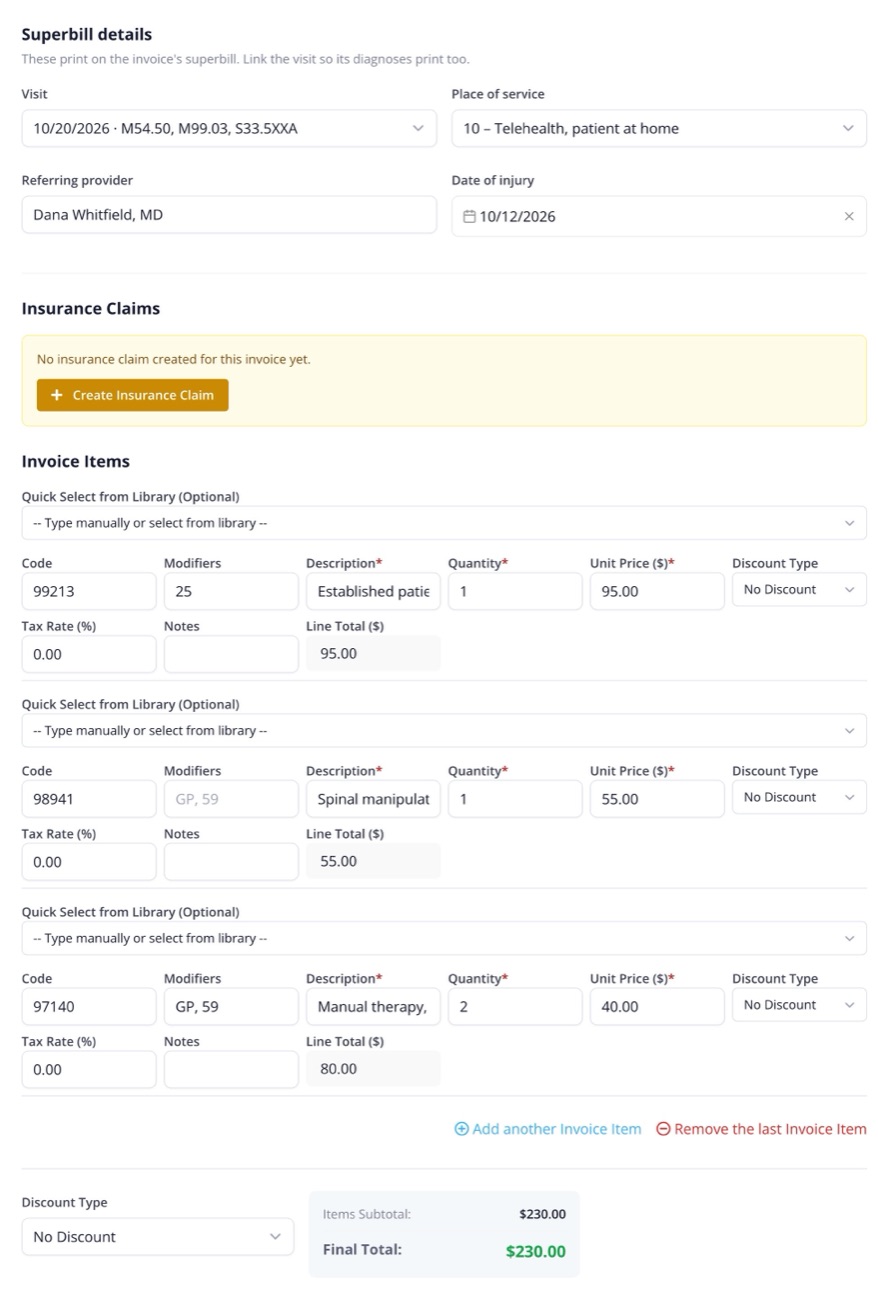
- Code and Modifiers on each line: the procedure code, and up to four modifiers such as GP, 59. The line's quantity prints as its units.
- Visit: the visit the invoice bills. The superbill lists its ICD-10-CM diagnoses with the dot, such as M54.50, the first one as primary, and uses its date as the date of service.
- Place of service: 11 Office, 02 Telehealth with the patient not at home, or 10 Telehealth with the patient at home. Picking a visit that came from a video appointment sets 10.
- Referring provider and Date of injury, when they apply, for example for an injury or workers' compensation case.
- Payment method: HSA/FSA sits beside cash, card and bank transfer, for patients who paid from a health savings or flexible spending account.
Diagnosis codes
The diagnosis list you pick from on a visit holds the billable codes of the current US ICD-10-CM. CloudMedico updates it every 1 October, when the new year's codes take effect.
If a diagnosis on the visit isn't in the current list, a note says so on the visit's Diagnoses tab and under Visit in the invoice's superbill details, with the codes to pick instead. For example, M54.5 Low back pain stopped being billable in October 2021, and M54.50, M54.51 and M54.59 replaced it. Codes added to a visit before an update stay in your practice's own diagnosis list, so check the note before you print. A code your practice typed itself, such as LBP, and a diagnosis without a code get a note too.
The note doesn't stop the superbill: it prints the codes the visit has. Add the current code on the visit's Diagnoses tab, remove the old one, and print again.
Getting the superbill
On a saved invoice, open Print at the top and choose Superbill to download it as a PDF on US Letter paper. Dates print as MM/DD/YYYY and amounts in your practice's currency. The insurance carrier, member ID, group number and the payer's mailing address come from the patient's primary insurance policy.
Once an invoice is paid, the patient can download its superbill from the invoice in the patient portal. You can also download it and send it yourself.
What it doesn't do
A superbill is not a claim form. CloudMedico doesn't fill in the CMS-1500 form, send claims to a clearinghouse, check insurance eligibility or record what insurers paid. If you send claims yourself, you can type them from the superbill.
Integration with Visits and Appointments
Invoices can be created directly from visits and appointments, ensuring accurate billing based on services provided. This integration streamlines the billing process and reduces manual data entry.
Tips for Effective Invoice Management
To maintain efficient billing operations:
- Complete Information: Fill in all relevant details for each invoice
- Clear Descriptions: Use detailed descriptions for invoice items
- Timely Follow-up: Monitor overdue invoices and follow up with patients
- Consistent Formatting: Maintain consistent formatting across all invoices
- Regular Updates: Keep invoice statuses current and accurate
- Backup Data: Regularly export invoice data for backup purposes