

Managing Patient Allergies in CloudMedico
CloudMedico provides comprehensive allergy management functionality to help you track and manage patient allergies effectively. This system allows you to record detailed allergy information, categorize allergies by type, and maintain accurate medical records.
Allergies Overview
The Allergies section is located under the Patients dropdown menu. It provides tools to view, add, and manage patient allergies with detailed information including allergen type, reaction details, severity, and treatment information.
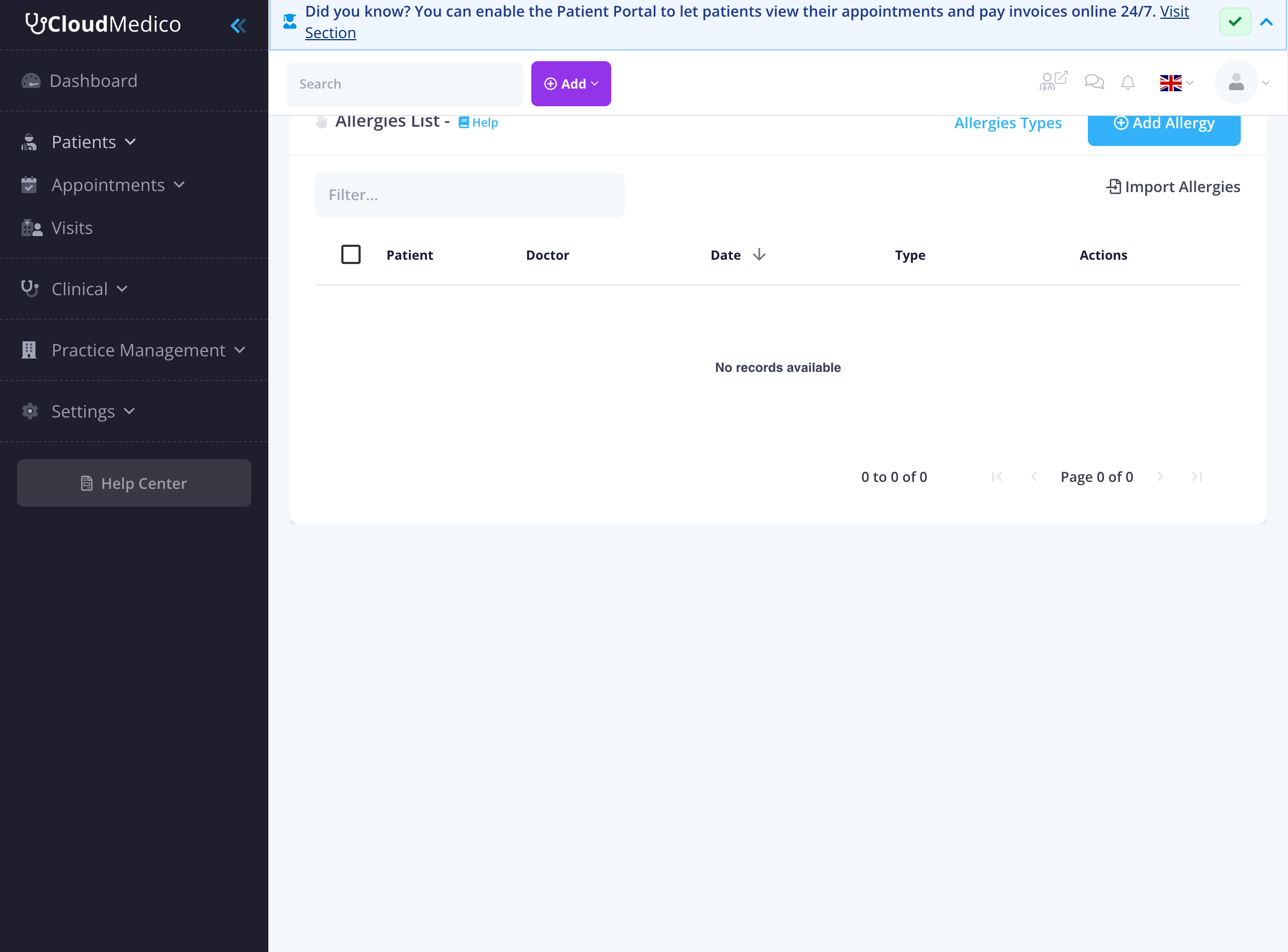
Allergies List View
The Allergies List page displays all recorded allergies in your practice. The interface includes:
• Patient information and associated allergies
• Doctor who recorded the allergy
• Diagnosis date and allergy type
• Search and filter functionality
• Import/Export capabilities
Adding New Allergies
To add a new allergy record, click the 'Add Allergy' button. The form includes comprehensive fields for detailed allergy documentation:
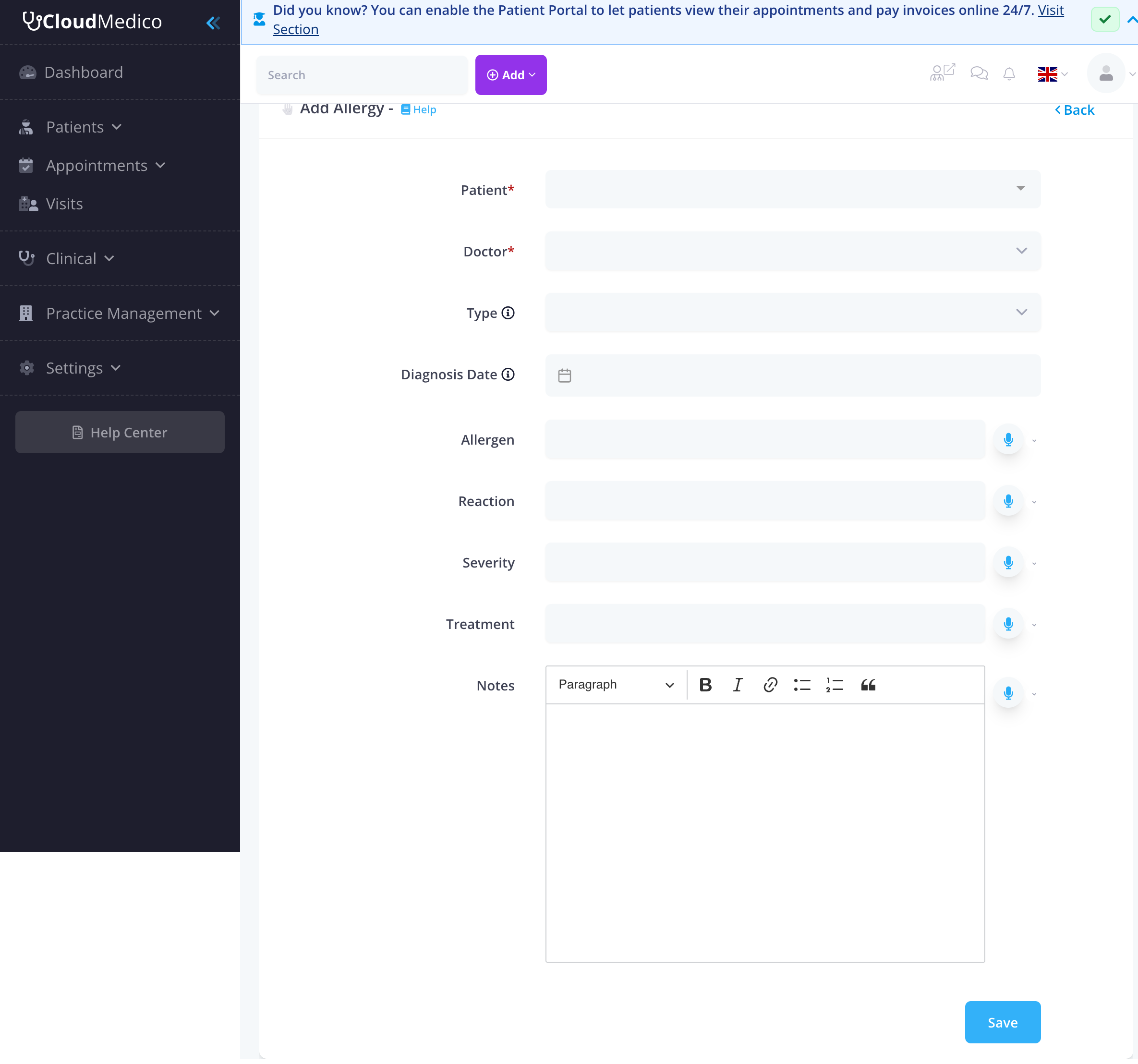
Required Fields
• Patient: Select the patient from the dropdown
• Doctor: Assign the doctor responsible for the record
Allergy Details
• Type: Choose from predefined allergy types (Drug Allergy, Food Allergy, etc.)
• Diagnosis Date: When the allergy was identified
• Allergen: Specific substance causing the allergy
• Reaction: Description of allergic reactions
• Severity: Level of allergy severity
• Treatment: Treatment plan for allergic reactions
• Notes: Additional clinical notes and observations
Allergy Types Management
CloudMedico comes with predefined allergy types, but you can customize them to match your practice needs. The system allows you to create, edit, and manage allergy types that will be available when adding new allergy records.
Viewing Allergy Types
To access the Allergy Types management, click on the 'Allergies Types' link at the top of the Allergies List page. This will take you to the Allergy Types management interface.
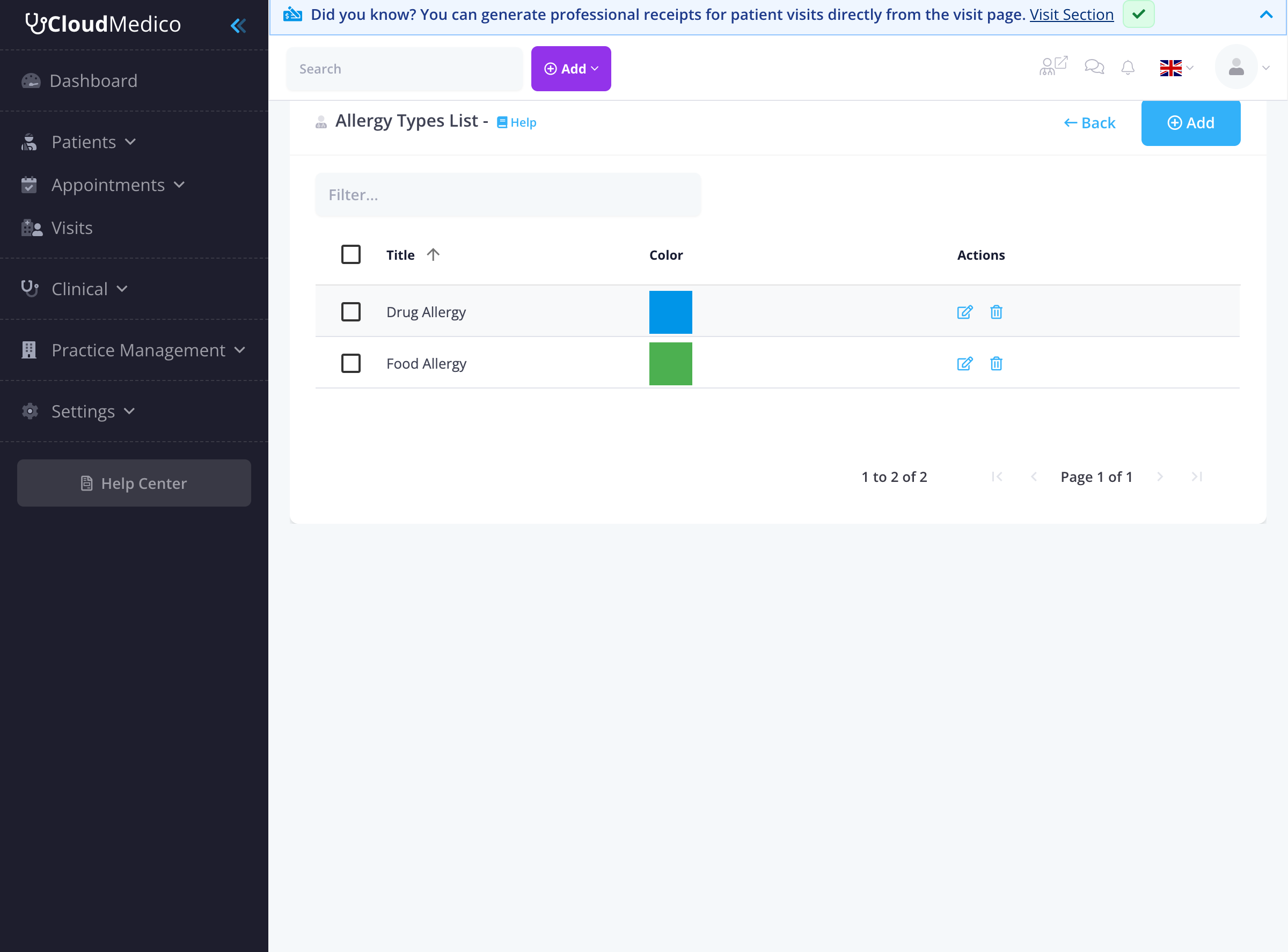
The Allergy Types list shows all available allergy categories in your practice, including:
• Title: The name of the allergy type
• Color: Visual identifier for the allergy type
• Actions: Edit or delete options for each type
Adding New Allergy Types
To create a new allergy type, click the 'Add' button on the Allergy Types page. This will open the Add Allergy Type form.
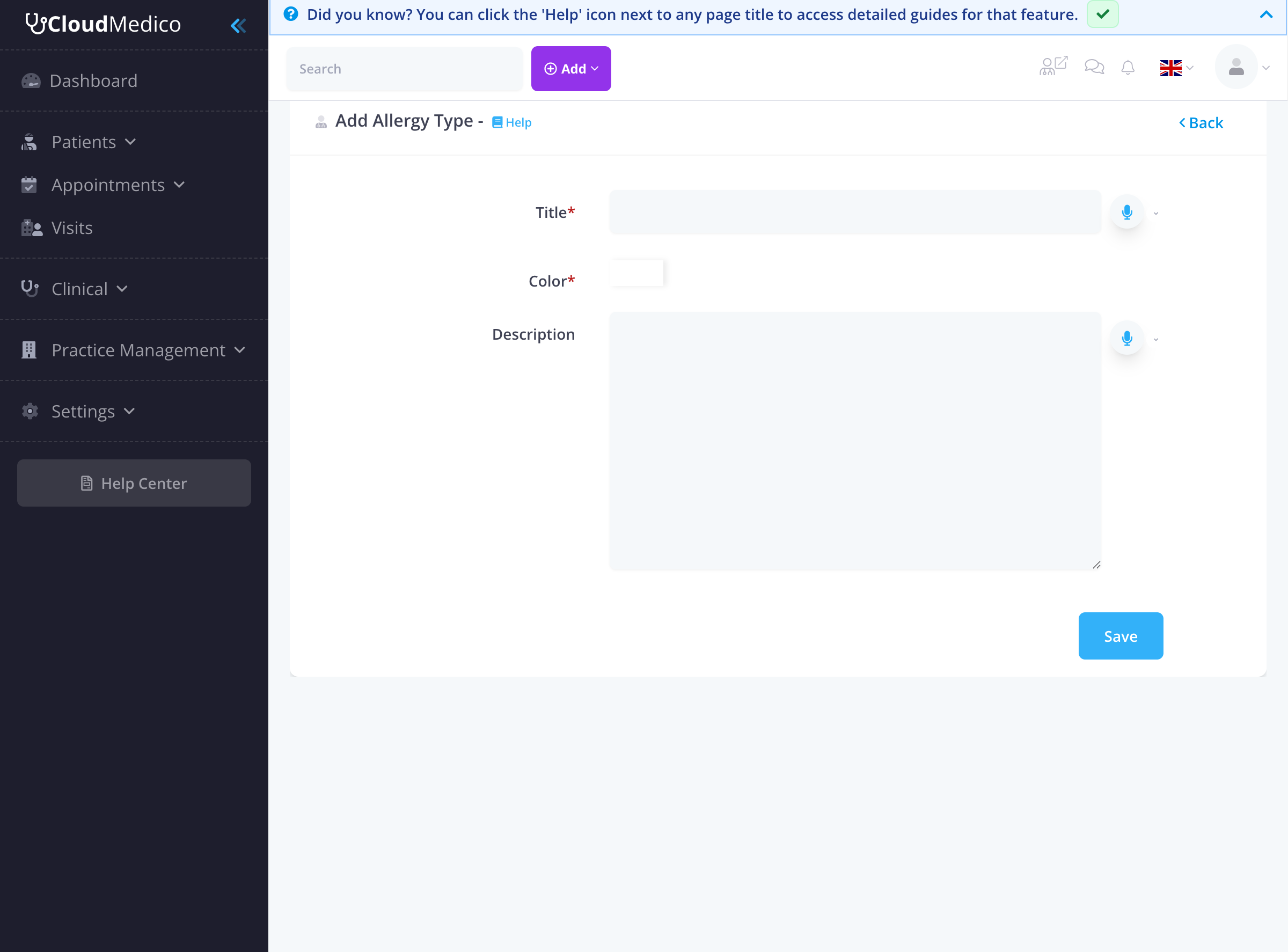
The form includes the following fields:
• Title*: The name of the allergy type (required)
• Color*: Choose a color to visually identify this allergy type (required)
• Description: Optional description of the allergy type
Managing Existing Types
You can edit existing allergy types by clicking the edit icon (pencil) next to any type in the list. This allows you to modify the title, color, or description of the allergy type.
To delete an allergy type, click the delete icon (trash) next to the type. Note that you cannot delete allergy types that are currently being used by existing allergy records.
Using Allergy Types
When adding a new allergy record, you can select from the available allergy types in the 'Type' dropdown field. This ensures consistency in how allergies are categorized across your practice.
Import and Export
The system supports importing allergies from external sources and exporting allergy data for reporting or backup purposes. Use the 'Import Allergies' link to bulk import allergy records.
Best Practices
• Always verify patient identity before adding allergy records
• Include detailed reaction descriptions for better patient care
• Update allergy information regularly based on patient reports
• Use consistent terminology for allergen descriptions
• Document treatment plans for severe allergies