




AI Scribe | CloudMedico Documentation
AI Scribe helps you document a patient Visit without typing during the consultation. It transcribes the recording and prepares a structured draft clinical note for you to review. It is a documentation assistant, not a clinical decision-maker.
Before you start
Open a new or existing Visit, select the patient, and confirm that recording is appropriate under your clinic's policies and applicable law. Your browser must allow microphone access, and your clinic needs available AI credit.
Use AI Scribe only for a consultation you are responsible for reviewing. Do not rely on the generated draft to diagnose, prescribe, triage, or make a treatment decision.
Record a Visit
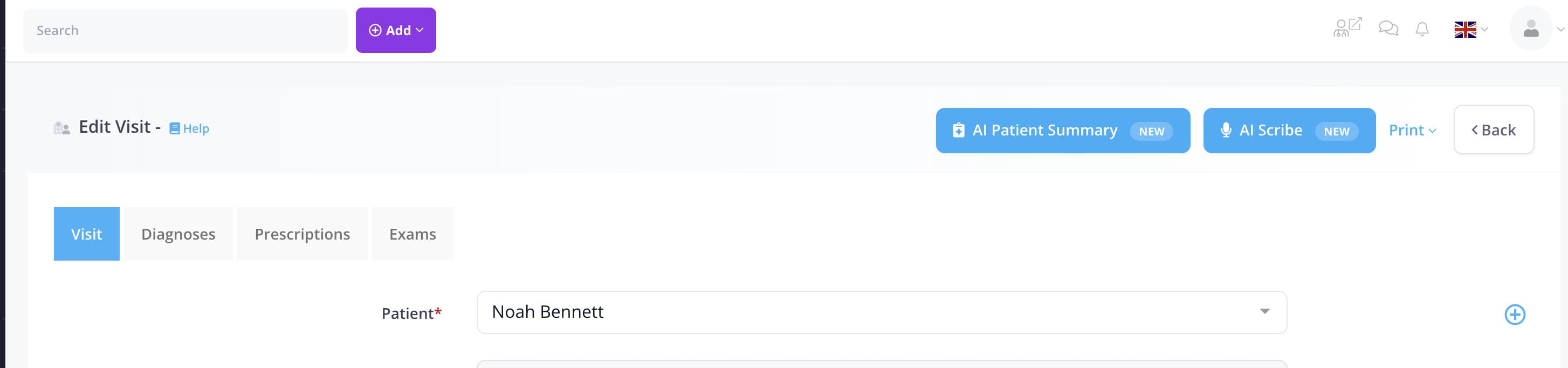
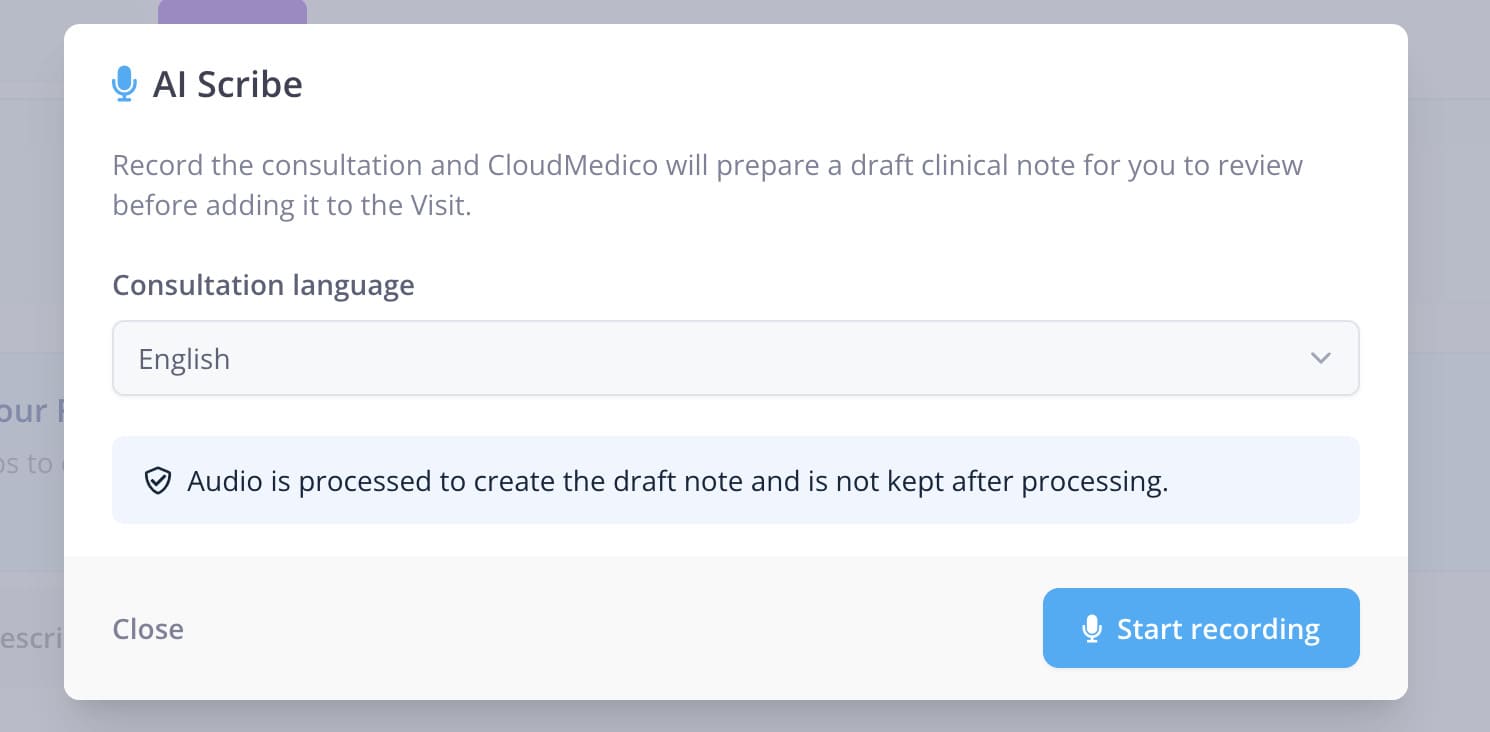
From the Visit screen, select AI Scribe, choose the language for the draft clinical note, and select Start recording. AI Scribe detects the spoken language automatically, so the conversation and the generated note can use different languages. Complete the consultation normally, then stop the recording when it is finished.
CloudMedico processes the recording to create the draft. The audio is not kept after processing. Wait for the draft screen before navigating away.
Review the draft
The draft may contain only the sections supported by the conversation, such as history, medications and allergies, examination, assessment, and plan. Missing sections are not inferred.
If your practice uses SOAP visit notes (Practice settings > Practice > Visit note format), the draft has the four SOAP headings instead: Subjective (history, past medical history, medications and allergies), Objective (vital signs and examination), Assessment and Plan. Anything the patient reports stays under Subjective. Practices in the United States use SOAP unless they choose Standard.
Review every statement against the consultation. Edit or remove anything unclear, incomplete, or incorrect. You can expand the original transcription to check what was heard. The transcript and draft are not automatically saved to the patient record.
Apply and save
When the note is accurate, choose whether to replace the current Visit notes or append the reviewed draft. Applying it only places the text into the Visit notes field. Review the complete Visit and use the normal Save action to store it. If you try to leave the Visit page before saving, CloudMedico asks first.
If you do not want to use the draft, close the dialog and choose Discard. AI Scribe asks before discarding a draft you haven't applied, or a recording in progress, because CloudMedico doesn't keep a copy. A click outside the dialog doesn't close it while there is a draft or a recording.
Privacy, accuracy, and troubleshooting
CloudMedico routes AI Scribe audio, transcripts, and generated notes only through Zero Data Retention AI endpoints. The AI provider does not retain this clinical content after processing, and it is not used to train AI models. CloudMedico still keeps limited usage metadata such as model, cost, duration, and outcome for billing and service operation, without the audio, transcript, or generated note.
AI Scribe may make mistakes or omit information. The clinician remains responsible for the final Visit record. If microphone access is denied, enable it in the browser and try again. If processing fails, check your connection and available AI credit, then make a new recording rather than assuming a partial draft is complete.