

Managing Diagnosis Types in CloudMedico
CloudMedico provides comprehensive diagnosis management functionality to help you maintain a detailed database of diagnosis types used in your practice. This system allows you to create custom diagnosis types and access the complete ICD-10 database from WHO for standardized diagnoses.
Diagnosis Types Overview
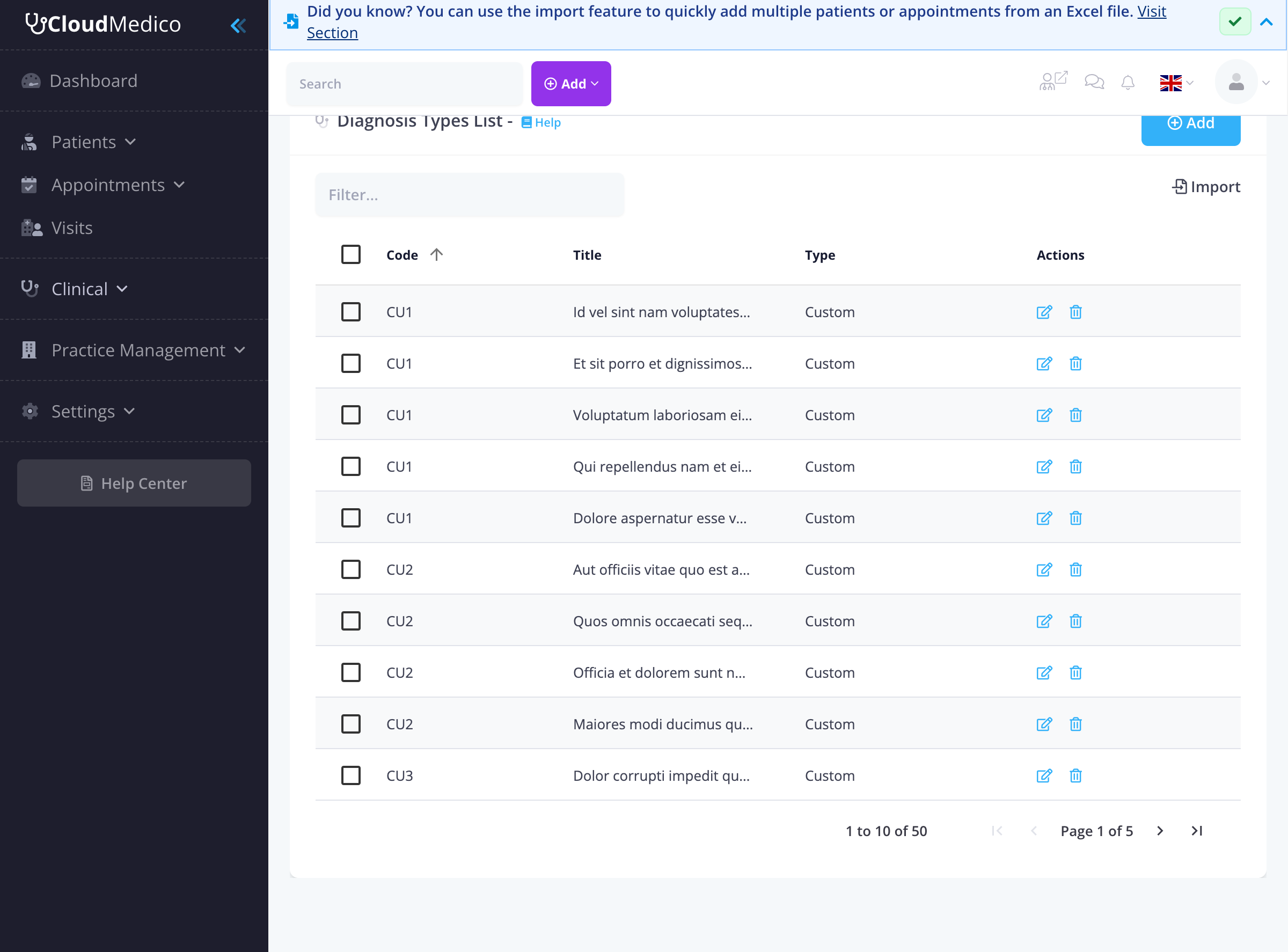
The Diagnoses section is located under the Clinical dropdown menu. It provides tools to view, add, and manage your practice's diagnosis types with detailed information including codes, descriptions, and categorization.
Diagnosis Types List View
The Diagnosis Types List page displays all diagnosis types in your database. From here, you can quickly see an overview of available diagnoses, search for specific types, and access options to add new diagnoses or manage existing ones.
Adding New Diagnosis Types
To add a new diagnosis type, click on the 'Add' button. You will be presented with a comprehensive form to enter the diagnosis details:
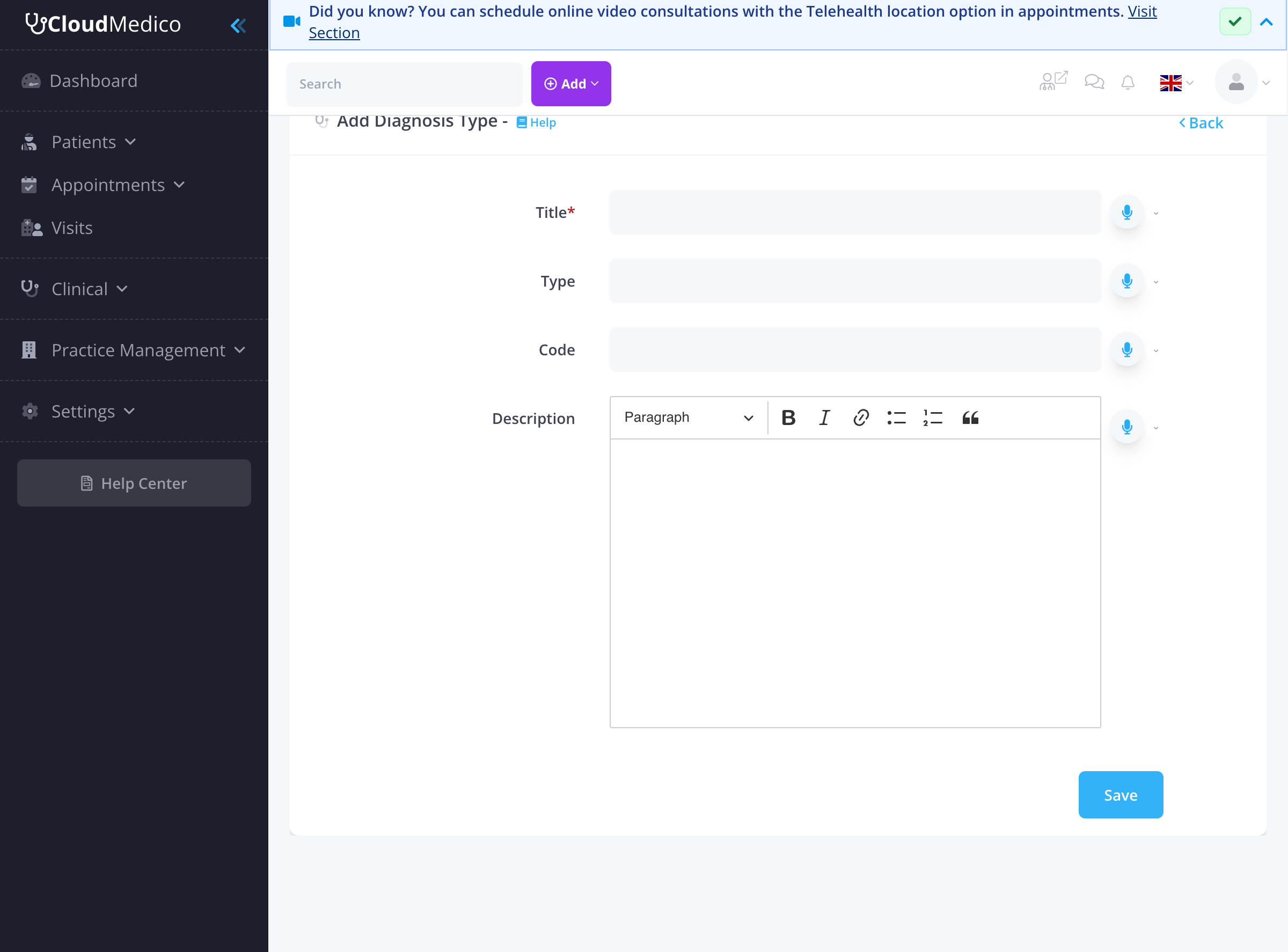
Key fields include:
- Title: The name of the diagnosis (required field).
- Type: The category or type of diagnosis (e.g., 'Custom', 'ICD-10').
- Code: A unique code identifier for the diagnosis.
- Description: Detailed description of the diagnosis using a rich text editor.
Rich Text Editor
The Description field uses a rich text editor with:
- Formatting: Bold, italic, headings, lists
- Links: Add hyperlinks to external resources
- Lists: Bulleted and numbered lists
- Quotes: Block quotes for important information
Multilingual Support
All diagnosis fields support multiple languages, allowing you to maintain diagnosis information in different languages for international patients or multilingual practices.
ICD-10 Integration
CloudMedico includes access to the complete ICD-10 database from WHO, providing standardized diagnosis codes and descriptions. This integration ensures consistency with international medical standards and facilitates accurate diagnosis coding.
Import and Export Functionality
CloudMedico provides powerful import and export capabilities for diagnosis data:
- Import: Upload existing diagnosis data from Excel files
- Export: Download diagnosis data for backup or analysis
- Template: Download template files for easy data preparation
Search and Filtering
The diagnosis types list provides several search and filtering options:
- Search Filter: Use the search box to quickly find specific diagnoses
- Column Sorting: Click on any column header to sort diagnoses
- Type Filtering: Filter by diagnosis type (Custom, ICD-10, etc.)
- Code Search: Search by diagnosis code
Integration with Visits
Diagnosis types in your database are automatically available when creating visits, ensuring consistency and accuracy in your diagnosis management. You can easily select from your custom diagnosis types or the ICD-10 database when documenting patient visits.
Tips for Effective Diagnosis Management
To maintain an effective diagnosis database:
- Complete Information: Fill in as much detail as possible for each diagnosis
- Consistent Coding: Use consistent coding conventions for diagnosis types
- Clear Descriptions: Use the rich text editor to provide clear, detailed descriptions
- Regular Updates: Keep diagnosis information current and accurate
- Backup Data: Regularly export diagnosis data for backup purposes
- ICD-10 Usage: Utilize the ICD-10 database for standardized diagnosis coding