




Your CloudMedico Dashboard
Upon logging in to your CloudMedico account, you will be redirected to your Dashboard. This central hub provides a comprehensive overview of your practice operations, key metrics, and quick access to essential functions.
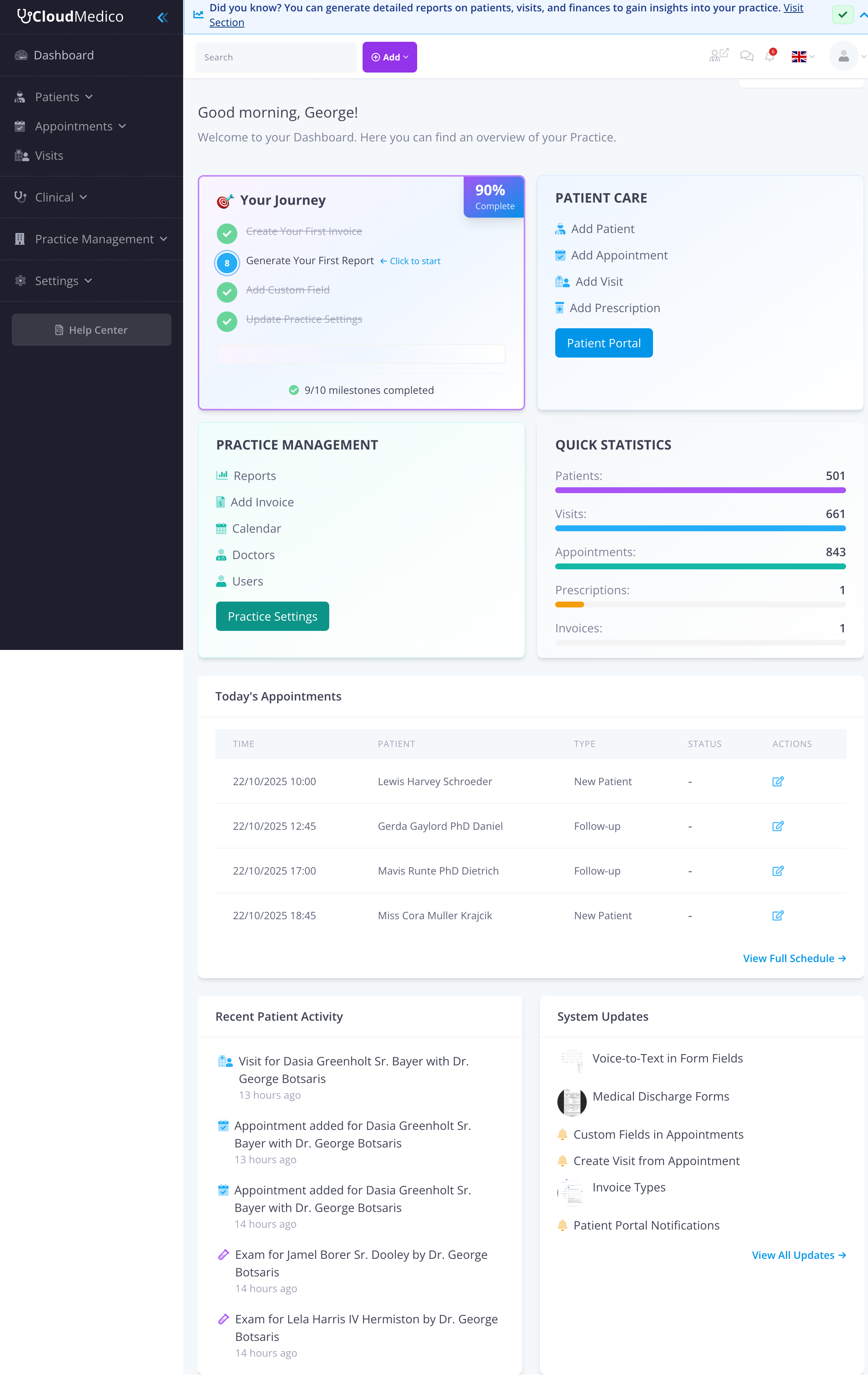
Dashboard Overview
The Dashboard is designed to give you immediate insight into your practice's performance and help you manage your daily operations efficiently. It displays key statistics, upcoming appointments, recent activity, and provides quick access to common tasks.
Key Dashboard Components
Your Journey Progress
The 'Your Journey' section helps new users get started with CloudMedico by providing a step-by-step guide to setting up their practice. It shows your completion progress and highlights the next recommended actions.
Common journey steps include:
- Creating your first invoice
- Generating your first report
- Adding custom fields
- Updating practice settings
Patient Care Quick Actions
This section provides quick access to essential patient care functions:
- Add Patient: Register new patients
- Add Appointment: Schedule new appointments
- Add Visit: Record patient visits
- Add Prescription: Create prescriptions
- Patient Portal: Access patient portal features
Practice Management Tools
Quick access to administrative functions:
- Reports: Generate practice analytics
- Add Invoice: Create billing invoices
- Calendar: View appointment calendar
- Doctors: Manage doctor profiles
- Users: Manage user accounts
- Practice Settings: Configure practice details
Quick Statistics
The statistics panel displays key practice metrics at a glance:
- Total Patients: Number of registered patients
- Visits: Total patient visits recorded
- Appointments: Total appointments scheduled
- Prescriptions: Total prescriptions created
- Invoices: Total invoices generated
Today's Appointments
The dashboard displays your appointments for the current day, including:
- Appointment time
- Patient name
- Appointment type (New Patient, Follow-up, etc.)
- Status information
- Quick edit actions
Recent Patient Activity
This section shows recent activities in your practice, such as:
- New visits recorded
- Appointments added or modified
- Exams completed
- Prescriptions created
System Updates
Stay informed about new features and improvements with the System Updates section. This shows recent enhancements to CloudMedico, including:
- New features added
- Bug fixes and improvements
- Enhanced functionality
Doctor Filter
If your practice manages multiple doctors, you can use the dropdown filter to view data specific to one doctor or all doctors combined. This allows you to:
- View doctor-specific statistics
- Filter appointments by doctor
- Analyze individual doctor performance
Tips for Effective Dashboard Use
To make the most of your dashboard:
- Check your dashboard daily for updates
- Use the quick action buttons for common tasks
- Monitor your journey progress to complete setup
- Review statistics regularly to track practice growth
- Use the doctor filter to focus on specific providers
- Stay updated with system improvements