




Video Appointments (Telehealth) | CloudMedico Documentation
Video appointments let you see patients online, from the same calendar as your in-person appointments. The patient joins from a link in their browser, on a phone or computer, with no code to type and nothing to download. Telehealth is included in every plan, and the free trial includes 240 minutes, about six 20-minute practice calls.
Book a video appointment
1. Add an appointment as usual: patient, practitioner, duration and date.
2. Turn on Video appointment. The Location field is hidden while it's on.
3. Choose how the patient joins: CloudMedico video, or Use my own link and paste your Zoom or Google Meet link. Your own link doesn't use minutes.
4. Save.
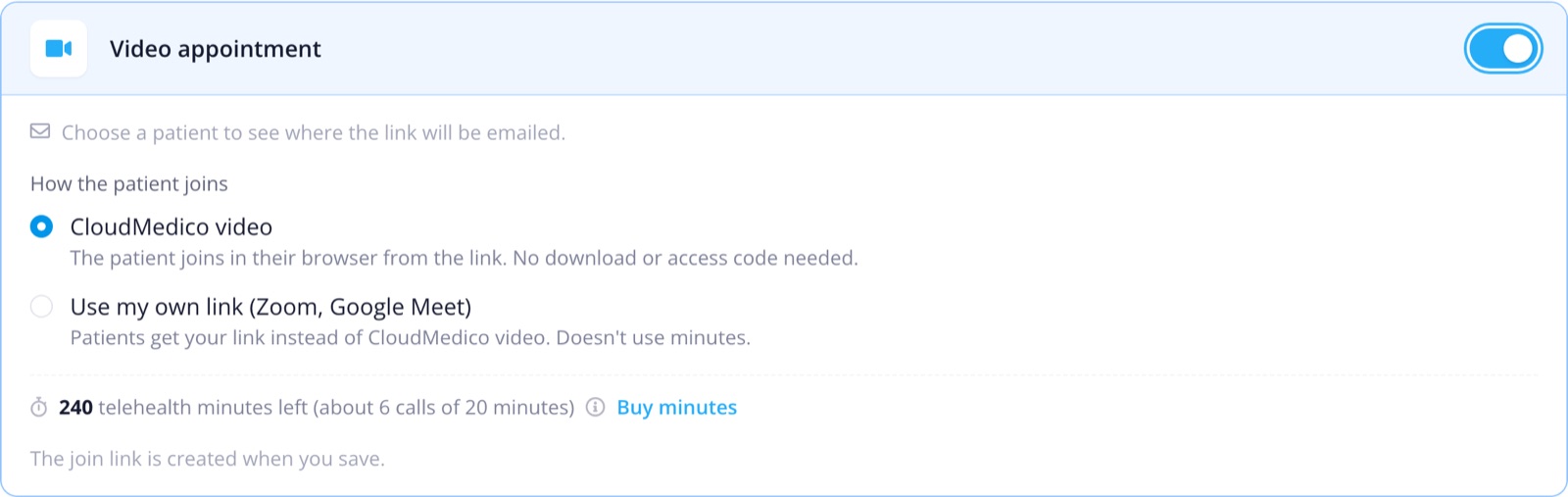
The patient gets the link
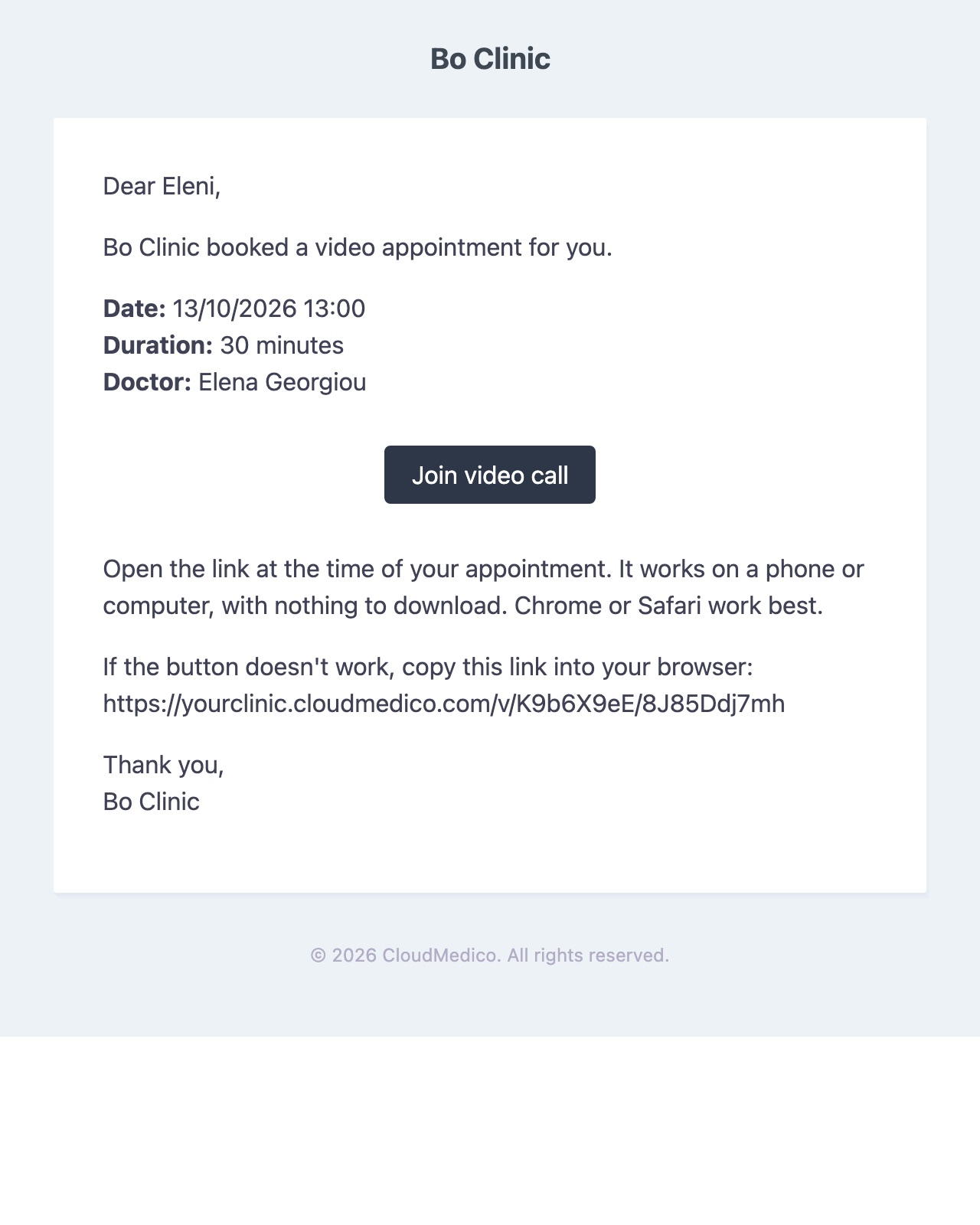
When you save, the patient is emailed a link to the video appointment, even if appointment confirmations and reminders are off. If you change the time or the link, they get an updated email. Reminder emails and SMS include the same link, and patients with Patient Portal access also see a Join video call button there. Patients don't need Patient Portal access or an account to join: the link is all they need.
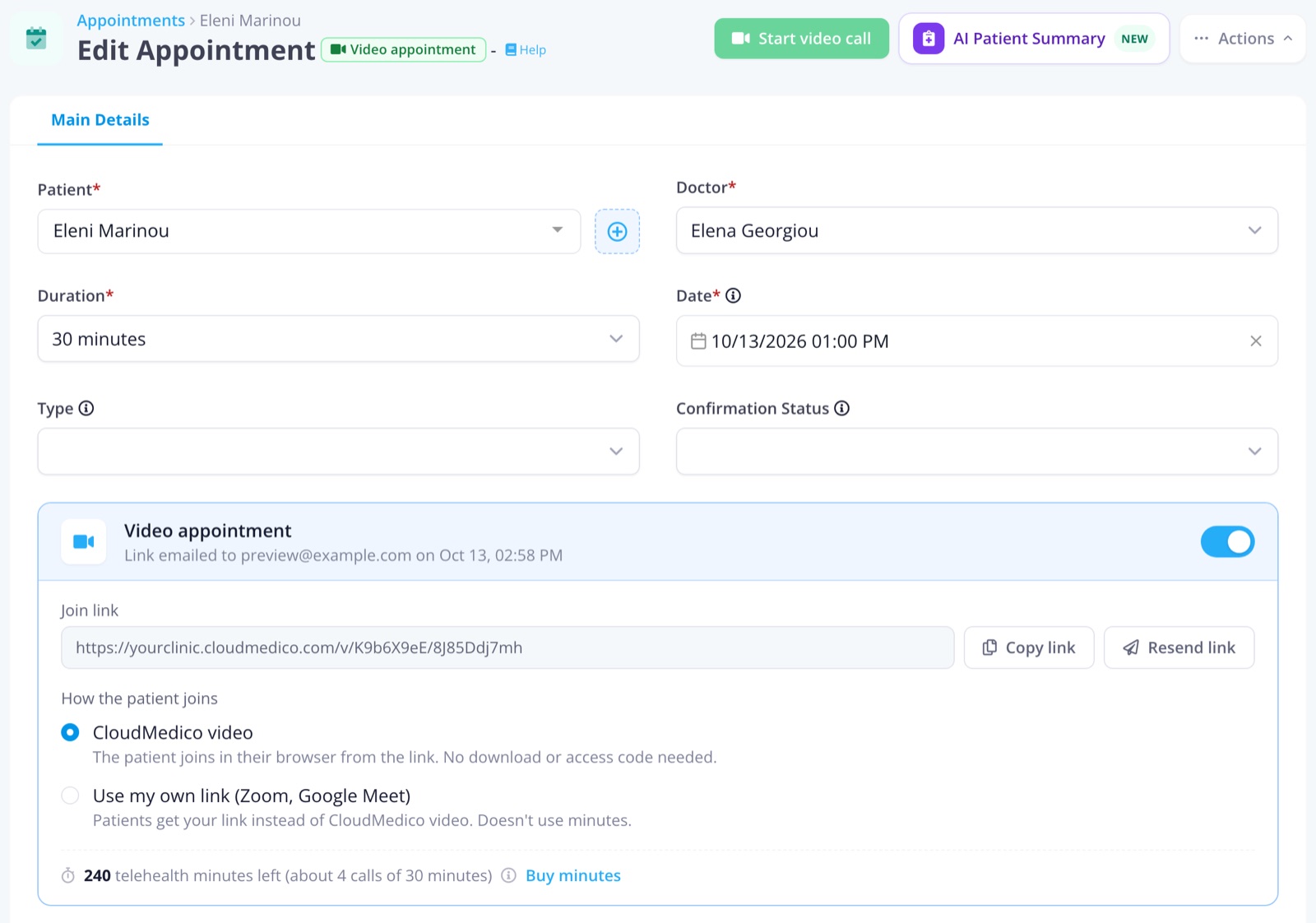
The appointment shows when the link was emailed, with Copy link and Resend link. If the patient has no email address, use Copy link and send it by text or messaging app. The patient needs an email address on their record to get the email.
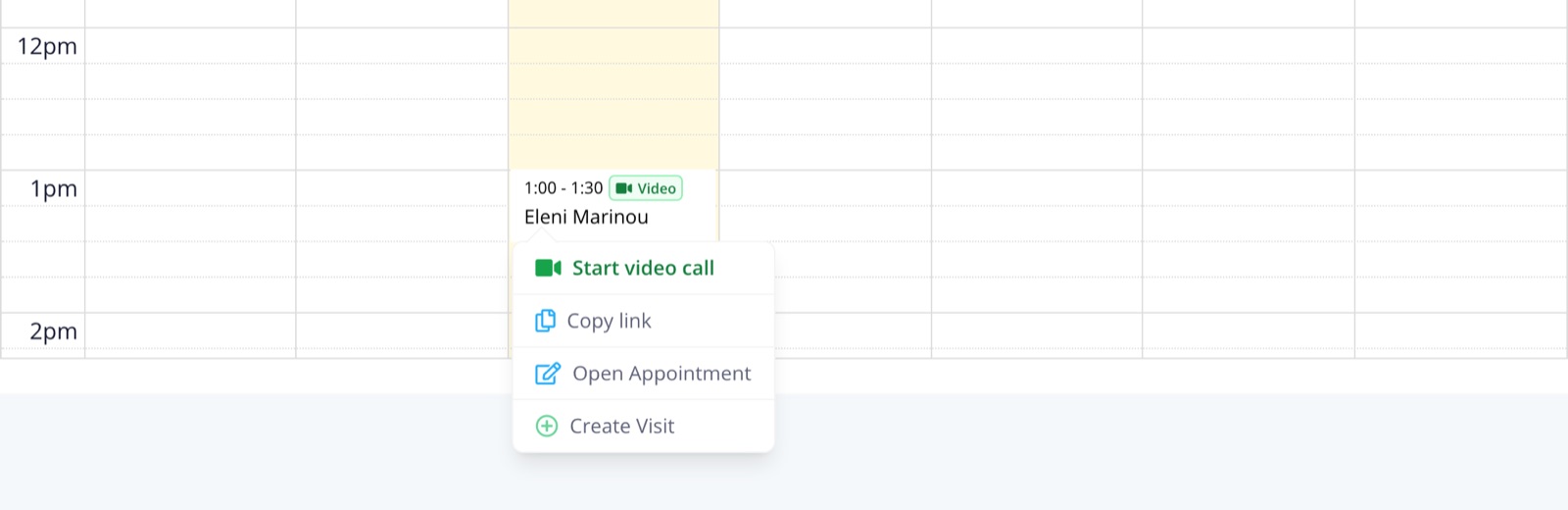
Start the call
Select Start video call on the appointment, or select the appointment in the calendar and choose Start video call. Video appointments show a Video badge in the calendar and the appointments list. Staff signed in to CloudMedico join with one click.
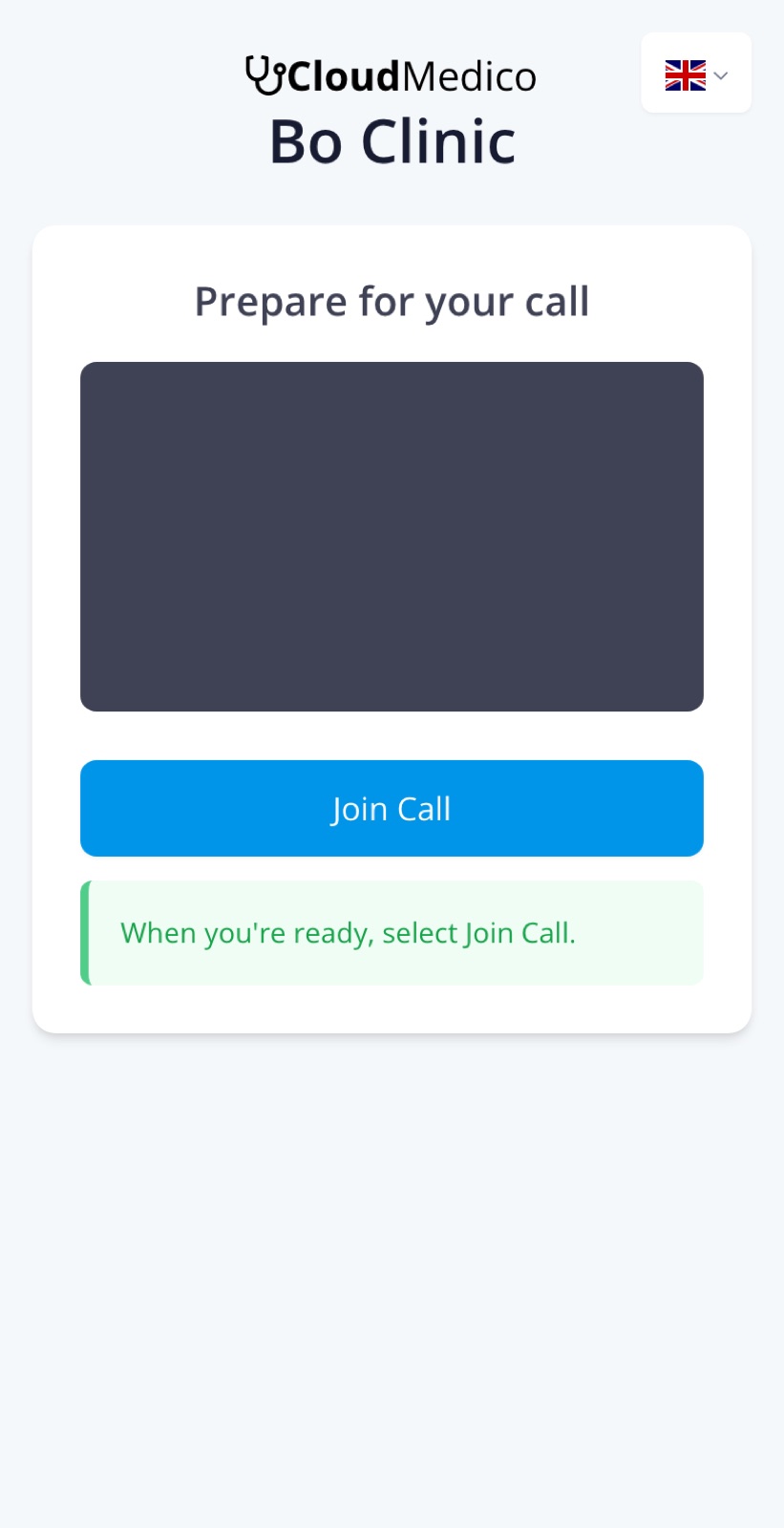
The patient opens their link, checks their camera in the preview and selects Join Call. The call opens 12 hours before the appointment and closes 12 hours after it ends. Older emails that ask for an access code still work.
During the call
You can mute your microphone, turn your camera off, share your screen and change the video quality. You can keep the patient's record open in another tab to add notes, prescriptions or a visit, as you would in person.
If no one else joins within 20 minutes, CloudMedico asks whether to keep waiting and ends the call after a minute without an answer, so an open call doesn't use minutes. When the other person leaves, the call ends for you too.
Video calls are encrypted in transit. Calls for practices in Europe run on video servers in the EU (Frankfurt). A call can have up to 4 people, for example the patient, the clinician and an interpreter.
If the patient can't join
- They didn't get the email: check the patient's email address, then use Resend link, or Copy link and send it another way.
- The page says the call isn't open yet, or has ended: the link works from 12 hours before the appointment until 12 hours after it ends. Check the appointment's date and time.
- No camera or sound: ask them to allow the camera and microphone when the browser asks, and to use an up-to-date Chrome or Safari.
How telehealth minutes work
Minutes are counted for each person on the call: a 20-minute call with your patient uses 40 minutes, or 60 with an interpreter.
The free trial includes 240 minutes, about six 20-minute practice calls. Each plan includes a set of minutes once, not every month: Budget Practice includes 240, and larger plans include more. Upgrading never lowers your balance.
When you need more, an administrator buys them under Subscriptions, in the Addons section. Minutes you buy never expire. Your remaining minutes appear on the subscription page and in the Video appointment card on the appointment form, and administrators get an email when they run low.
A call that has started always finishes, even if your minutes run out during it. Video appointments on your own Zoom or Google Meet link don't use minutes.