

Managing Practice Locations in CloudMedico
The Locations feature in CloudMedico allows you to manage multiple practice locations, clinics, or offices from a single account. This is essential for practices with multiple sites or doctors who work at different locations.
Locations List View
The Locations List page displays all your practice locations in a comprehensive table format:
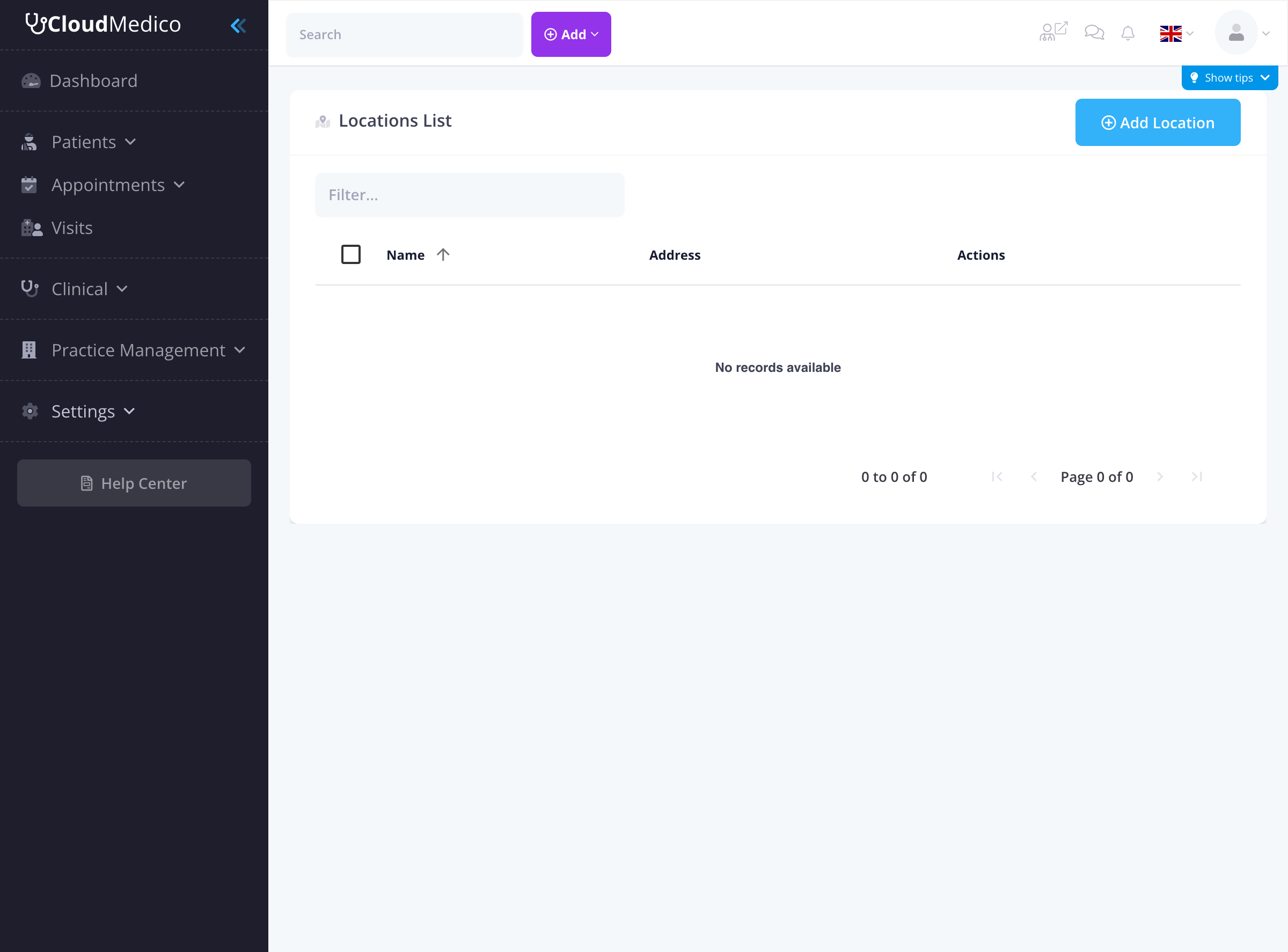
The locations list shows:
- Name: The location name with checkbox for selection
- Address: Complete address information
- Actions: Edit and delete options for each location
- Search/Filter: Use the filter box to quickly find specific locations
Adding a New Location
To add a new practice location, click the 'Add Location' button. You'll be presented with a comprehensive form:
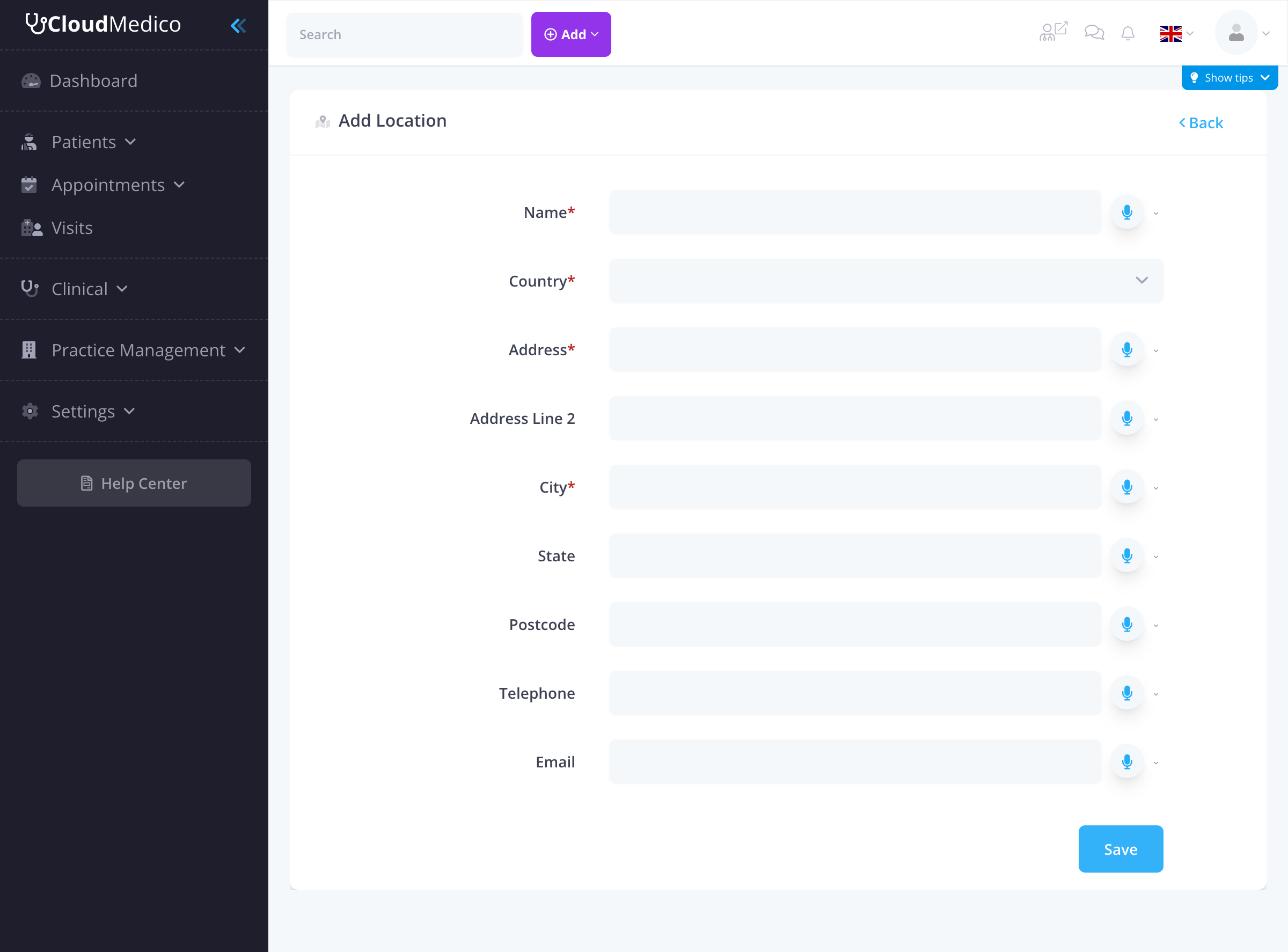
The form includes the following fields:
Required Fields
- Name: A descriptive name for the location (e.g., 'Main Clinic', 'Downtown Office')
- Country: Select from the comprehensive dropdown list of countries
- Address: Complete street address
- City: City where the location is situated
Optional Fields
- Address Line 2: Additional address information (suite, floor, etc.)
- State: State or province
- Postcode: Postal or ZIP code
- Telephone: Primary contact number
- Email: Location-specific email address
Multilingual Support
All location fields support multiple languages, allowing you to maintain location information in different languages for international practices or multilingual staff.
Form Features
The location form includes several helpful features:
- Language Selection: Each field has a language selector for multilingual content
- Validation: Real-time validation for required fields
- Country Dropdown: Comprehensive list of countries for accurate location data
- Responsive Design: Works on all device sizes
Managing Locations
Editing Locations
To edit an existing location:
1. Click on the location name in the locations list
2. Update any information that has changed
3. Click 'Save' to update the location details
Deleting Locations
To remove a location:
1. Select the location you want to delete
2. Click the 'Delete' button
3. Confirm the deletion
Note: You cannot delete a location if it has associated appointments, visits, or other records.
Using Locations in Practice
Appointment Scheduling
When scheduling appointments, you can:
- Select which location the appointment will take place
- Filter appointments by location
- Generate location-specific reports
Doctor Assignments
You can assign doctors to specific locations:
- Some doctors may work at multiple locations
- Others may be location-specific
- This helps with scheduling and resource management
Location Reports
CloudMedico provides various reports based on locations:
- Appointment volume by location
- Revenue analysis per location
- Patient distribution across locations
- Doctor utilization by location
Best Practices
To effectively manage multiple locations:
- Use clear, descriptive names for each location
- Keep contact information up to date
- Regularly review location-specific reports
- Train staff on location-specific procedures
- Ensure all locations follow the same data entry standards