

Patient Documents & E-Signatures | CloudMedico Documentation
Use patient documents to share forms such as intake forms, consent forms, and treatment plans with a patient, and to collect their electronic signature or a completed copy through the Patient Portal. Documents and e-signatures are included in every plan, including the free trial.
Before you start: turn on portal access for the patient
Patients sign and upload documents in the Patient Portal, so they need portal access first. Open the patient, tick Has Patient Portal, and make sure the patient has an email address. CloudMedico emails the patient a link to set their password.
Without portal access you can still store documents on the patient's record, but the patient cannot see them.
Send a form to a patient
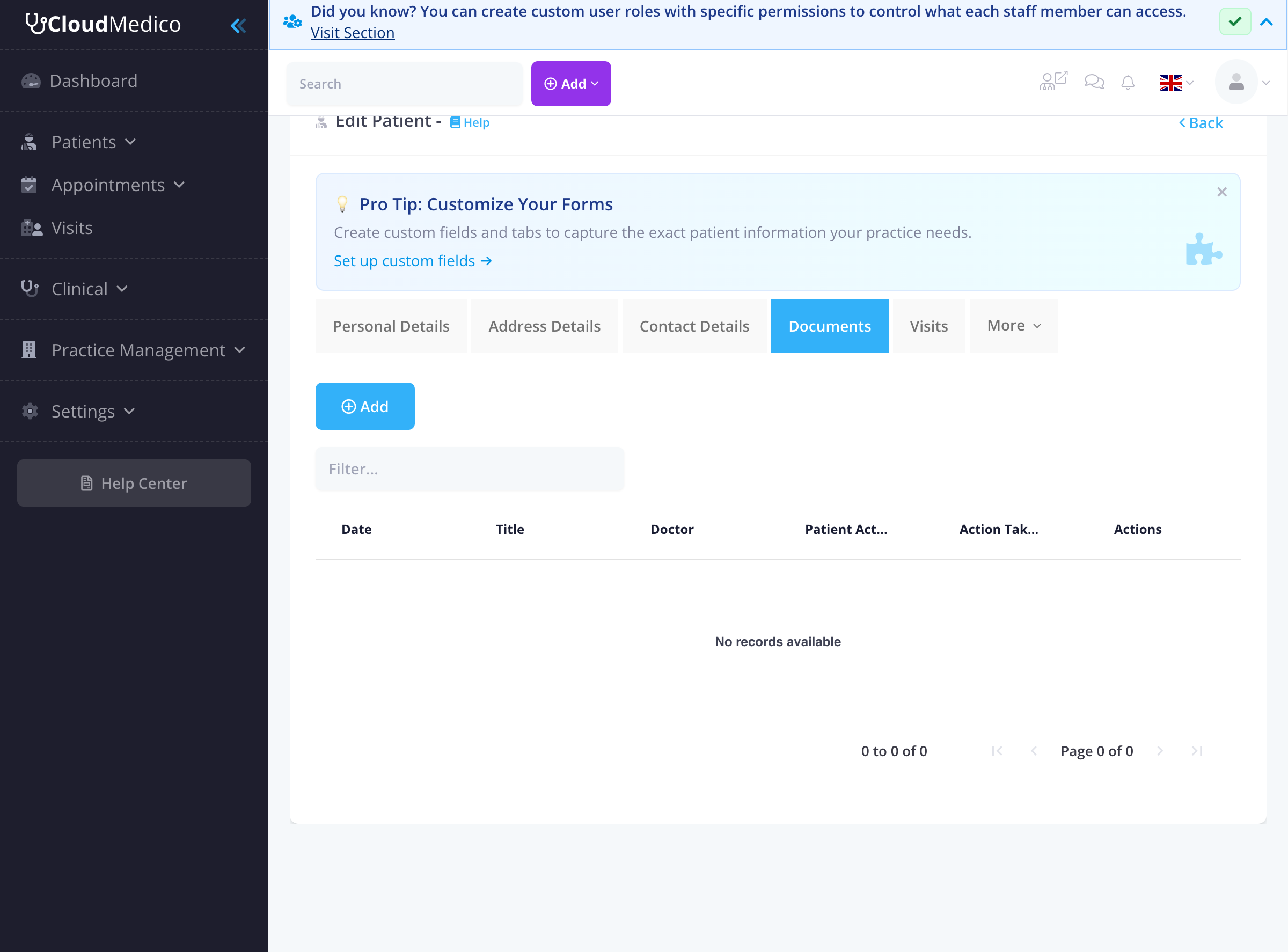
1. Open the patient and go to the Documents tab.
2. Select Add Document.
3. Enter a Title, upload the file, and choose the Doctor and Date. PDF files work best; Word, Excel, and image files up to 10 MB are also accepted.
4. Tick Shared with Patient.
5. Choose a Patient Action and, if needed, add Instructions for the patient.
6. Save. The patient receives an email that a document is waiting in their portal.
The email is sent when you add a document as shared. If you share an existing document later, let the patient know yourself.
Patient actions
- Review: the patient reads the document. It is marked complete when they open it.
- eSign: the patient types their legal name and draws their signature.
- Upload: the patient uploads a file, for example a completed form or a previous report.
- Upload and eSign: the patient uploads a completed copy and signs.
What the patient sees
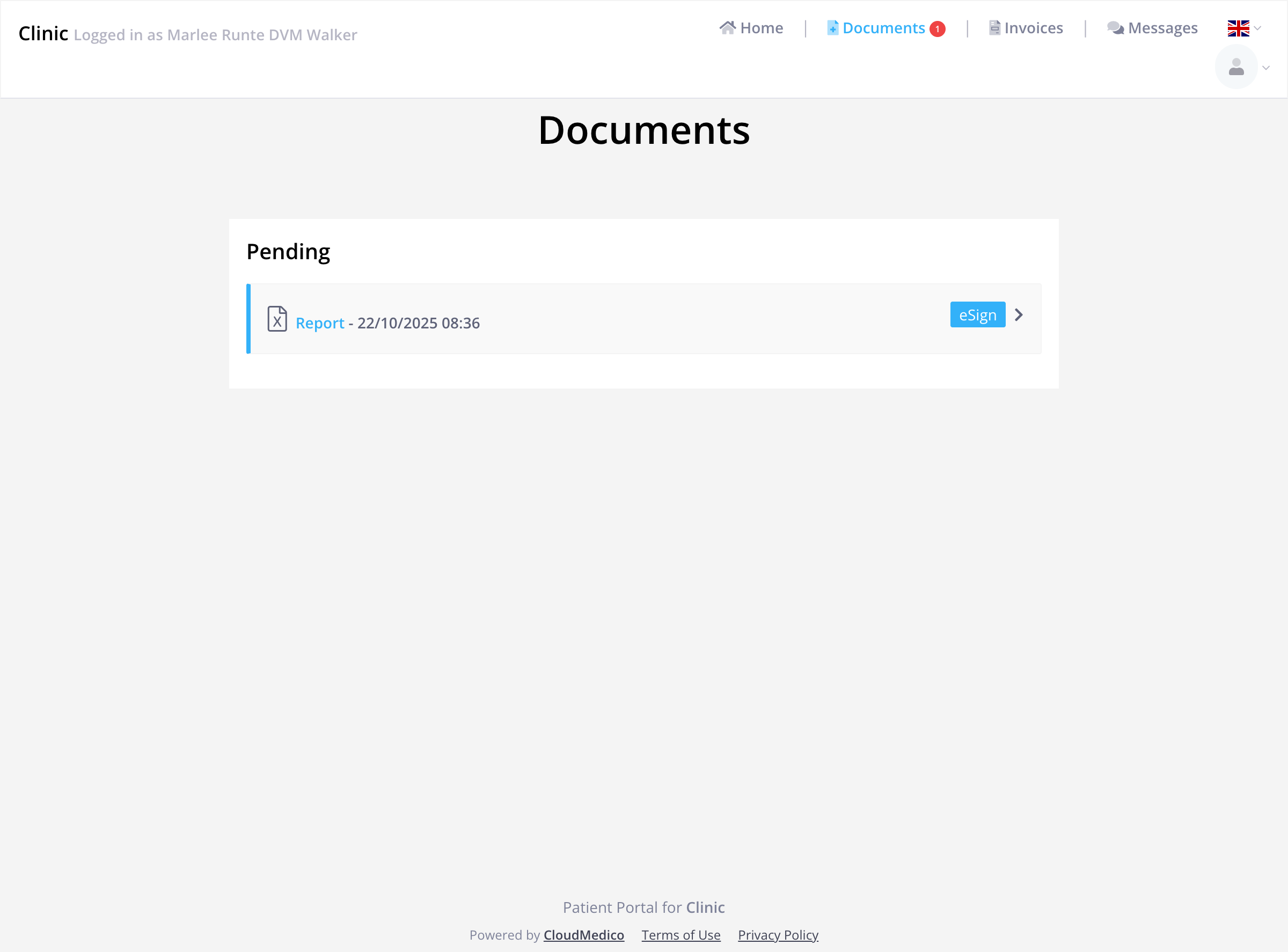
In the Patient Portal, the patient opens Documents, selects the document, and completes the requested action. To sign, they enter their Legal Name, draw their signature, and select Apply Signature.
Check a signed or completed document
Open the patient's Documents tab and select the document. A completed document shows when the patient completed it, their legal name and signature, and any file they uploaded.
The signature is stored with the document. It is not added to the PDF file itself.
Intake forms and templates
CloudMedico does not include ready-made intake or consent templates, and patients cannot fill in form fields inside the portal. To use your own forms, upload your PDF or Word file to each patient and ask them to sign it or upload a completed copy.
To keep intake details as structured information on the patient record, create custom fields under Practice Management > Custom Fields. Your team fills these in on the patient's record.
Plans and storage
Documents and e-signatures are available on every plan, including the free trial. Uploaded files count towards your plan's storage.