

Managing Users in CloudMedico
CloudMedico provides comprehensive user management functionality to help you control access to your practice management system. This system allows you to create user accounts, assign roles, and manage permissions for different staff members.
Users Overview
The Users section is located under the Practice Management dropdown menu. It provides tools to view, add, and manage user accounts with detailed information including roles, permissions, and access control.
Users List View
The Users List page displays all users in your practice. From here, you can quickly see an overview of staff accounts, search for specific users, and access options to add new users or manage existing ones.
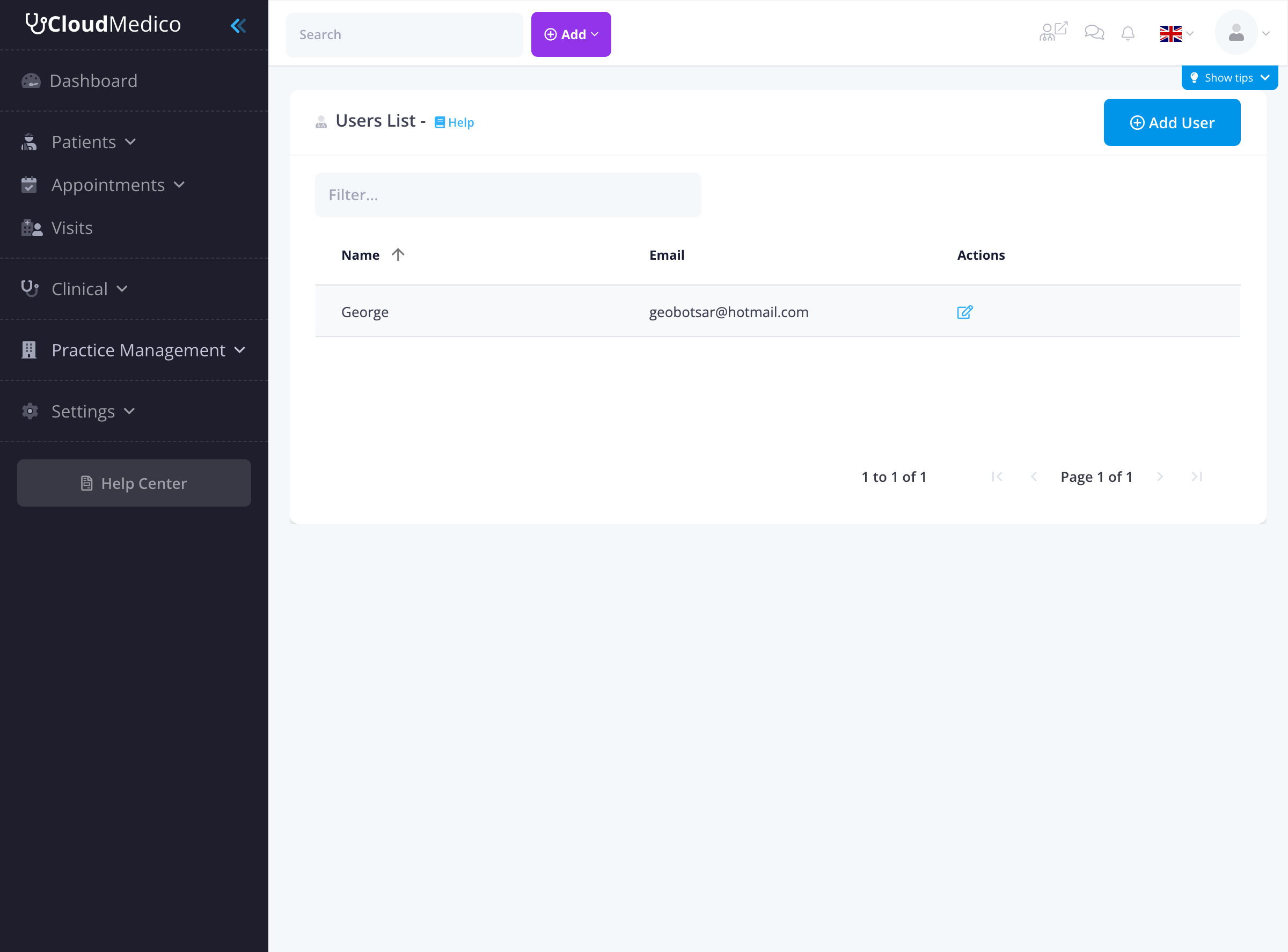
The users list shows key information for each user:
- Name: The user's full name
- Email: Login email address
- Actions: Edit options for each user
Adding New Users
To add a new user, click on the 'Add User' button. You will be presented with a comprehensive form to enter the user details:
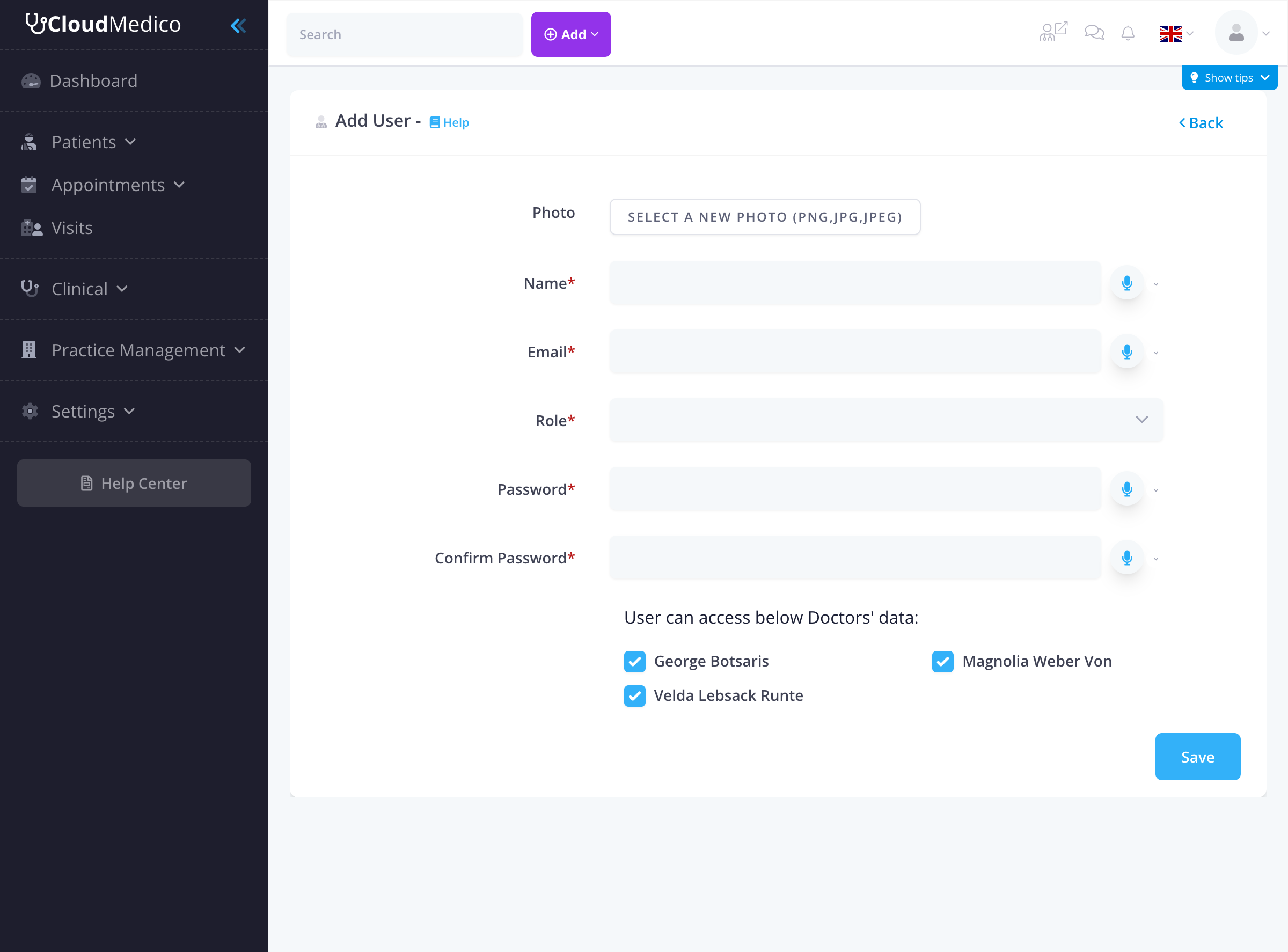
Key fields include:
- Photo: Upload a profile photo for the user
- Name: The user's full name (required field)
- Email: Login email address (required field)
- Role: Select from predefined roles (admin, employee)
- Password: Set a secure password (required field)
- Confirm Password: Confirm the password (required field)
User Roles
CloudMedico provides predefined user roles with different permission levels:
- Admin: Full access to all features and settings
- Employee: Limited access based on assigned permissions
Doctor Access Control
You can control which doctors' data each user can access:
- Select Doctors: Choose which doctors' data the user can view and manage
- Permission Control: Ensure users only access relevant doctor information
- Data Security: Maintain confidentiality by limiting access to specific doctors
Multilingual Support
All user fields support multiple languages, allowing you to maintain user information in different languages for international practices or multilingual staff.
Password Security
CloudMedico enforces secure password practices:
- Password Confirmation: Users must confirm their password during creation
- Secure Storage: Passwords are encrypted and stored securely
- Access Control: Only authorized users can create and manage accounts
Search and Filtering
The users list provides several search and filtering options:
- Search Filter: Use the search box to quickly find specific users
- Column Sorting: Click on any column header to sort users
- Name Search: Search by user name
- Email Search: Find users by email address
Integration with Role Management
User accounts integrate with CloudMedico's role management system:
- Role Assignment: Assign appropriate roles to users based on their responsibilities
- Permission Control: Roles determine what features and data users can access
- Access Management: Control access to sensitive information and administrative functions
Tips for Effective User Management
To maintain secure and efficient user management:
- Strong Passwords: Ensure all users have strong, unique passwords
- Role Assignment: Assign appropriate roles based on job responsibilities
- Access Control: Regularly review and update doctor access permissions
- Profile Photos: Upload clear profile photos for easy identification
- Regular Reviews: Periodically review user accounts and permissions
- Security Updates: Keep user information current and remove inactive accounts