




Add New Visit/Edit Existing Visits
The Add Visit section in CloudMedico provides a comprehensive form for creating and managing patient visits. This intuitive interface allows you to capture all essential visit details while maintaining flexibility for different visit types and clinical needs.
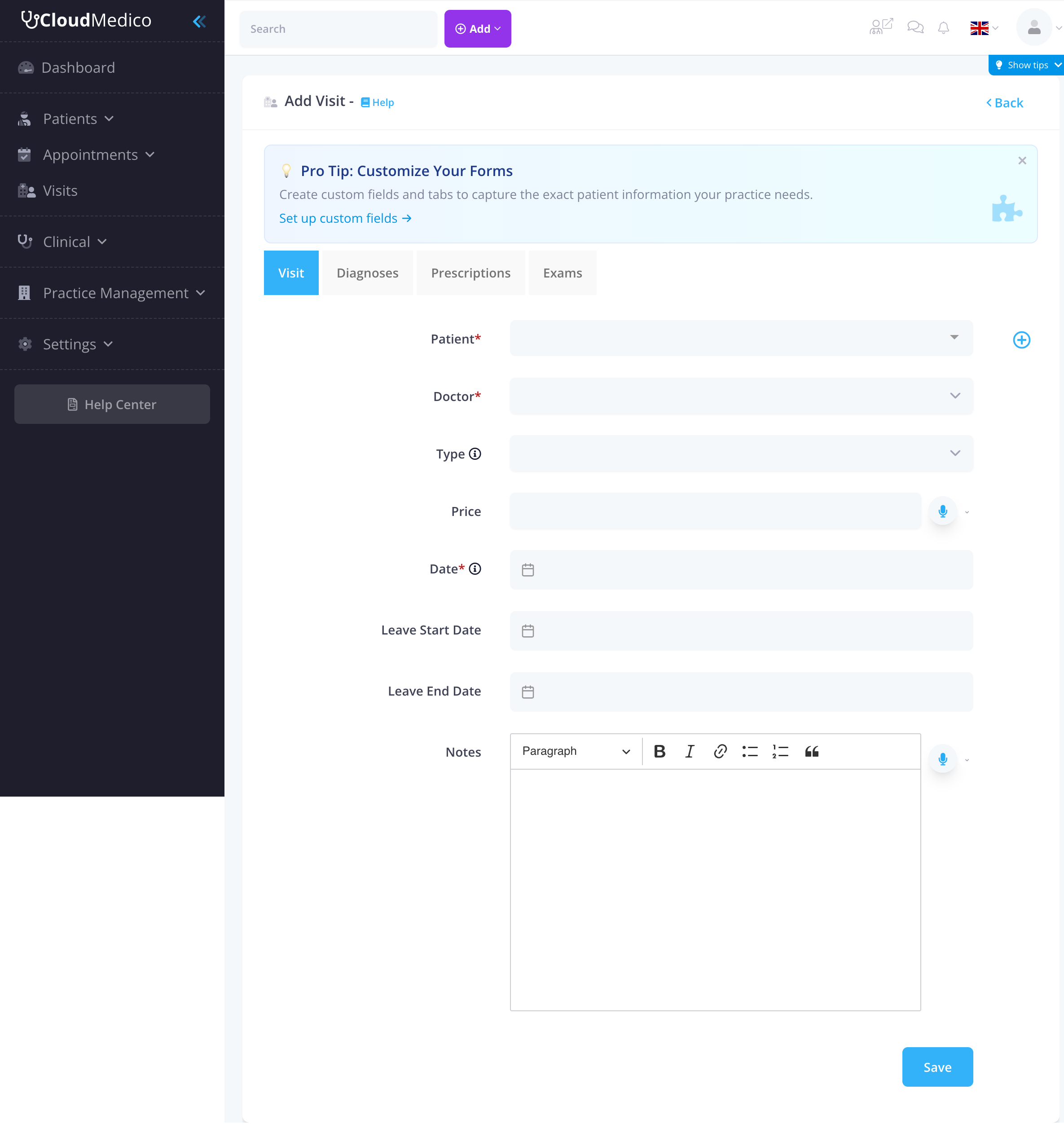
Form Overview
The visit form is organized into logical sections to streamline the data entry process. The form includes both required and optional fields to ensure comprehensive visit management.
Required Fields
The following fields are required to create a visit:
- Patient: Select from existing patients or add a new patient
- Doctor: Choose the doctor who will handle the visit
- Date: Choose the visit date using the date picker
Optional Fields
Additional fields provide flexibility and detailed visit management:
- Type: Visit type (Follow-up, Routine Check-up, Urgent care)
- Price: The cost of the visit
- Leave Start Date: Start date for medical leave if applicable
- Leave End Date: End date for medical leave if applicable
- Notes: Rich text editor for visit details and observations
Visit Types Management
Before adding visits, you should configure your visit types:
- Default Types: CloudMedico includes common types (Follow-up, Routine Check-up, Urgent care)
- Custom Types: Create custom visit types for your practice
- Management: Access visit types through the 'Visit Types' link on the visits list page
Rich Text Editor
The Notes field uses a rich text editor with:
- Formatting: Bold, italic, headings, lists
- Links: Add hyperlinks to external resources
- Lists: Bulleted and numbered lists
- Quotes: Block quotes for important information
Additional Tabs (Available After Saving)
After saving the visit record, additional tabs become available for comprehensive visit management. These tabs provide access to related clinical data.
Diagnoses Tab
The Diagnoses tab allows you to add diagnoses to the visit. You can select from predefined diagnosis types or search the ICD-10-CM list for standardized diagnoses, by code or by words.
Prescriptions Tab
The Prescriptions tab enables you to create prescriptions for the patient using medicines from your practice's medicine database.
Exams Tab
The Exams tab allows you to record examinations performed during the visit and attach relevant files or documents.
Form Features
The visit form includes several helpful features:
- Pro Tips: Contextual tips for form customization
- Validation: Real-time validation for required fields
- Auto-save: Automatic saving of form data
- Responsive Design: Works on all device sizes
Saving and Editing
After creating a visit:
- Save: Click Save to create the visit
- Redirect: You'll be redirected to the edit page for further modifications
- Back: Use the Back button to return to the visits list
Tips for Effective Visit Management
To make the most of your visit management:
- Set up visit types before scheduling
- Use notes for detailed visit observations
- Add diagnoses, prescriptions, and exams after saving
- Consider using leave dates for work-related medical documentation
- Utilize the rich text editor for comprehensive visit notes