

Patient Forms | CloudMedico Documentation
Patient forms let patients answer your questions and sign online, before they arrive. Build a form once, or start from a ready-made template, then send it from a patient's Documents tab. The patient fills it in and signs it in the Patient Portal, and you get their answers and a signed PDF on their record.
Patient forms are included in every plan, including the free trial, and their questions don't count towards your plan's custom field limit.
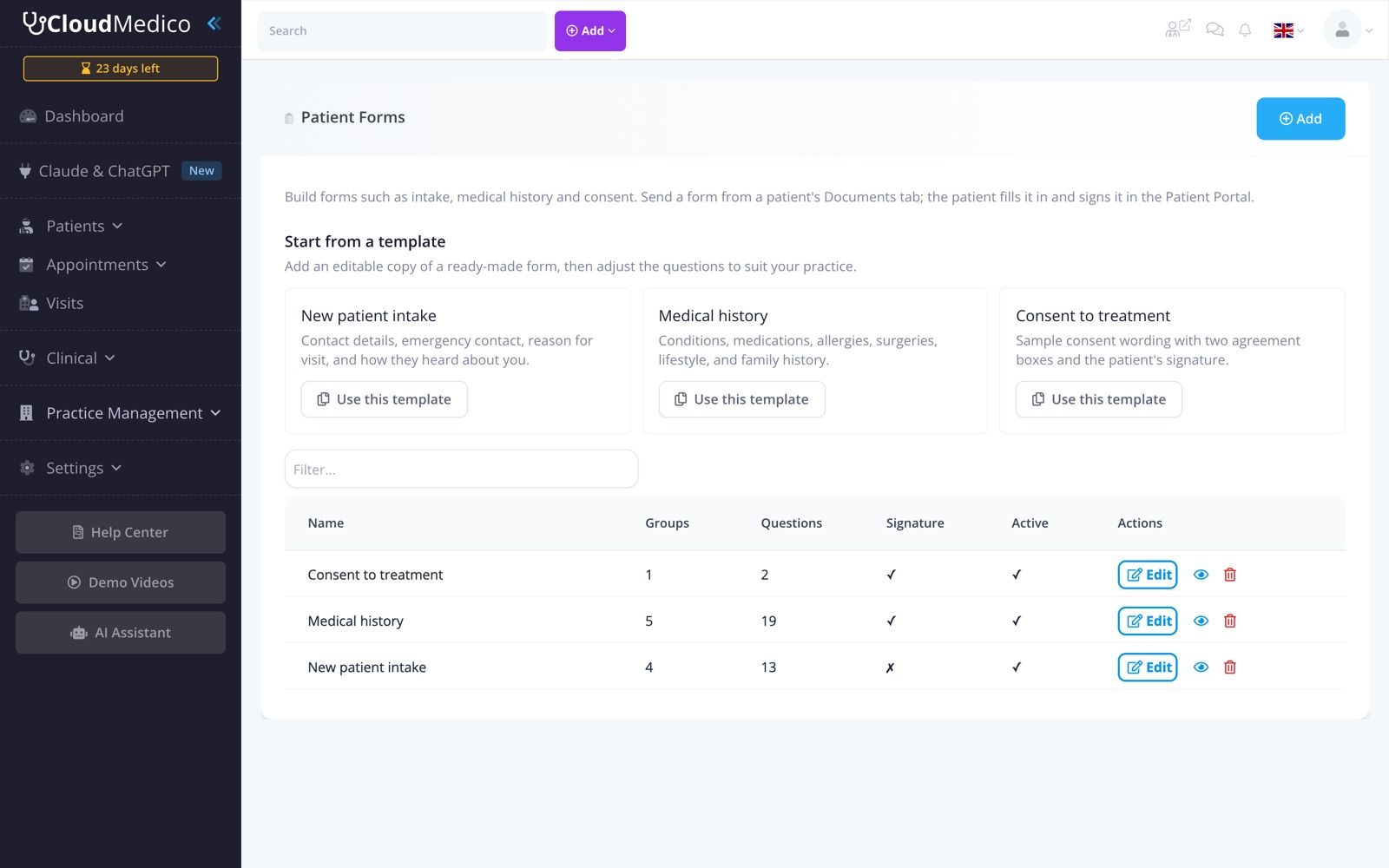
Start from a template
Go to Practice Management > Patient Forms. Under Start from a template, select Use this template on one of the ready-made forms:
- New patient intake: contact details, emergency contact, reason for visit, and how the patient heard about you.
- Medical history: conditions, medications, allergies, surgeries, lifestyle, and family history.
- Consent to treatment: sample consent wording with two agreement boxes and the patient's signature.
CloudMedico adds an editable copy in the language you are using. Change the wording, add or remove questions, and save. The consent template is sample wording, not legal advice: review it and adapt it to your practice before sending it.
Build or edit a form
Select Add to build a form from scratch, or Edit on an existing one. Give it a Name and an optional Description, which the patient sees at the top of the form. Tick Ask the patient to sign if the form needs a signature. Untick Active to stop a form from being sent; copies already sent can still be completed.
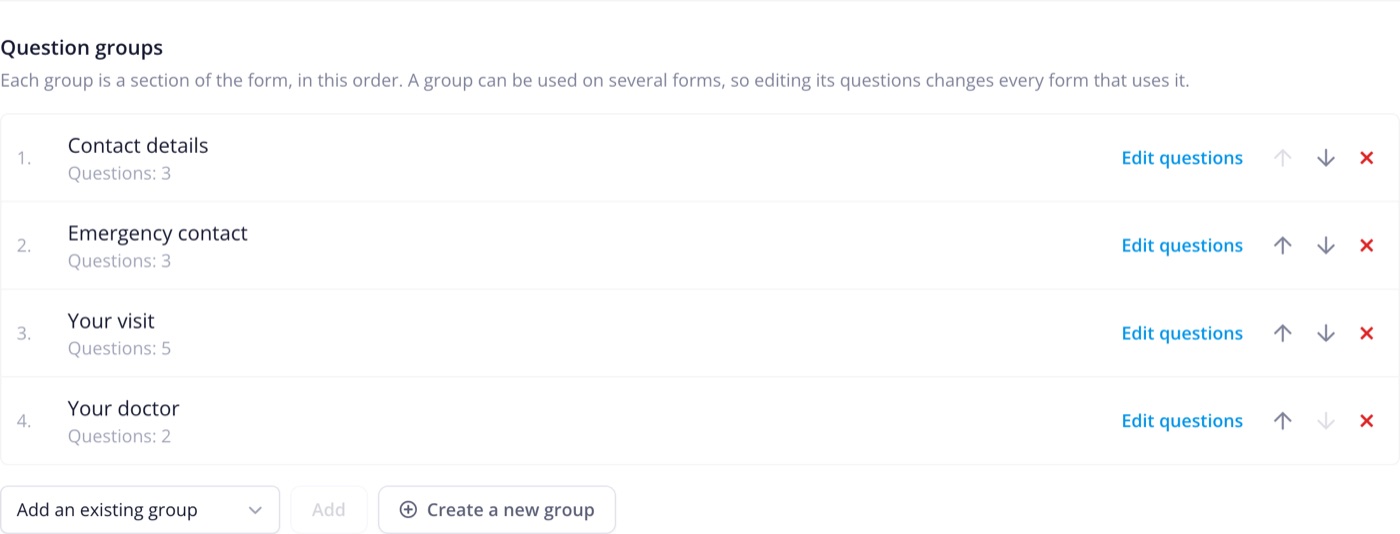
Question groups
A form is made of question groups, shown to the patient as sections in the order you choose. Use the arrows to reorder them, Add an existing group to reuse one, or Create a new group. Select Edit questions to add or change a group's questions.
A group can be used on several forms, so editing its questions changes every form that uses it. Groups for forms are custom field groups with the section Patient Forms, so you can also manage them under Practice Management > Custom Fields.
Question types
A question can be single line text, multi-line text, a number, a date, a dropdown, a Yes/No checkbox, or radio button options. Mark a question as required if the patient must answer it; a required checkbox, such as "I agree", must be ticked.
A Text block adds a heading and a paragraph instead of a question, for example consent wording or instructions.
Select Preview on a form to see it the way the patient will. Nothing you enter in the preview is saved.
Send a form to a patient
1. Open the patient and go to the Documents tab.
2. Select Add Document and choose Send a patient form.
3. Select the Patient form. The title is filled in for you.
4. Choose the Patient Action: Fill in, or Fill in and eSign to also collect the patient's signature. Add Instructions if needed.
5. Save.
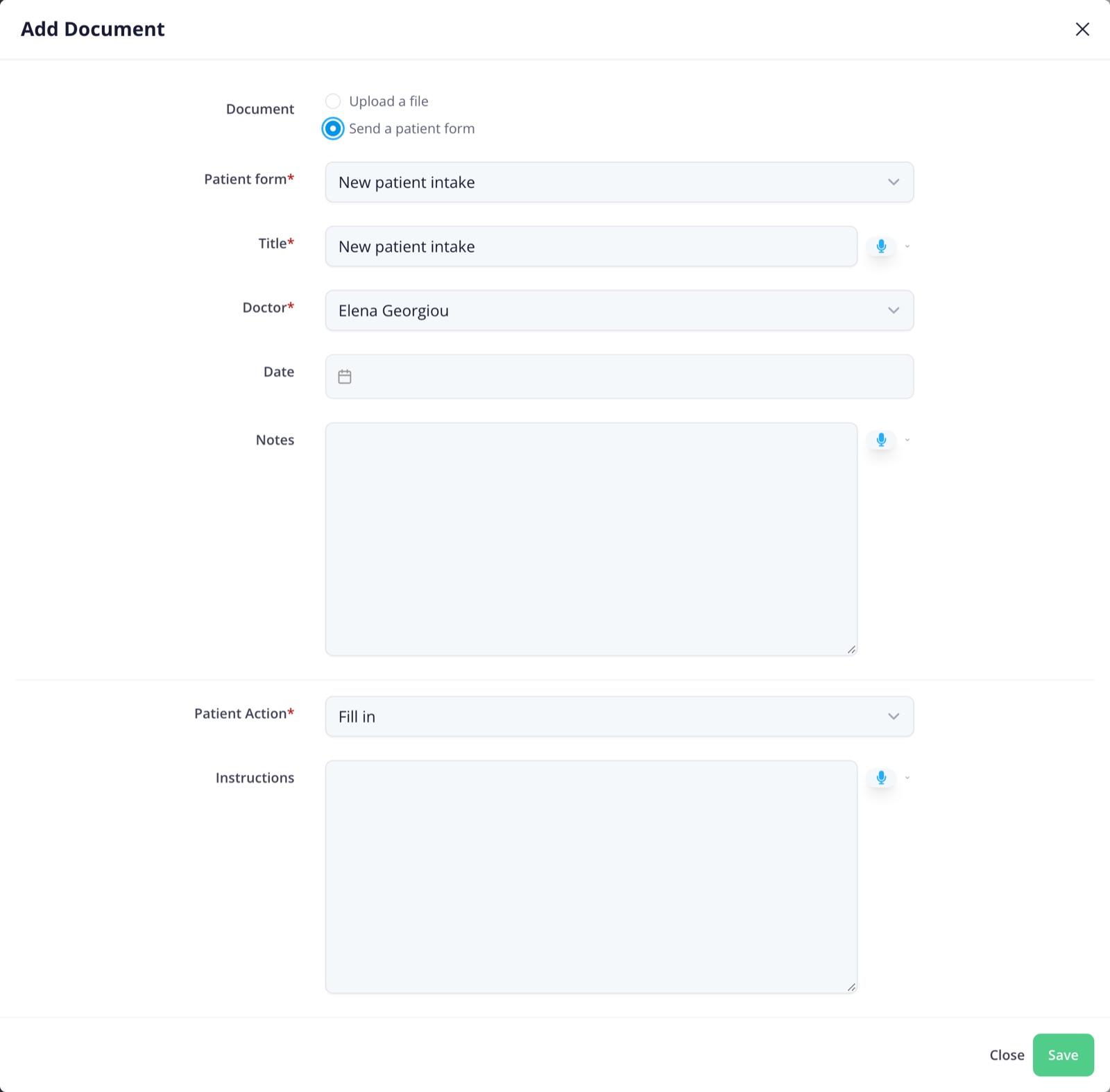
The patient needs Has Patient Portal turned on and an email address. They receive an email that the clinic sent them a form, with a link that opens it after they sign in. This email is sent even if reminders are turned off.
What the patient sees
In the Patient Portal, the patient opens the form, answers the questions, signs if you asked them to, and selects Submit form. Forms work on a phone, tablet, or computer, with nothing to download.
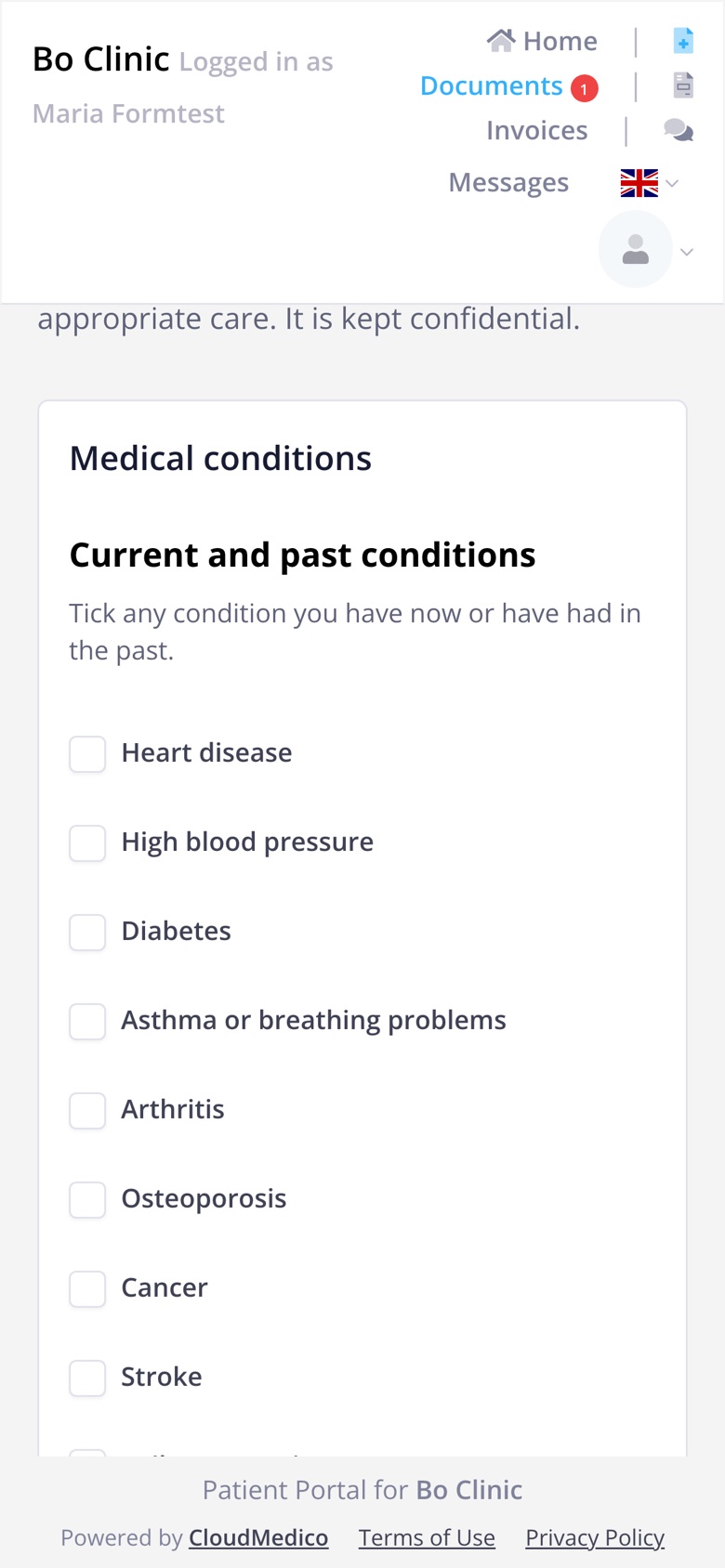
Before submitting, the patient is told that a submitted form can't be changed. If a required question is unanswered or a required box isn't ticked, the form shows which ones to complete.
Review the answers
When the patient submits the form, the staff member who sent it gets an email. Open the form from the patient's Documents tab to see the answers, grouped as on the form, and the patient's signature.
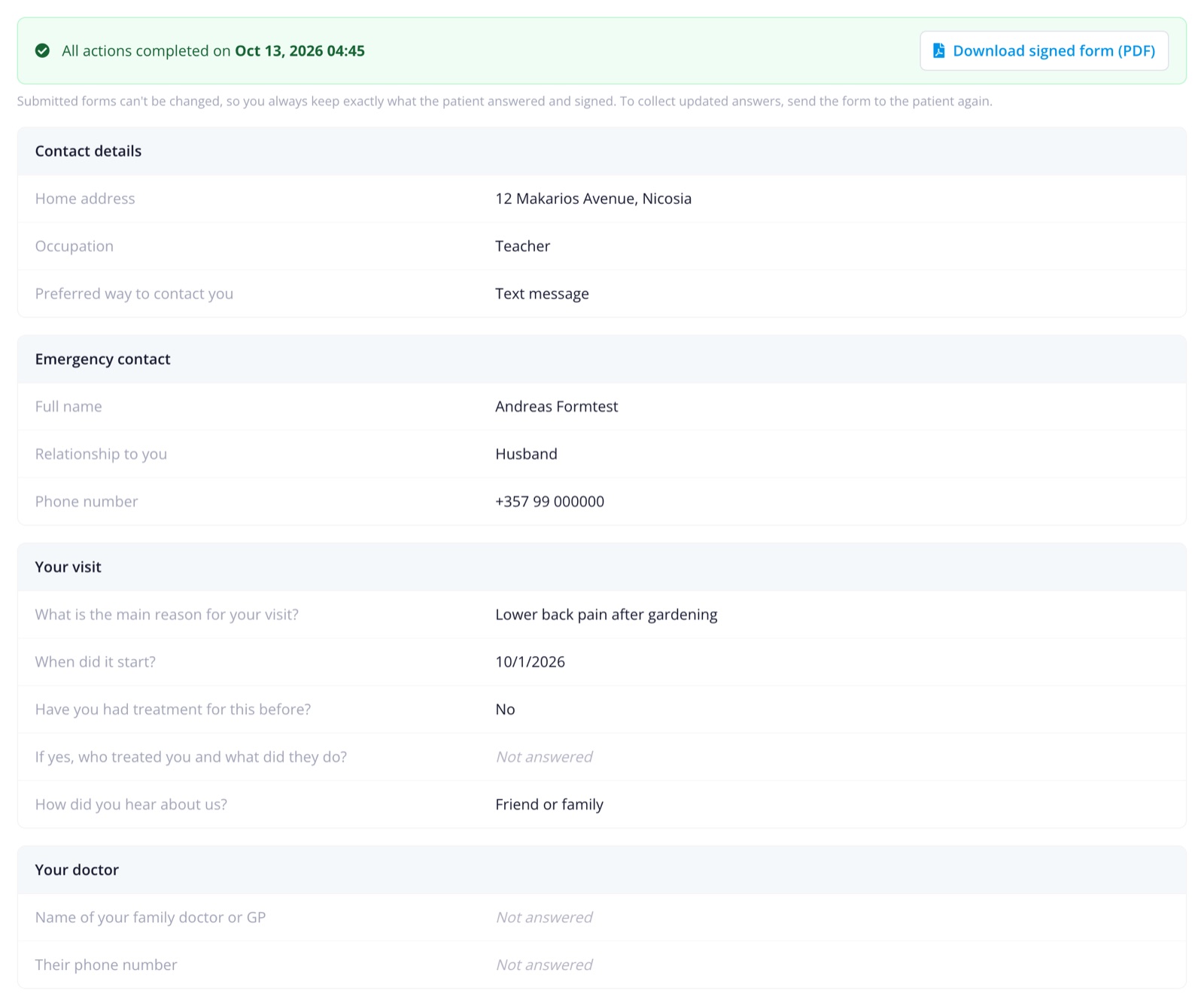
Select Download signed form (PDF) for a signed copy with every question and answer, ready to print or keep. The patient can download the same copy from the Patient Portal.
A submitted form can't be changed by the patient or by staff, so you always keep exactly what the patient answered and signed. To collect updated answers, send the form again.
Changing a form after sending it
If you edit a form, or a question group it uses, copies the patient hasn't completed yet show the updated form. If the patient had the old version open, they are asked to review the updated form and submit again. Completed forms keep the version the patient answered and signed.
Deleting a form doesn't affect copies already sent. A question group used on a form can't be moved to another section until you remove it from those forms.
Privacy
Answers are stored encrypted, like the rest of the patient record, and only staff who can see the patient's documents can see them. Emails to patients name the form but never include any answers.