




Managing Patient Exams in CloudMedico
CloudMedico provides comprehensive exam management functionality to help you track and manage patient examinations effectively. This system allows you to record detailed exam information, categorize exams by type, and maintain accurate medical records with file attachments.
Exams Overview
The Exams section is located under the Clinical dropdown menu. It provides tools to view, add, and manage patient exams with detailed information including patient, doctor, date, exam type, and related files.
Exams List View
The Exams List page displays all recorded exams. From here, you can quickly see an overview of patient exams, search for specific entries, and access options to add new exams or manage exam types.
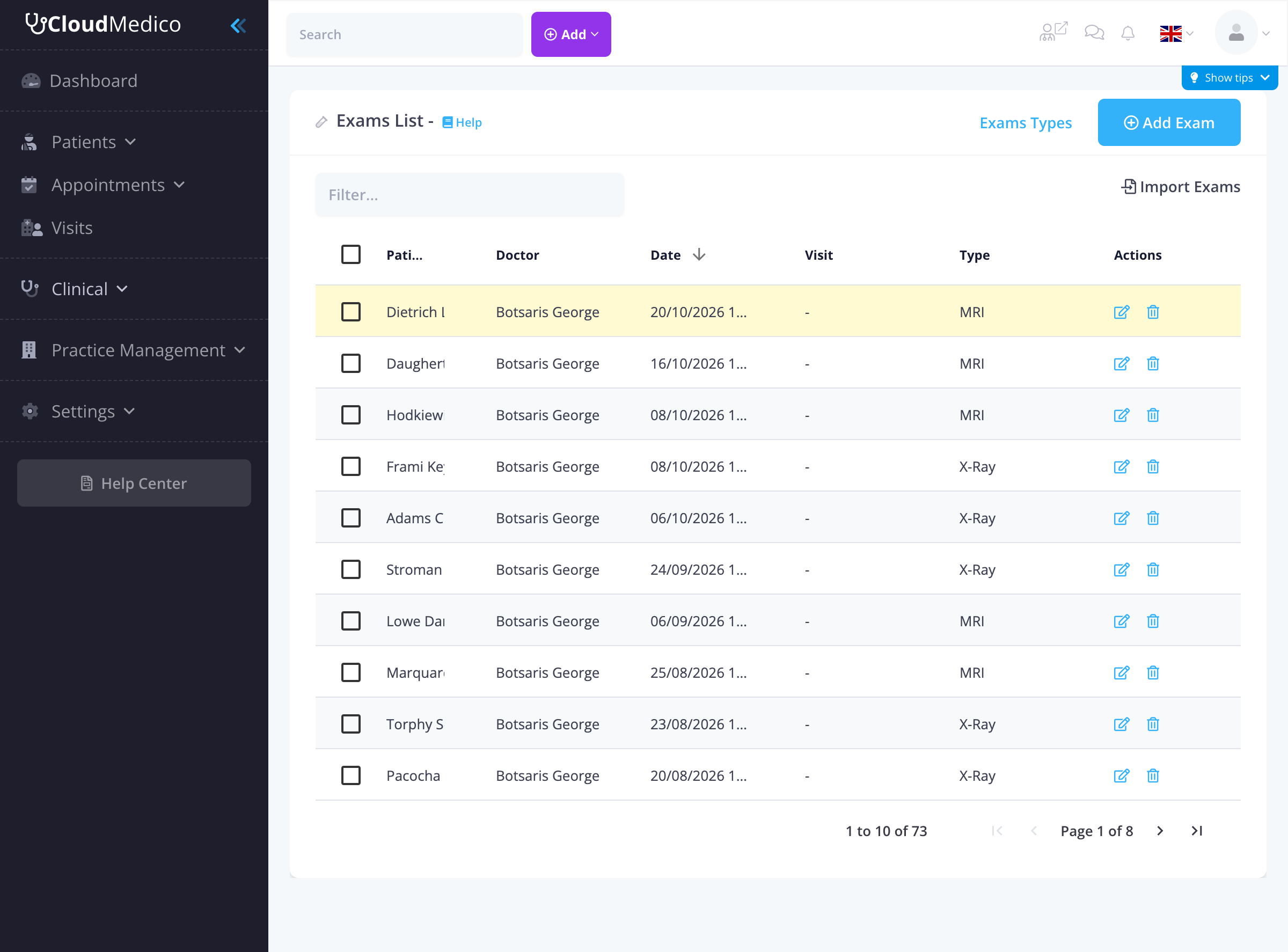
List Overview
The exams list displays key information for each exam, organized into sortable columns:
- Patient: The name of the patient, with a checkbox for selection.
- Doctor: The assigned doctor for the exam.
- Date: The date and time of the exam.
- Visit: The associated visit (if exam was created from a visit).
- Type: The category of the exam (e.g., MRI, X-Ray).
- Actions: Icons for quick actions such as editing or deleting the exam.
Adding New Exams
To add a new exam, click on the 'Add Exam' button. You will be presented with a comprehensive form to enter the exam details:
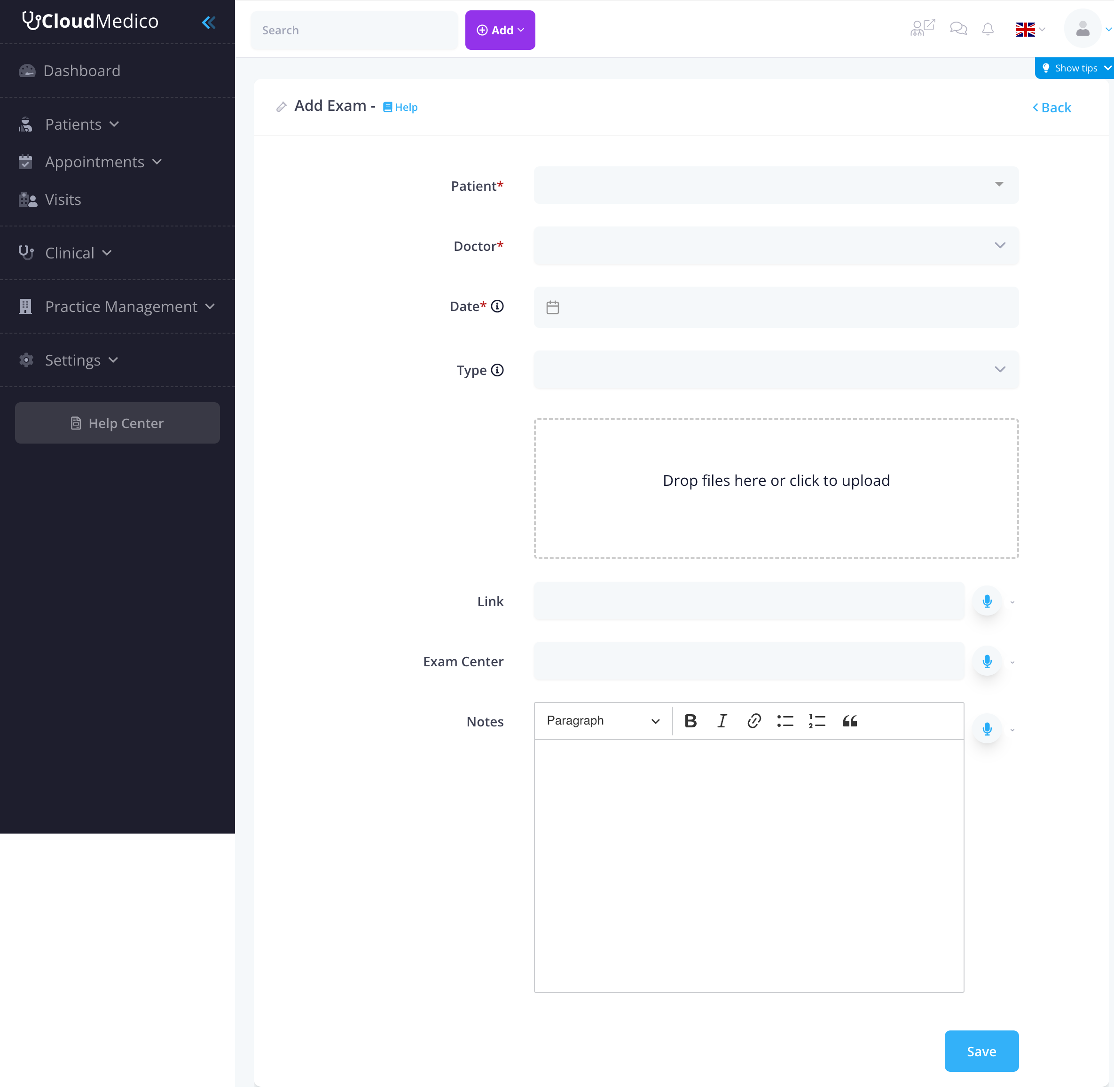
Required Fields
The following fields are required to create an exam:
- Patient: Select from existing patients or add a new patient
- Doctor: Choose the doctor who performed the exam
- Date: Choose the exam date using the date picker
Optional Fields
Additional fields provide flexibility and detailed exam management:
- Type: Exam type (MRI, X-Ray, etc.)
- File Upload: Upload exam results, images, or related documents
- Link: External link to exam results or reports
- Exam Center: Location where the exam was performed
- Notes: Rich text editor for exam details and observations
Exam Types Management
Before adding exams, you should configure your exam types:
- Default Types: CloudMedico includes common types (MRI, X-Ray)
- Custom Types: Create custom exam types for your practice
- Management: Access exam types through the 'Exam Types' link on the exams list page
File Upload Functionality
The exam form includes a file upload area that allows you to:
- Drag and Drop: Drag files directly onto the upload area
- Click to Upload: Click the upload area to browse and select files
- Multiple Files: Upload multiple files for a single exam
- File Types: Support for various file formats (PDF, images, documents)
Rich Text Editor
The Notes field uses a rich text editor with:
- Formatting: Bold, italic, headings, lists
- Links: Add hyperlinks to external resources
- Lists: Bulleted and numbered lists
- Quotes: Block quotes for important information
Search and Filtering
Efficiently locate specific exams using the built-in search and filtering capabilities:
- Search Filter: Use the search box to quickly find specific exams by patient name, doctor, or exam type.
- Column Sorting: Click on any column header to sort exams in ascending or descending order.
- Pagination: Navigate through large exam lists using the pagination controls.
Import Functionality
The exams list includes an 'Import Exams' feature that allows you to:
- Bulk Import: Import multiple exams from Excel files
- Data Migration: Transfer exam data from other systems
- Template Support: Use predefined templates for consistent data entry
Visit Integration
Exams can be created in two ways:
- Standalone Exams: Created directly from the Exams section (Visit column shows '-')
- Visit-Related Exams: Created from within a patient visit (Visit column shows the visit reference)
Tips for Effective Exam Management
To make the most of your exam management:
- Set up exam types before creating exams
- Use file uploads for exam results and images
- Add detailed notes for exam observations
- Include exam center information for external exams
- Use links for digital exam results
- Regularly review and update exam records