

Managing Doctors in CloudMedico
CloudMedico provides comprehensive doctor management functionality to help you maintain detailed profiles of all medical staff in your practice. This system allows you to record essential doctor information, manage access permissions, and maintain accurate staff records.
Doctors Overview
The Doctors section is located under the Practice Management dropdown menu. It provides tools to view, add, and manage doctor profiles with detailed information including contact details, specialties, and access permissions.
Doctors List View
The Doctors List page displays all doctors in your practice. From here, you can quickly see an overview of medical staff, search for specific doctors, and access options to add new doctors or manage existing ones.
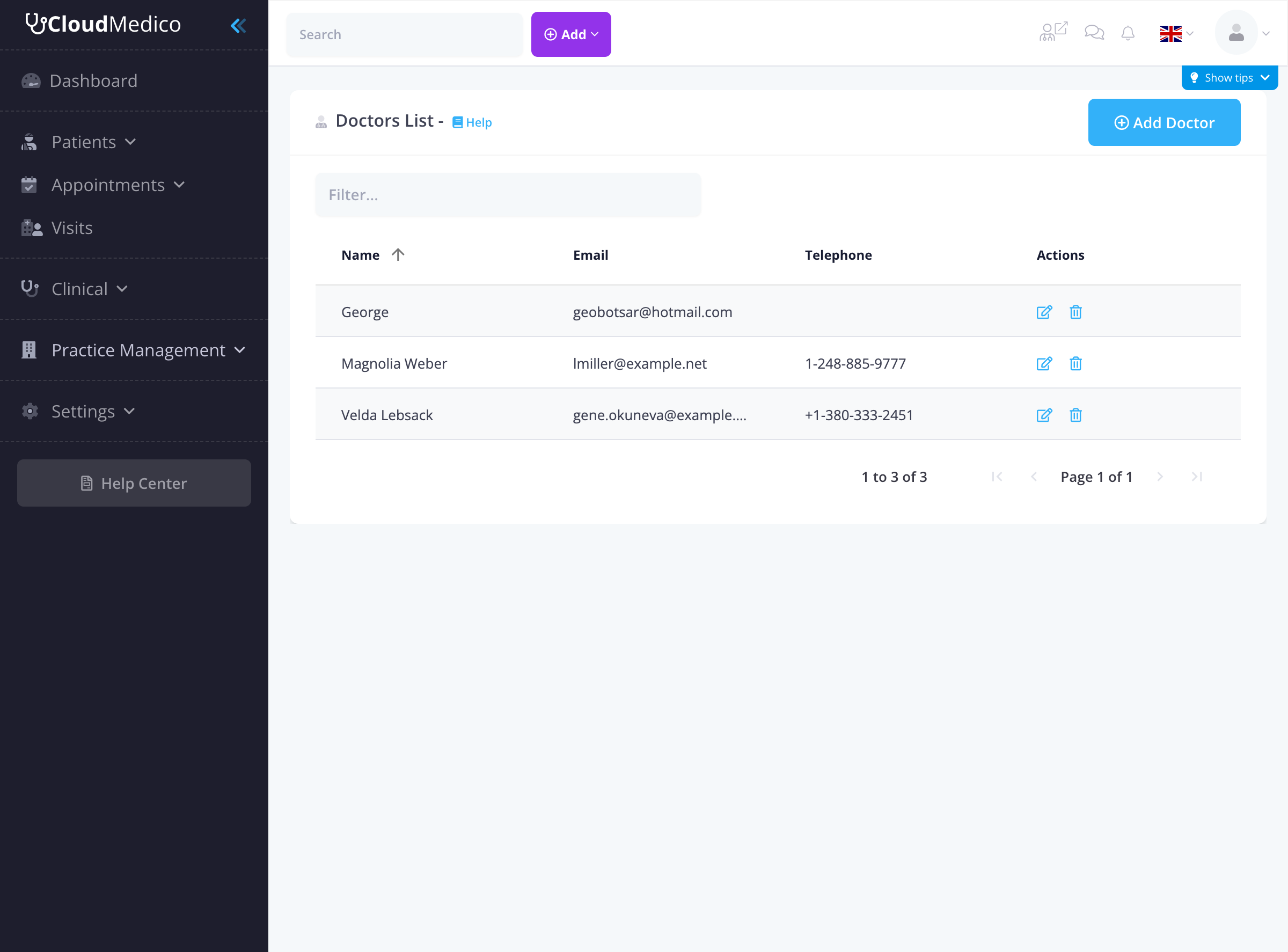
The doctors list shows key information for each doctor:
- Name: The doctor's full name
- Email: Contact email address
- Telephone: Contact phone number
- Actions: Edit and delete options for each doctor
Adding New Doctors
To add a new doctor, click on the 'Add Doctor' button. You will be presented with a comprehensive form to enter the doctor details:
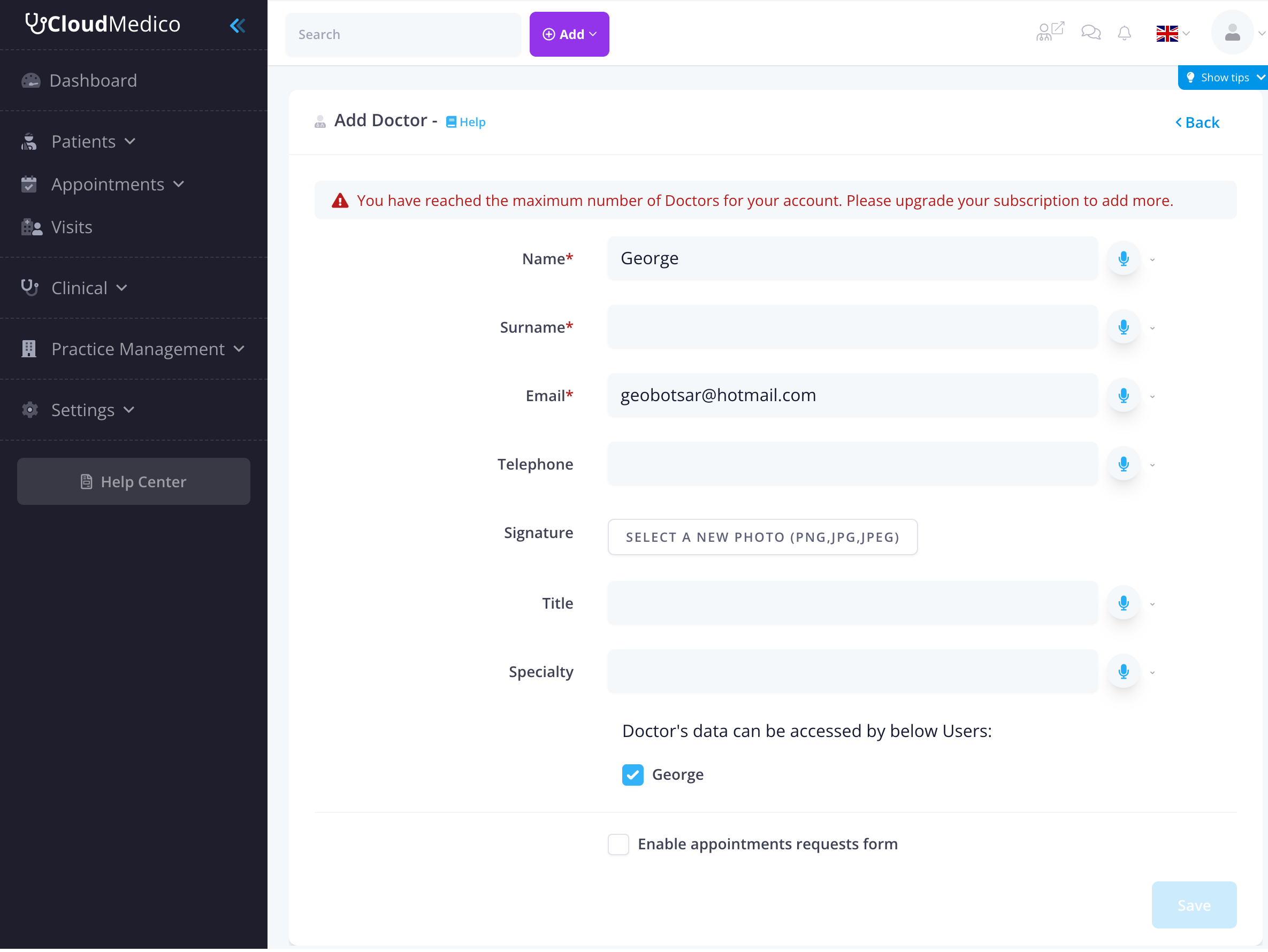
Key fields include:
- Name: The doctor's first name (required field)
- Surname: The doctor's last name (required field)
- Email: Contact email address (required field)
- Telephone: Contact phone number
- Signature: Upload a digital signature image
- Title: Professional title (e.g., Dr., MD, PhD)
- Specialty: Medical specialty or area of expertise
Access Management
CloudMedico allows you to control which users can access each doctor's data:
- User Assignment: Select which users can view and manage this doctor's information
- Permission Control: Ensure only authorized staff can access sensitive doctor data
- Role-Based Access: Integrate with your practice's user role system
Appointment Request Settings
CloudMedico provides comprehensive appointment request functionality for each doctor. When you enable appointment requests, patients can book appointments directly through a dedicated portal.
Enabling Appointment Requests
To enable appointment requests for a doctor, check the 'Enable appointments requests form' checkbox. This will reveal additional configuration options:
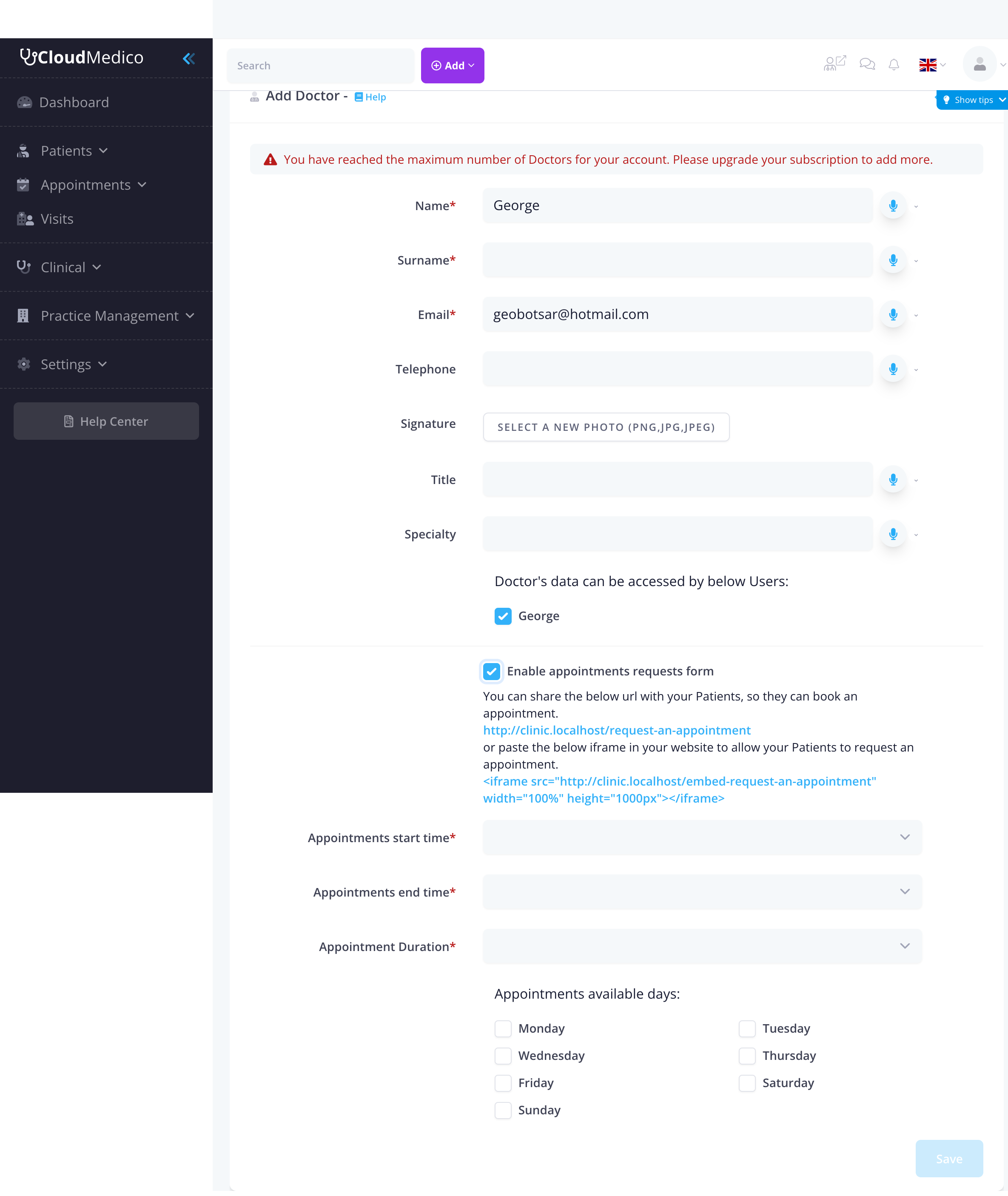
Appointment Request Configuration
When appointment requests are enabled, you can configure:
- Patient Portal URL: A direct link patients can use to request appointments
- Embed Code: An iframe code to embed the appointment request form on your website
- Appointment Start Time: The earliest time appointments can be scheduled
- Appointment End Time: The latest time appointments can be scheduled
- Appointment Duration: The default duration for appointments with this doctor
- Available Days: Select which days of the week the doctor is available for appointments
Patient Portal Integration
The appointment request system integrates seamlessly with CloudMedico's patient portal:
- Direct Booking: Patients can book appointments without logging in
- Website Integration: Embed the booking form directly on your practice website
- Real-time Availability: Patients see only available time slots
- Automatic Notifications: Both patients and doctors receive booking confirmations
Payment Settings
CloudMedico allows doctors to connect their Stripe accounts to receive payments directly from patients through the Patient Portal. This feature enables seamless payment processing with a transparent, volume-based fee structure.
Connecting Your Stripe Account
To enable payment processing, doctors can connect their Stripe account through the Payment Settings section. The user who connects the Stripe account will have access to the Stripe dashboard and all payment information.
Important: The Payment Settings section is only available when editing an existing doctor profile. You must first create the doctor, then edit the profile to access the payment configuration options.
Fee Structure
CloudMedico uses a volume-based fee structure that rewards higher payment volumes. Fees are automatically calculated based on your clinic's payment volume over the last 30 days:
- Less than €2,000: 3.5% fee rate
- €2,000 - €4,999: 3.2% fee rate
- €5,000 - €9,999: 3.0% fee rate
- €10,000 or more: 2.8% fee rate
Volume is calculated based on verified Stripe payments processed through our platform in the last 30 days.
Setup Requirements
To complete the Stripe account setup, you will need to:
- Provide Basic Business Information: Enter your practice details
- Upload Government-Issued ID: Valid identification for verification purposes
- Add Bank Account Details: Set up where you want to receive payments
Security and Privacy
Your Stripe account is securely handled by our platform. CloudMedico does not store any payment information on our servers. All payment processing is managed securely through Stripe's infrastructure, ensuring the highest level of security and compliance.
Multilingual Support
All doctor fields support multiple languages, allowing you to maintain doctor information in different languages for international practices or multilingual staff.
Subscription Limits
CloudMedico has subscription-based limits on the number of doctors you can add:
- Account Limits: Your subscription determines the maximum number of doctors
- Upgrade Options: Upgrade your subscription to add more doctors
- Notification: The system will notify you when you reach your limit
Search and Filtering
The doctors list provides several search and filtering options:
- Search Filter: Use the search box to quickly find specific doctors
- Column Sorting: Click on any column header to sort doctors
- Name Search: Search by doctor name or surname
- Email Search: Find doctors by email address
Integration with Other Features
Doctor profiles integrate with various CloudMedico features:
- Appointments: Doctors appear in appointment scheduling
- Visits: Assign doctors to patient visits
- Prescriptions: Doctors can create prescriptions
- Reports: Include doctor-specific data in reports
Tips for Effective Doctor Management
To maintain comprehensive doctor records:
- Complete Information: Fill in all relevant details for each doctor
- Digital Signatures: Upload clear, high-quality signature images
- Access Control: Regularly review and update user access permissions
- Specialty Details: Include detailed specialty information for better organization
- Contact Information: Keep contact details current and accurate
- Subscription Management: Monitor your doctor limit and upgrade when needed