




Add New Appointment/Edit Existing Appointments
The Add Appointment section in CloudMedico provides a comprehensive form for creating and managing appointments. This intuitive interface allows you to capture all essential appointment details while maintaining flexibility for different appointment types and scheduling needs.
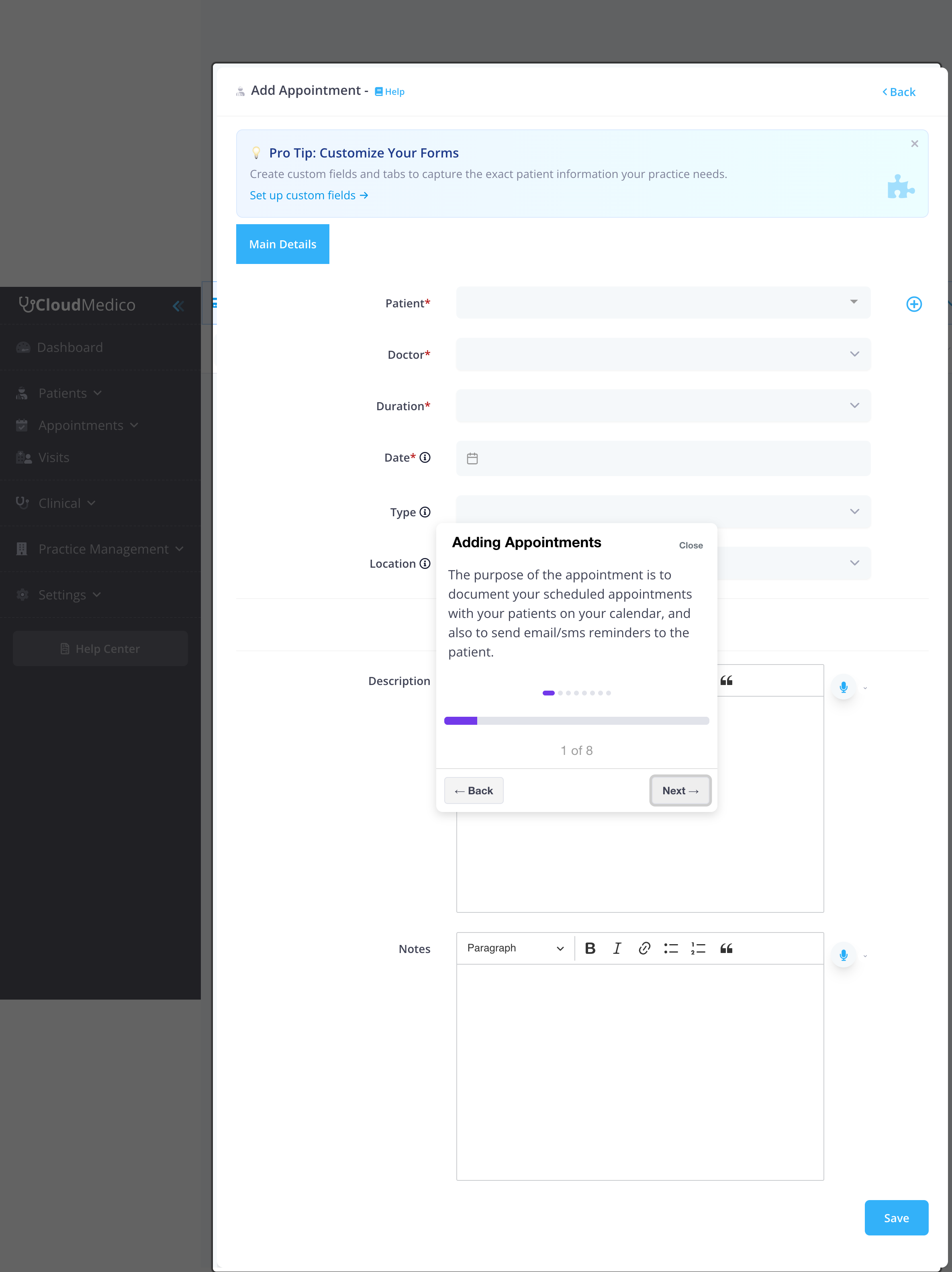
Form Overview
The appointment form is organized into logical sections to streamline the data entry process. The form includes both required and optional fields to ensure comprehensive appointment management.
Required Fields
The following fields are required to create an appointment:
- Patient: Select from existing patients or add a new patient
- Practitioner: Choose the practitioner who will handle the appointment
- Duration: Select appointment length (5 minutes to 6 hours)
- Date: Choose the appointment date using the date picker
Optional Fields
Additional fields provide flexibility and detailed appointment management:
- Type: Appointment type (Follow-up, New Patient, etc.)
- Location: Where the visit takes place. It is hidden while Video appointment is on
- Video appointment: Turn it on when the patient joins online, with CloudMedico video or your own Zoom or Google Meet link
- Repeated: Checkbox for recurring appointments
Repeat an Appointment
You can set recurrence only while creating a new appointment. Select Repeated to show the Every and Repeats fields.
- Every: Choose an interval from 1 to 60 days. For example, choose 30 days for an appointment roughly every 30 days.
- Repeats: Choose the total number of appointments to create, from 1 to 20. The first appointment is included in this total.
CloudMedico creates each repeated appointment separately. There is no calendar-month rule, end-date setting, or recurring-series editor. To change or cancel appointments after saving, edit or delete the individual appointments that were created.
- Description: Rich text editor for appointment details
- Notes: Additional notes using rich text editor
Patient Selection
The patient selection field offers several options:
- Search: Type to search existing patients
- Add New: Quick access to add new patients
- Autocomplete: Intelligent suggestions as you type
Duration Options
CloudMedico provides flexible duration options:
- Short appointments: 5, 10, 15 minutes
- Standard appointments: 30, 45 minutes, 1 hour
- Extended appointments: 1.5, 2, 3, 4, 5, 6 hours
Rich Text Editors
Both Description and Notes fields use rich text editors with:
- Formatting: Bold, italic, headings, lists
- Links: Add hyperlinks to external resources
- Lists: Bulleted and numbered lists
- Quotes: Block quotes for important information
Appointment Types
Before adding appointments, you should configure your appointment types:
- Default Types: CloudMedico includes common types (Follow-up, New Patient)
- Custom Types: Create custom appointment types for your practice
- Management: Access appointment types through the Appointments menu
Form Features
The appointment form includes several helpful features:
- Pro Tips: Contextual tips for form customization
- Validation: Real-time validation for required fields
- Auto-save: Automatic saving of form data
- Responsive Design: Works on all device sizes
Saving and Editing
After creating an appointment:
- Save: Click Save to create the appointment
- Redirect: You'll be redirected to the edit page for further modifications
- Back: Use the Back button to return to the appointments list
Tips for Effective Appointment Management
To make the most of your appointment scheduling:
- Set up appointment types before scheduling
- Use descriptions for appointment context
- Add notes for special requirements or reminders
- Consider using Telehealth for remote consultations
When a patient won't be reminded
Once you pick the patient, the form says if they won't get a reminder and why: no email address or mobile number, their own reminder switches are off, or the practice has no SMS credits left. A notice above the form says when reminders are off for the whole practice. On the reminder day, each reminder that isn't sent for one of these reasons appears as "skipped" in the Email logs and SMS logs, with the reason.