




Managing Insurance in CloudMedico
CloudMedico provides comprehensive insurance management functionality to help you track and manage insurance providers, patient insurance policies, and insurance claims effectively. This system allows you to maintain a database of insurance providers, associate insurance policies with patients, and create and track insurance claims linked to invoices.
Insurance Overview
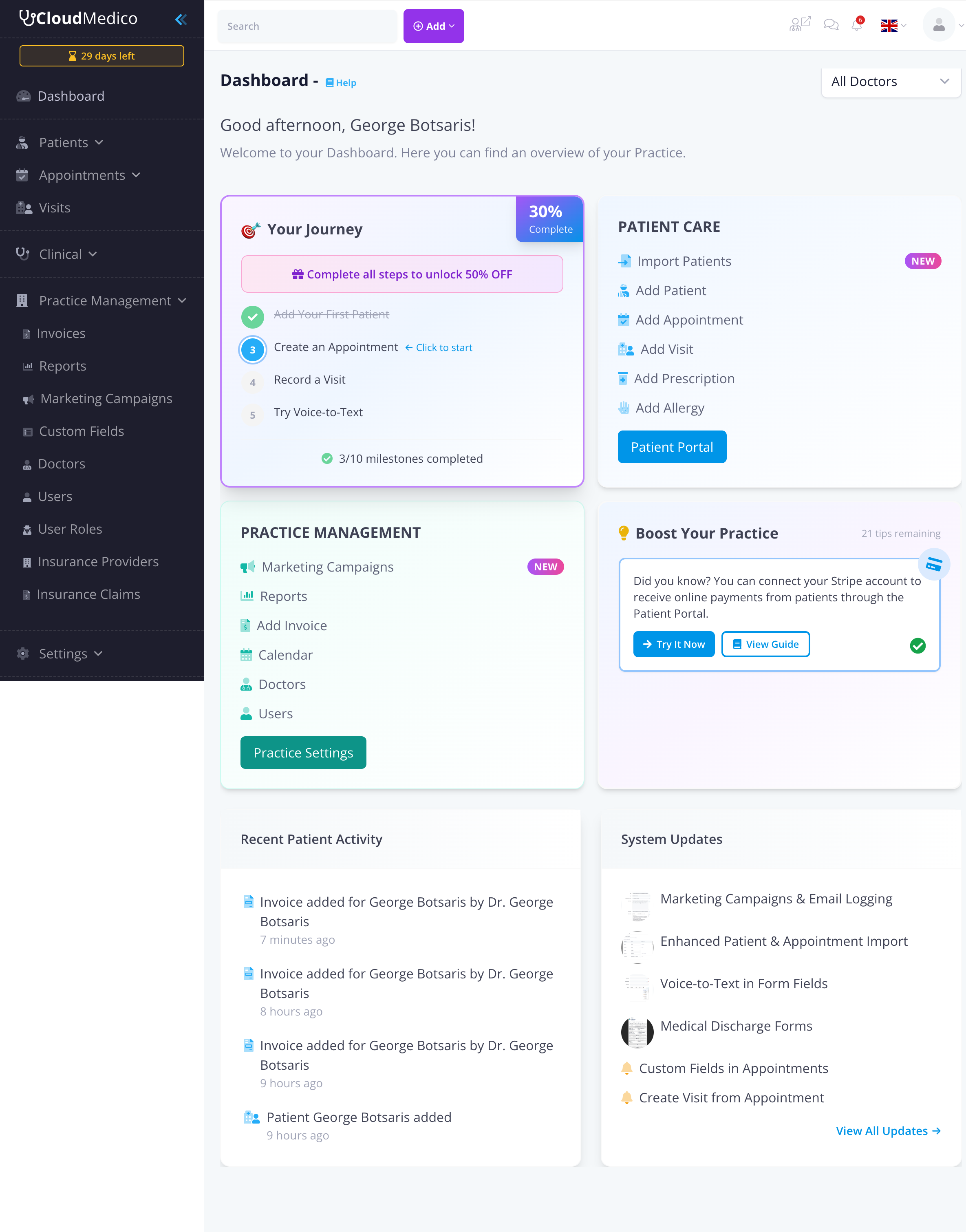
The Insurance section is located under the Practice Management dropdown menu. It provides tools to manage insurance providers and track insurance claims. Patient insurance policies are managed directly from the patient edit page.
Insurance Providers
Accessing Insurance Providers
To access the Insurance Providers section, navigate to Practice Management → Insurance Providers from the main menu. This section allows you to manage all insurance providers in your system.
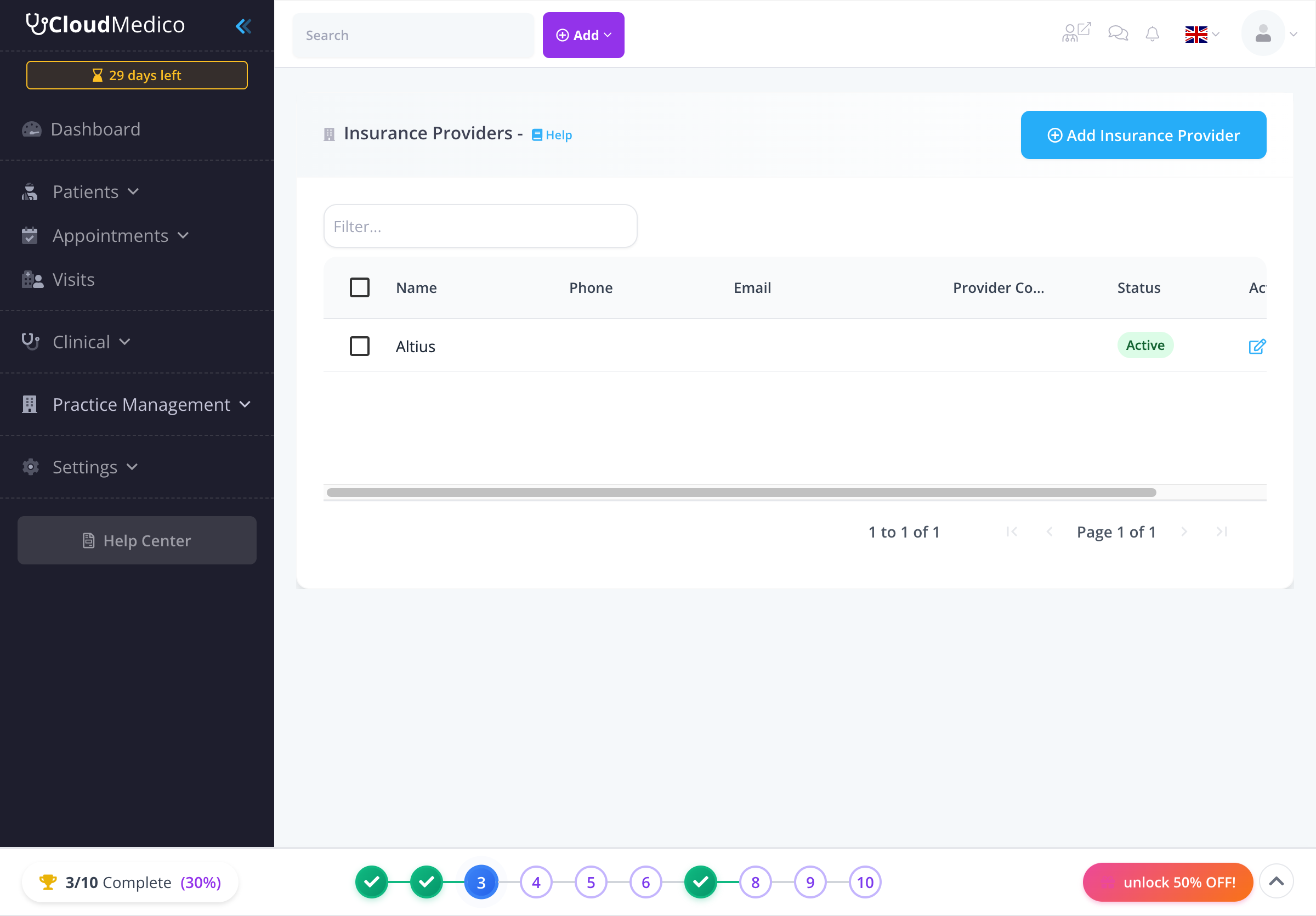
Insurance Providers List View
The Insurance Providers List page displays all insurance providers in your system. From here, you can view provider information, search for specific providers, and manage your provider database.
Adding New Insurance Providers
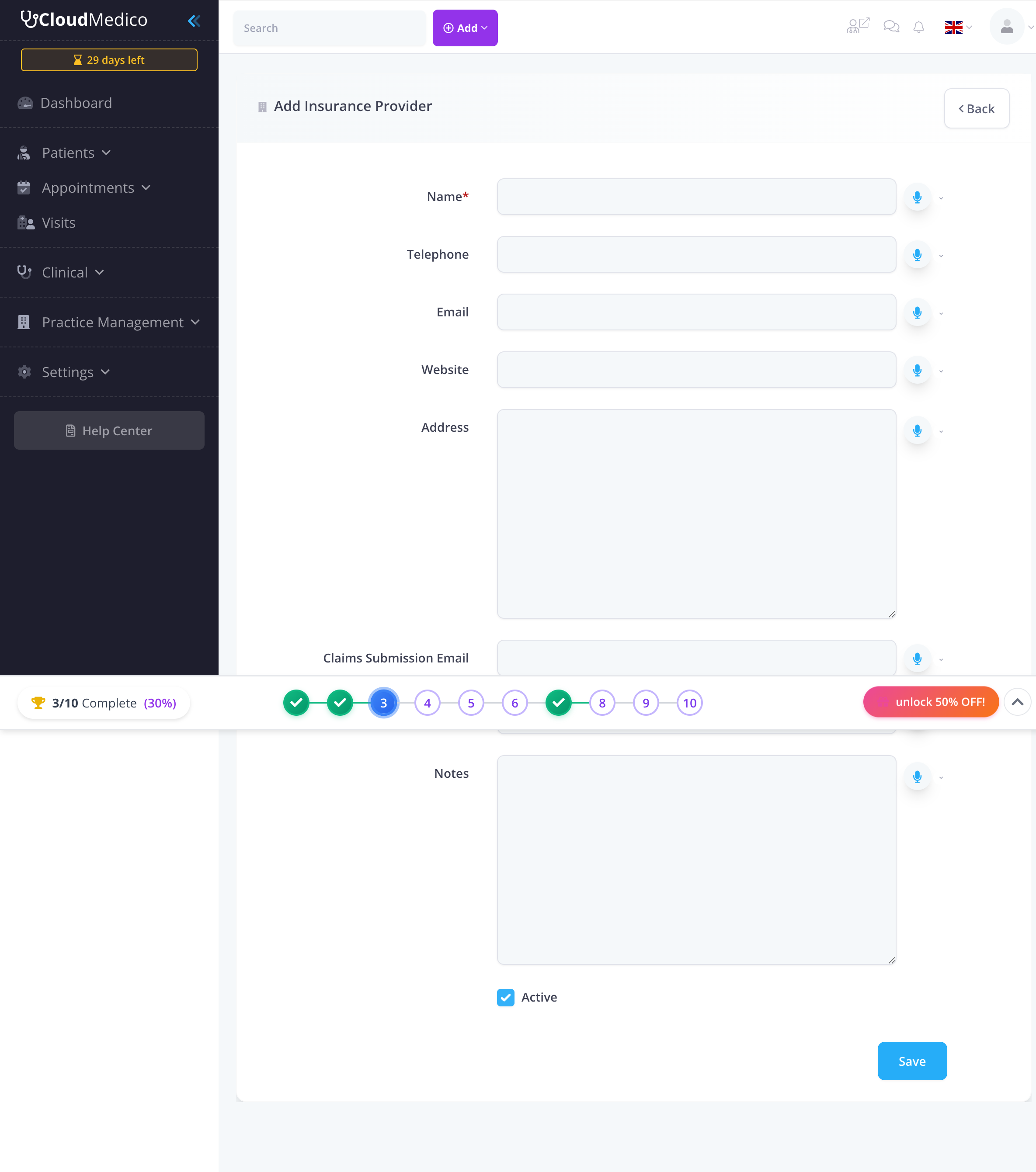
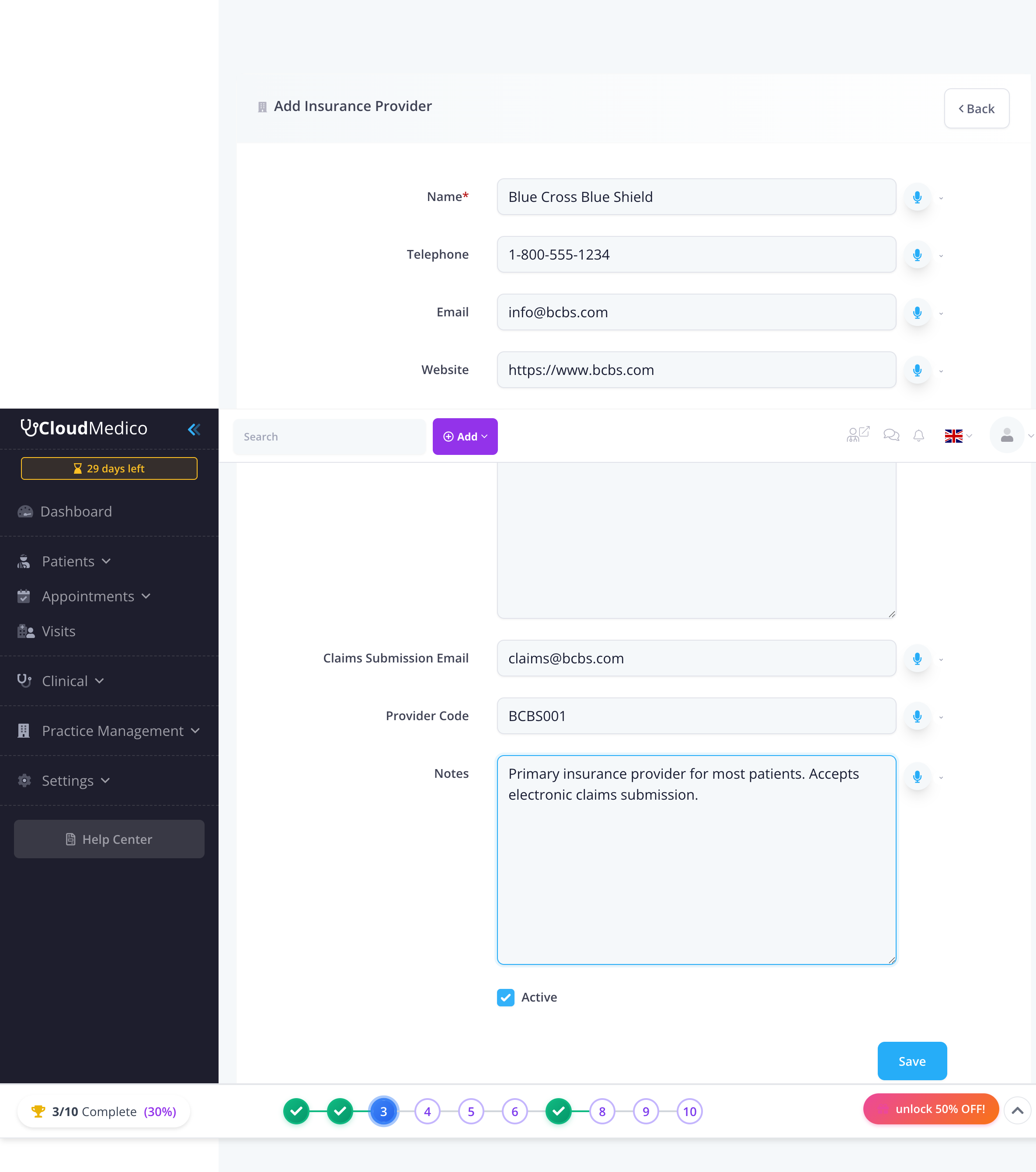
To add a new insurance provider, click on the 'Add Insurance Provider' button. You will be presented with a comprehensive form to enter the provider details:
Required Fields
The following field is required to create an insurance provider:
- Name: The name of the insurance provider (e.g., Blue Cross Blue Shield, Aetna)
Optional Fields
Additional fields provide flexibility and detailed provider management:
- Telephone: Contact phone number for the provider
- Email: General contact email address
- Website: Provider's website URL
- Address: Physical address of the provider
- Claims Submission Email: Dedicated email for submitting insurance claims
- Provider Code: Unique identifier code for the provider
- Notes: Additional information about the provider
- Active: Checkbox to mark the provider as active or inactive
Patient Insurance Policies
Accessing Patient Insurance
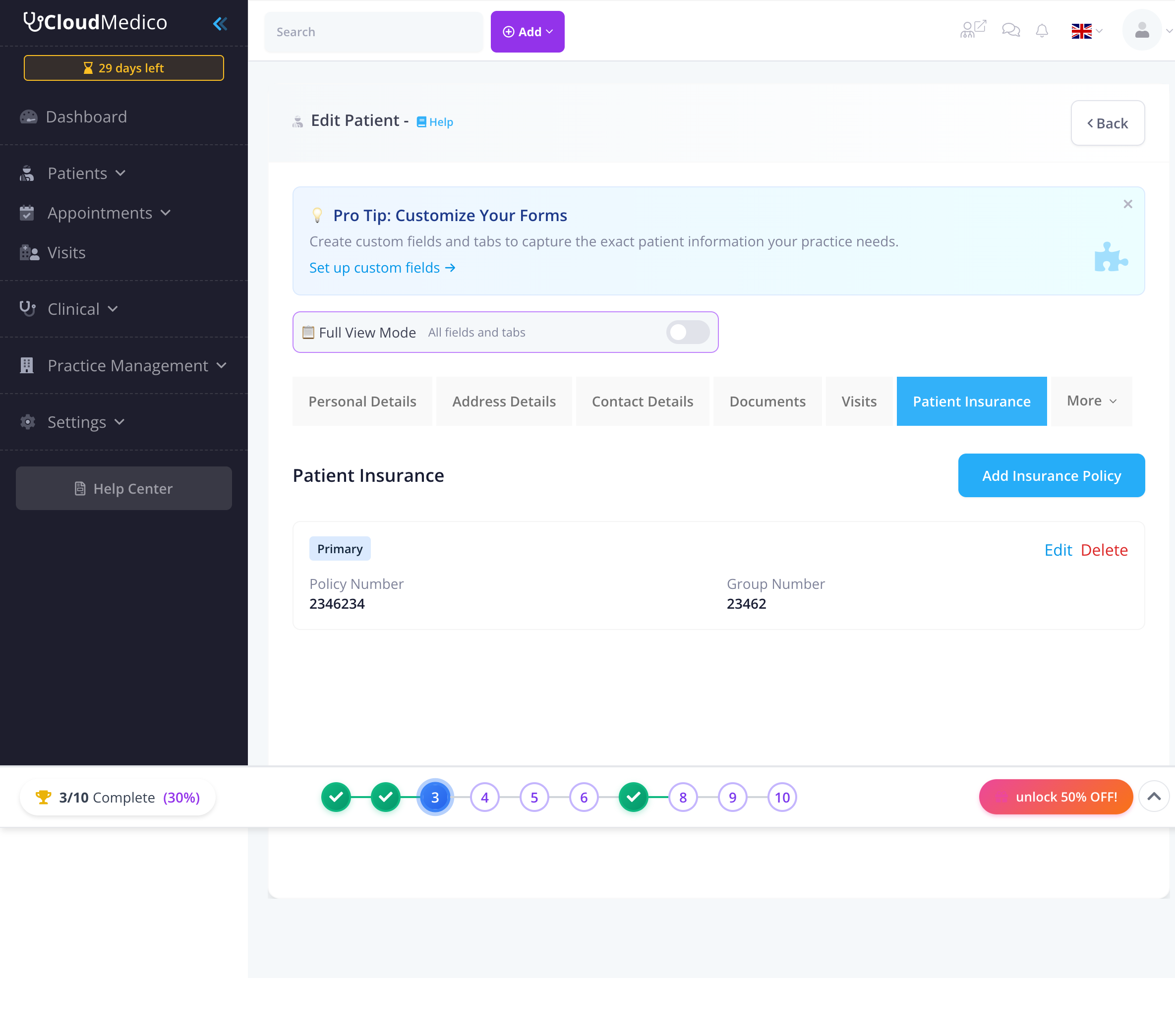
Patient insurance policies are managed from the patient edit page. Navigate to Patients → select a patient → Edit, then click on the 'Patient Insurance' tab.
Adding Patient Insurance Policies
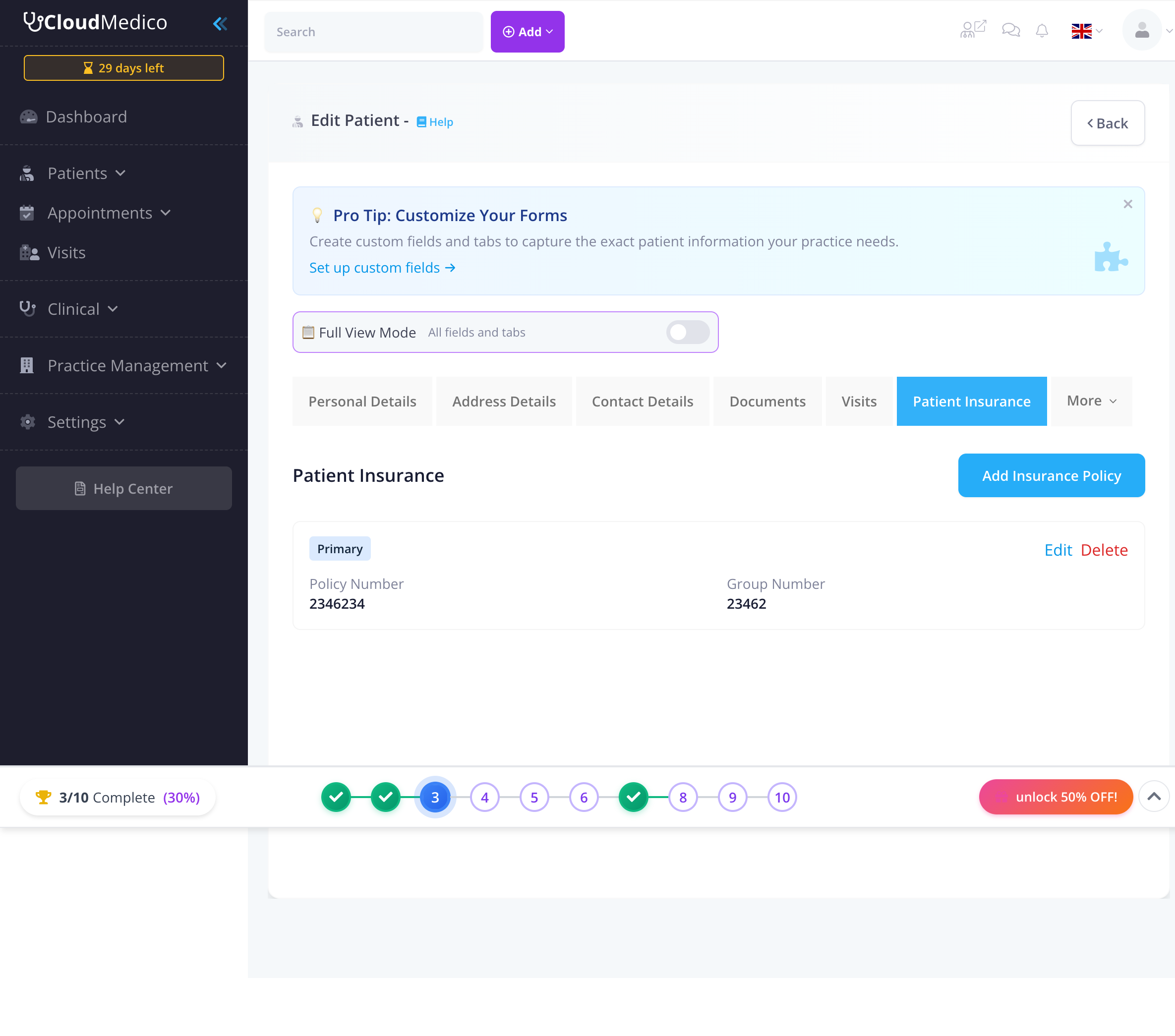
To add an insurance policy for a patient, click the 'Add Insurance Policy' button in the Patient Insurance tab. This will open a form where you can enter the policy details:
Required Fields
The following fields are required to create a patient insurance policy:
- Insurance Provider: Select from your list of insurance providers
- Policy Number: The patient's insurance policy number
Optional Fields
Additional fields provide comprehensive policy information:
- Group Number: Insurance group number if applicable
- Subscriber Name: Name of the policy subscriber (if different from patient)
- Subscriber Relationship: Relationship of subscriber to patient (Self, Spouse, Child, etc.)
- Effective Date: Date when the insurance policy becomes active
- Expiration Date: Date when the insurance policy expires
- Priority: Whether this is the patient's Primary or Secondary insurance
- Copay Amount: The copay amount for this insurance policy
- Notes: Additional notes about the insurance policy
Primary Insurance Management
CloudMedico ensures that each patient can only have one primary insurance policy. If you set a new policy as primary, any existing primary policy for that patient will automatically be changed to secondary.
Insurance Claims
Accessing Insurance Claims
To access the Insurance Claims section, navigate to Practice Management → Insurance Claims from the main menu. This section allows you to view, create, and manage all insurance claims.
Insurance Claims List View
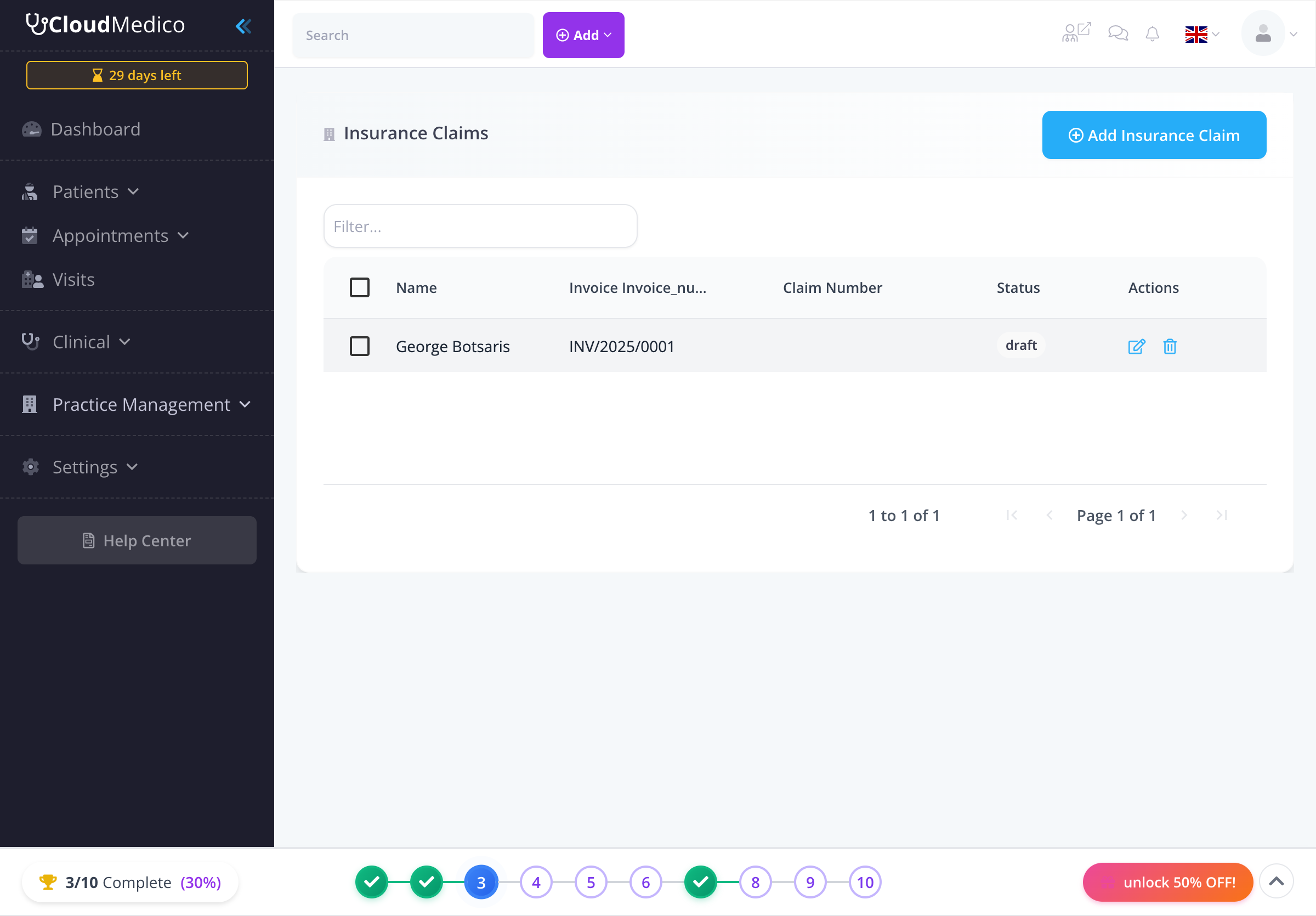
The Insurance Claims List page displays all insurance claims in your system. From here, you can view claim information, search for specific claims, and track claim status.
Creating Insurance Claims
Insurance claims can be created in two ways: from the Insurance Claims section or directly from an Invoice.
Method 1: Creating Claims from Insurance Claims Section
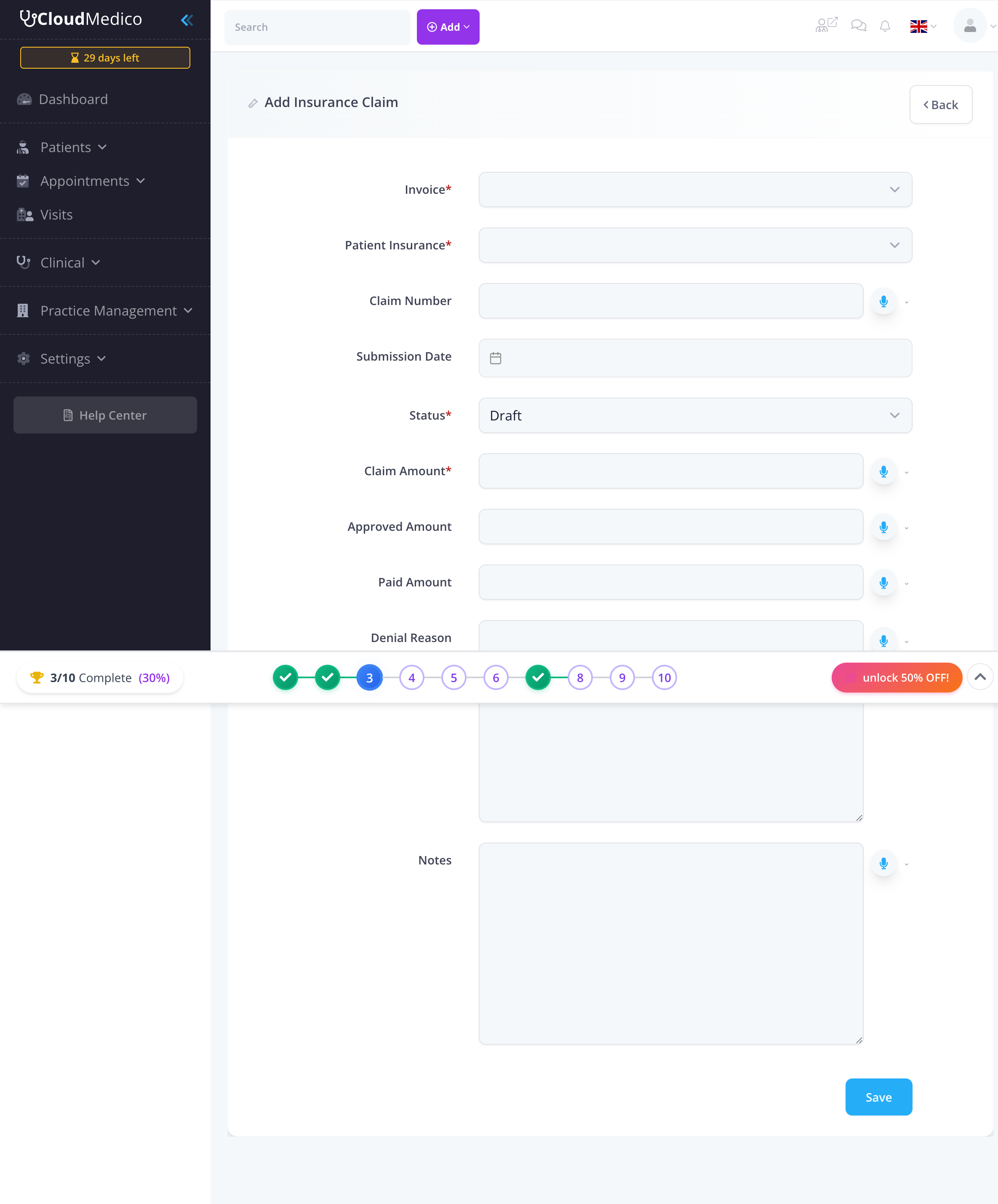
To create a claim from the Insurance Claims section, click on the 'Add Insurance Claim' button. You will be presented with a form to enter claim details:
Method 2: Creating Claims from Invoices
When editing an invoice, you can create an insurance claim directly from the invoice page. Navigate to Invoices → select an invoice → Edit, then scroll to the 'Insurance Claims' section. If no claim exists, you'll see a 'Create Insurance Claim' button:
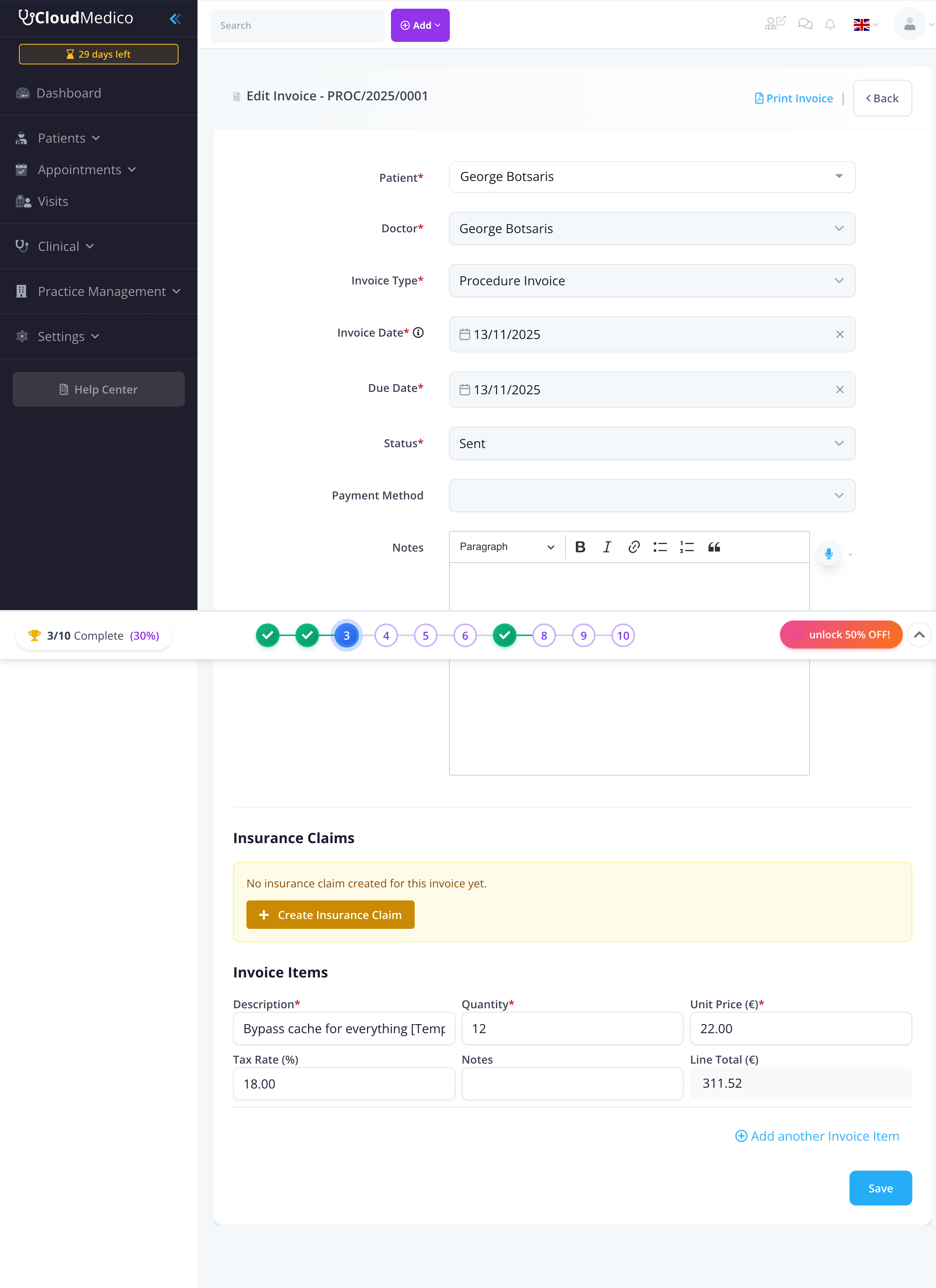
When creating a claim from an invoice, the system automatically pre-fills the invoice and claim amount. Additionally, when you select an invoice, the system dynamically loads the patient's insurance policies, making it easy to select the correct policy.
Required Fields
The following fields are required to create an insurance claim:
- Invoice: Select the invoice associated with this claim
- Patient Insurance: Select the patient's insurance policy to use for this claim
- Status: The current status of the claim (Draft, Submitted, Accepted, Rejected, Paid, Appealed)
- Claim Amount: The total amount being claimed
Optional Fields
Additional fields provide detailed claim tracking:
- Claim Number: Unique identifier for the claim
- Submission Date: Date when the claim was submitted to the insurance provider
- Approved Amount: Amount approved by the insurance provider
- Paid Amount: Amount actually paid by the insurance provider
- Denial Reason: Reason provided if the claim was rejected
- Notes: Additional notes about the claim
Viewing Claims in Invoices
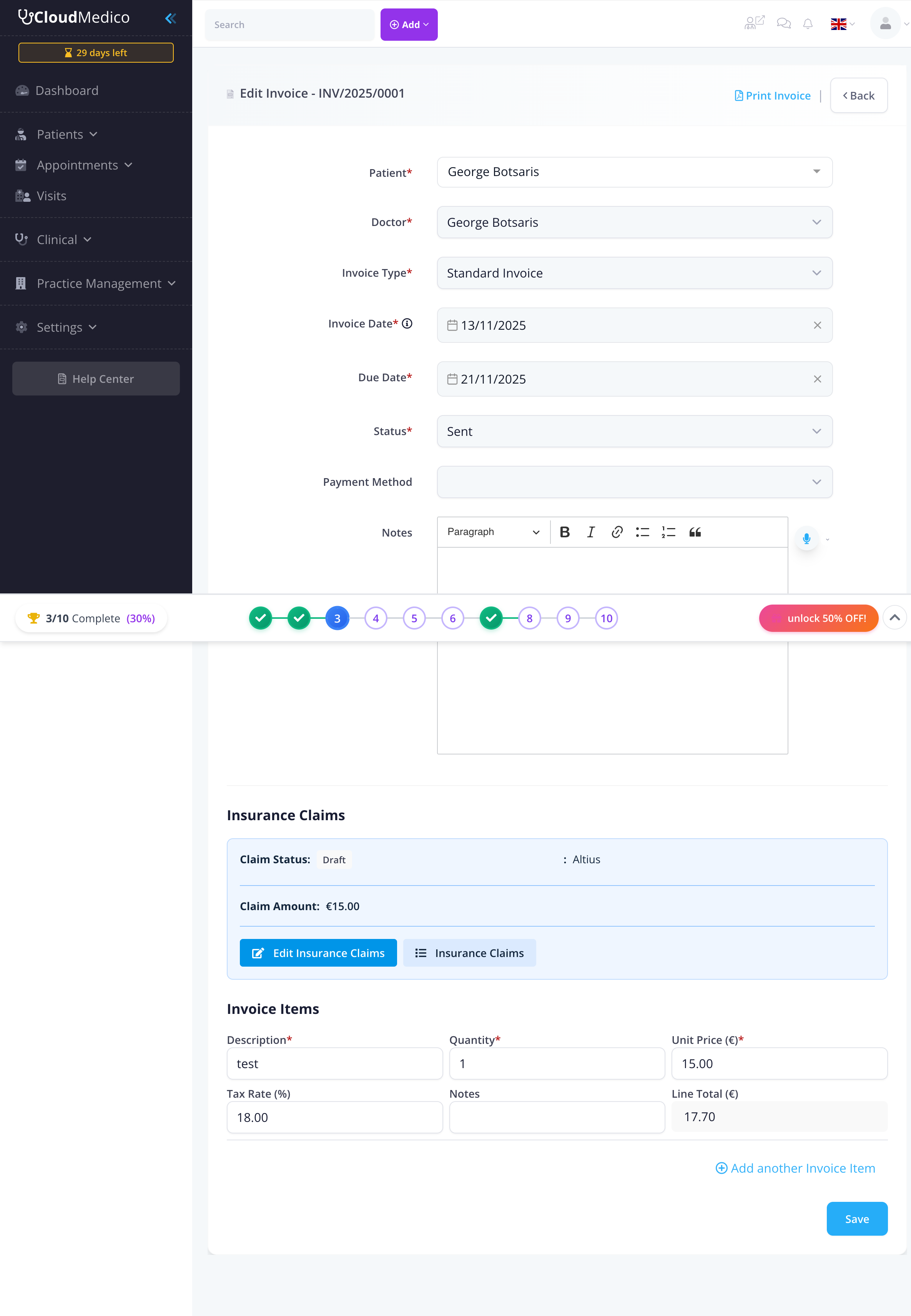
When an invoice has an associated insurance claim, the claim information is displayed in the 'Insurance Claims' section of the invoice edit page. You can see the claim status, insurance provider, claim amount, and links to edit the claim or view all claims:
Claim Status Management
Insurance claims can have the following statuses:
- Draft: Claim is being prepared and has not been submitted
- Submitted: Claim has been submitted to the insurance provider
- Accepted: Claim has been accepted by the insurance provider
- Rejected: Claim has been rejected by the insurance provider
- Paid: Claim has been paid by the insurance provider
- Appealed: Claim is being appealed after rejection
Search and Filtering
Efficiently locate specific insurance providers or claims using the built-in search and filtering capabilities:
- Search Filter: Use the search box to quickly find specific providers or claims by name, patient, invoice number, or claim number
- Column Sorting: Click on any column header to sort providers or claims in ascending or descending order
- Pagination: Navigate through large lists using the pagination controls
Tips for Effective Insurance Management
To make the most of your insurance management:
- Set up insurance providers before adding patient insurance policies
- Ensure patient insurance policies are up to date with correct effective and expiration dates
- Use the claims submission email field for providers to streamline claim submission
- Create claims directly from invoices for faster workflow
- Regularly update claim statuses to track the progress of submissions
- Use notes fields to document important information about providers, policies, and claims
- Review the Insurance Claims dashboard widget for quick overview of pending and overdue claims